Automation, Audit and Health
How the OpenTRMS Workbench automates routing, records what happened, and reports its own health.
Transcript1m 40s
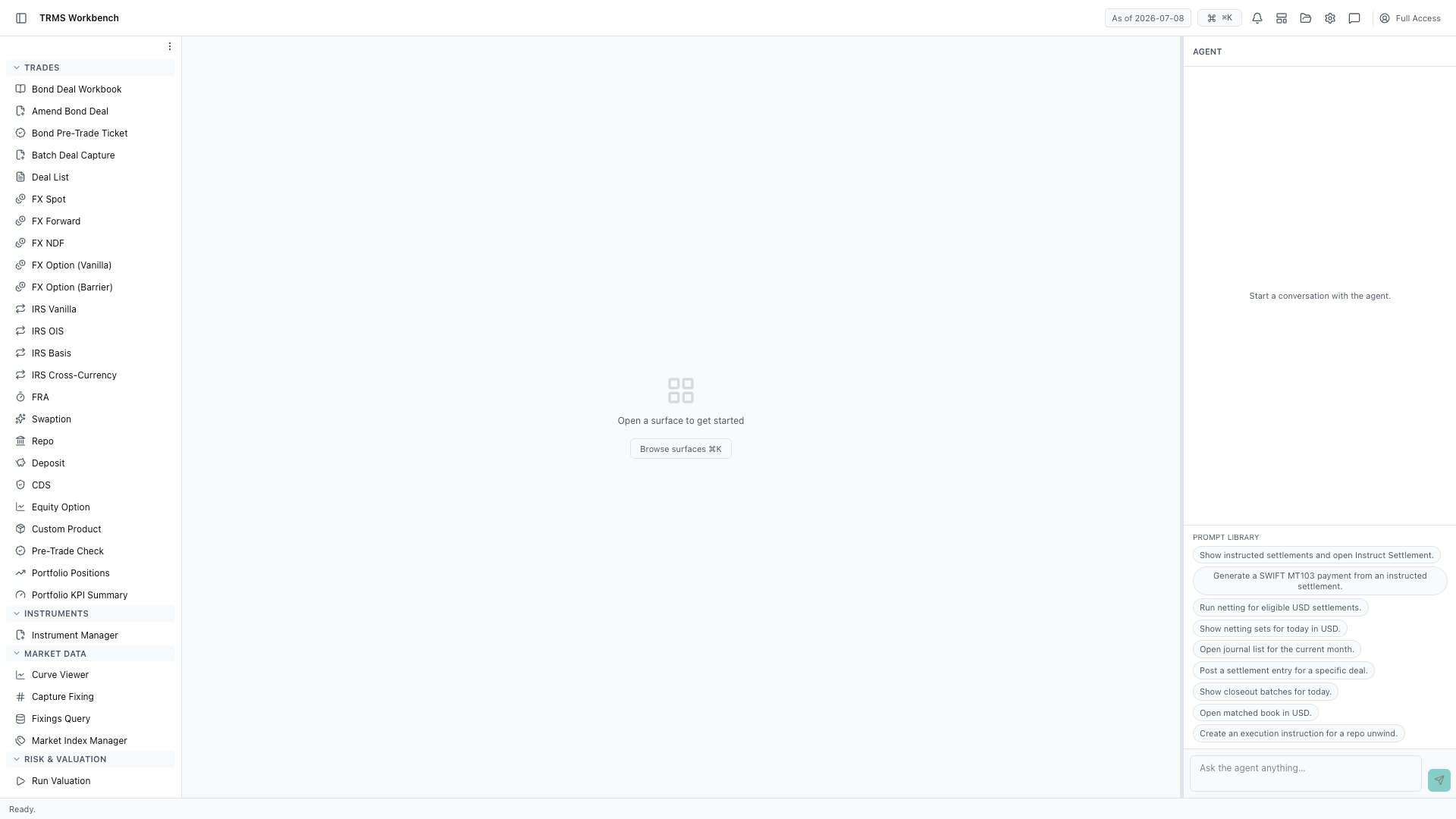
In this walkthrough we'll see how straight-through processing is configured, and how to check what happened, in the OpenTRMS Workbench.
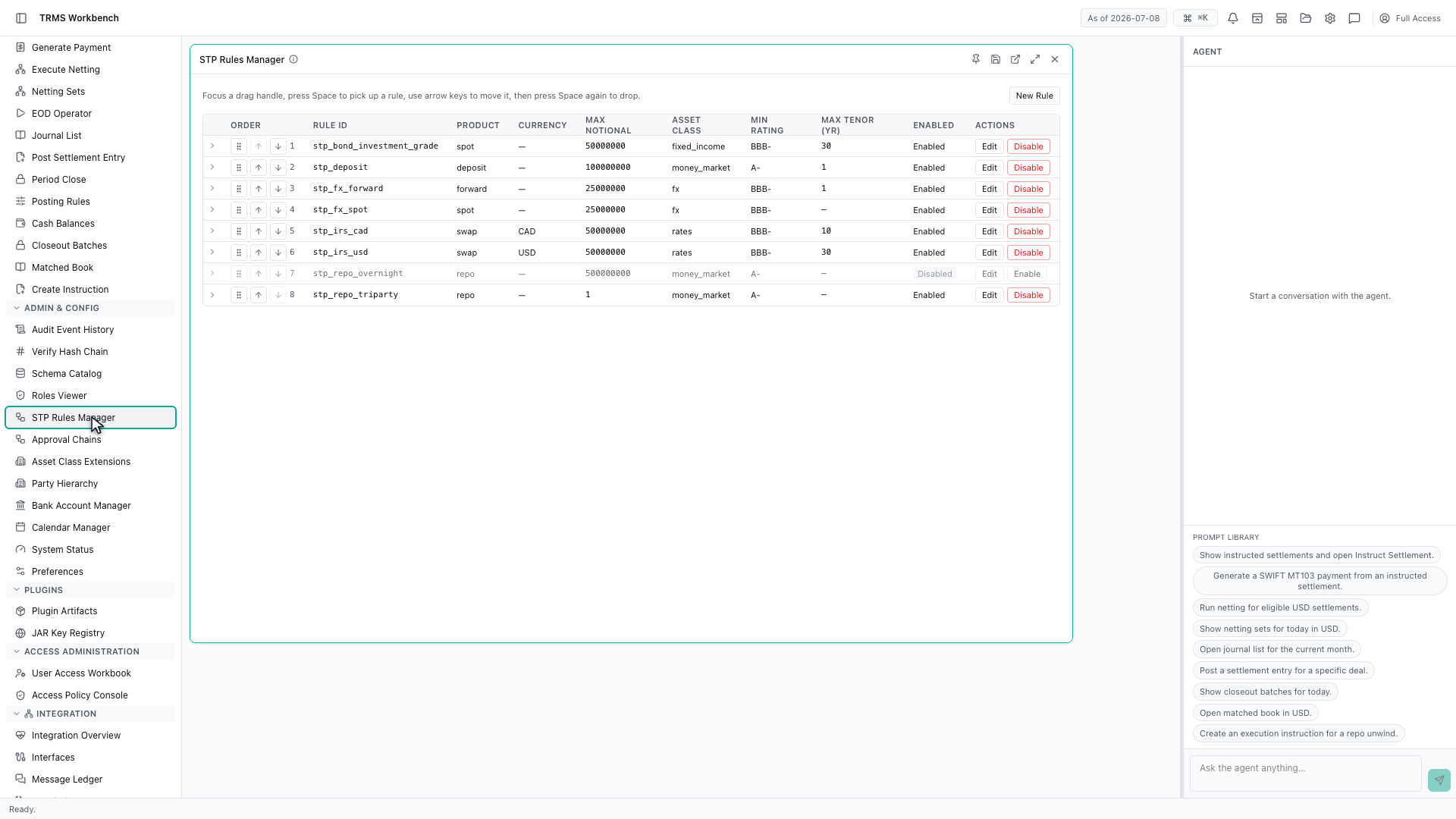
Straight-through processing is what lets a trade settle without anyone touching it. The STP Rules Manager decides which trades qualify.
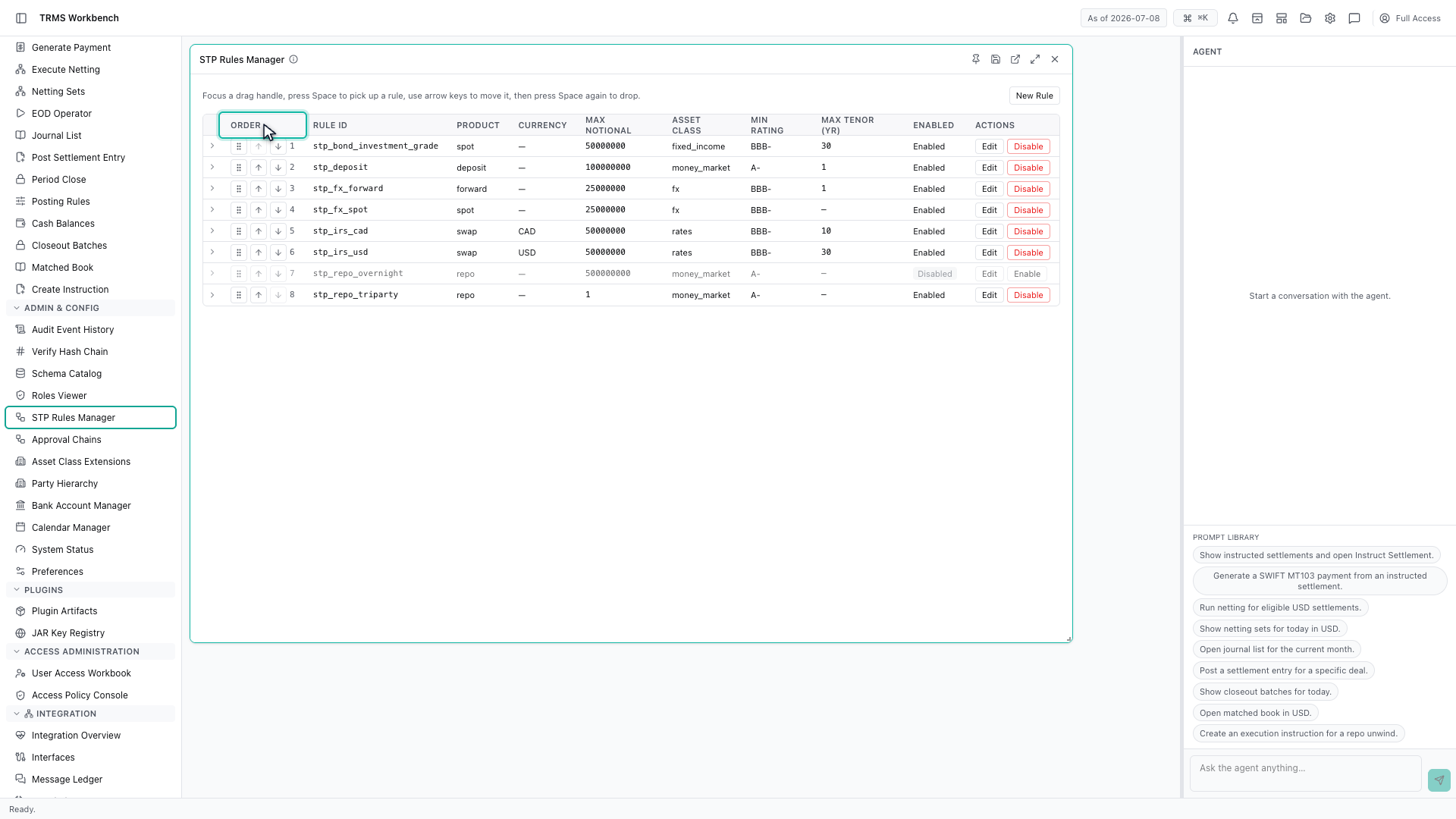
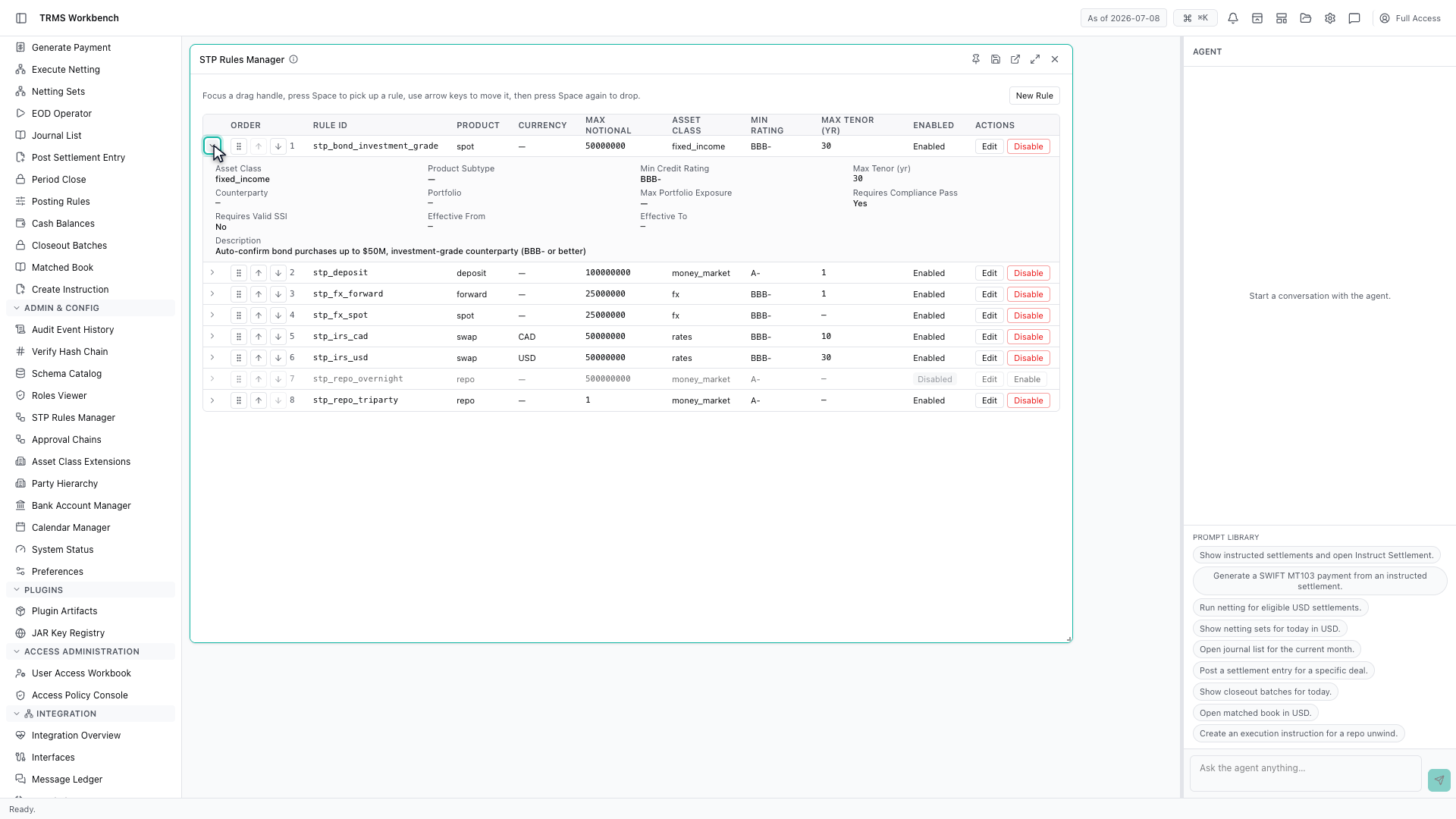
Rules are evaluated in order, and the order column is the whole point. The first rule that matches a trade decides its route, so what sits at the top matters more than what sits below.
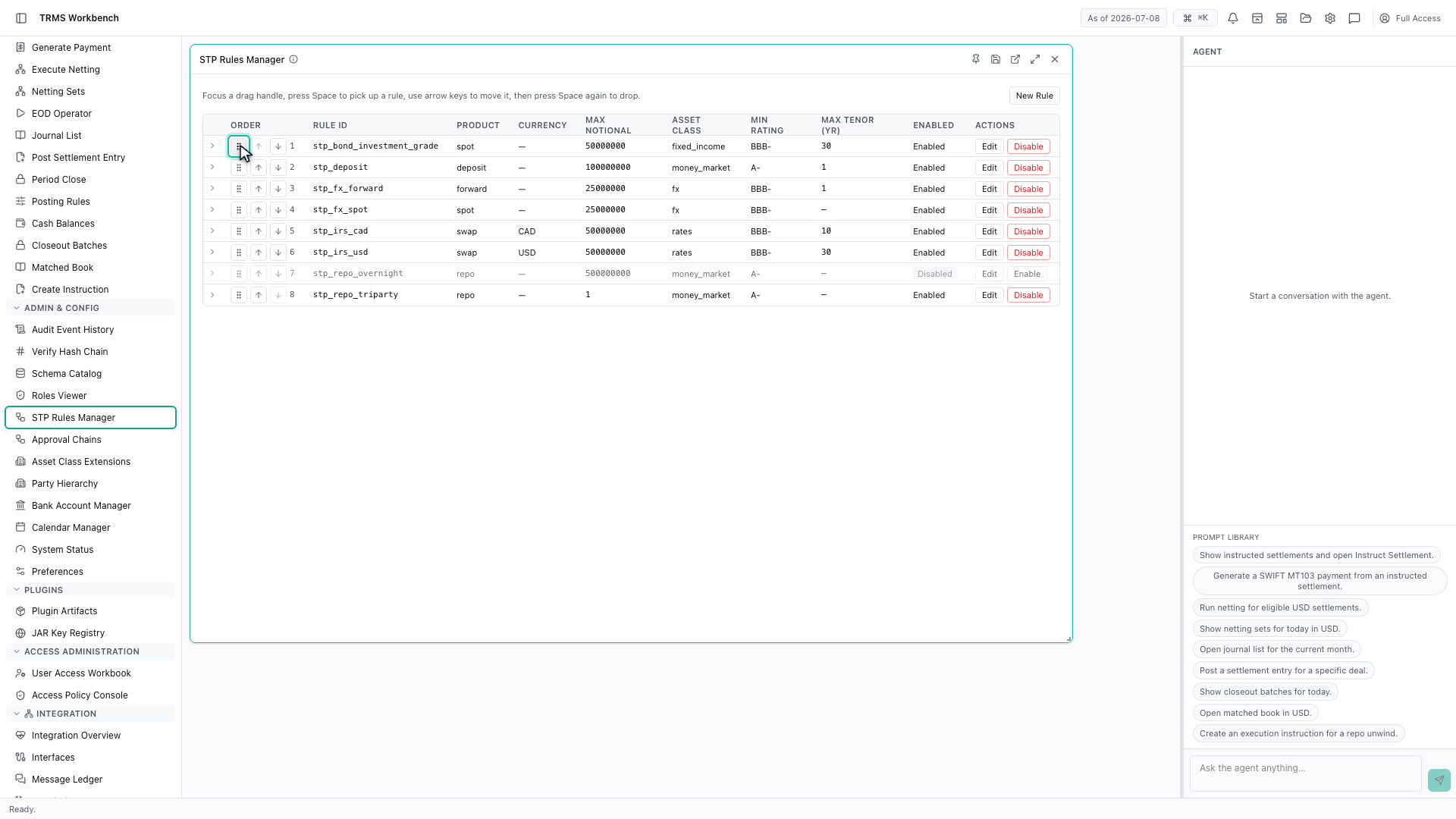
Rules are reordered by dragging the handle. There is a keyboard route as well — focus a handle, press Space to pick it up, then use the arrow keys — so this is usable without a mouse.
Expanding a rule shows the thresholds it applies — product, currency, maximum notional, minimum rating and maximum tenor. A trade must satisfy all of them to qualify.
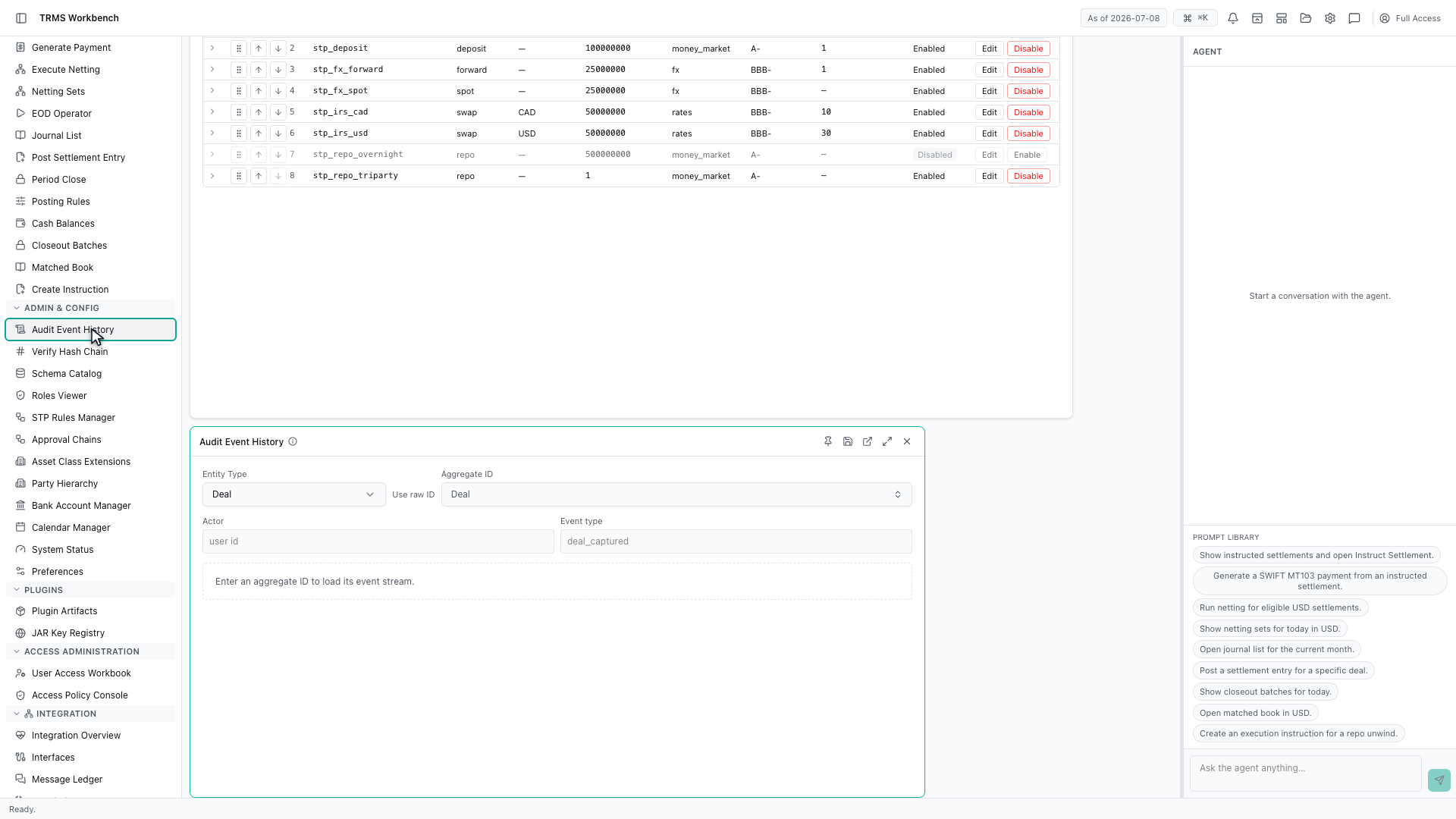
When you need to know what actually happened to something, Audit Event History has it. Choose a deal and it loads that deal's event stream.
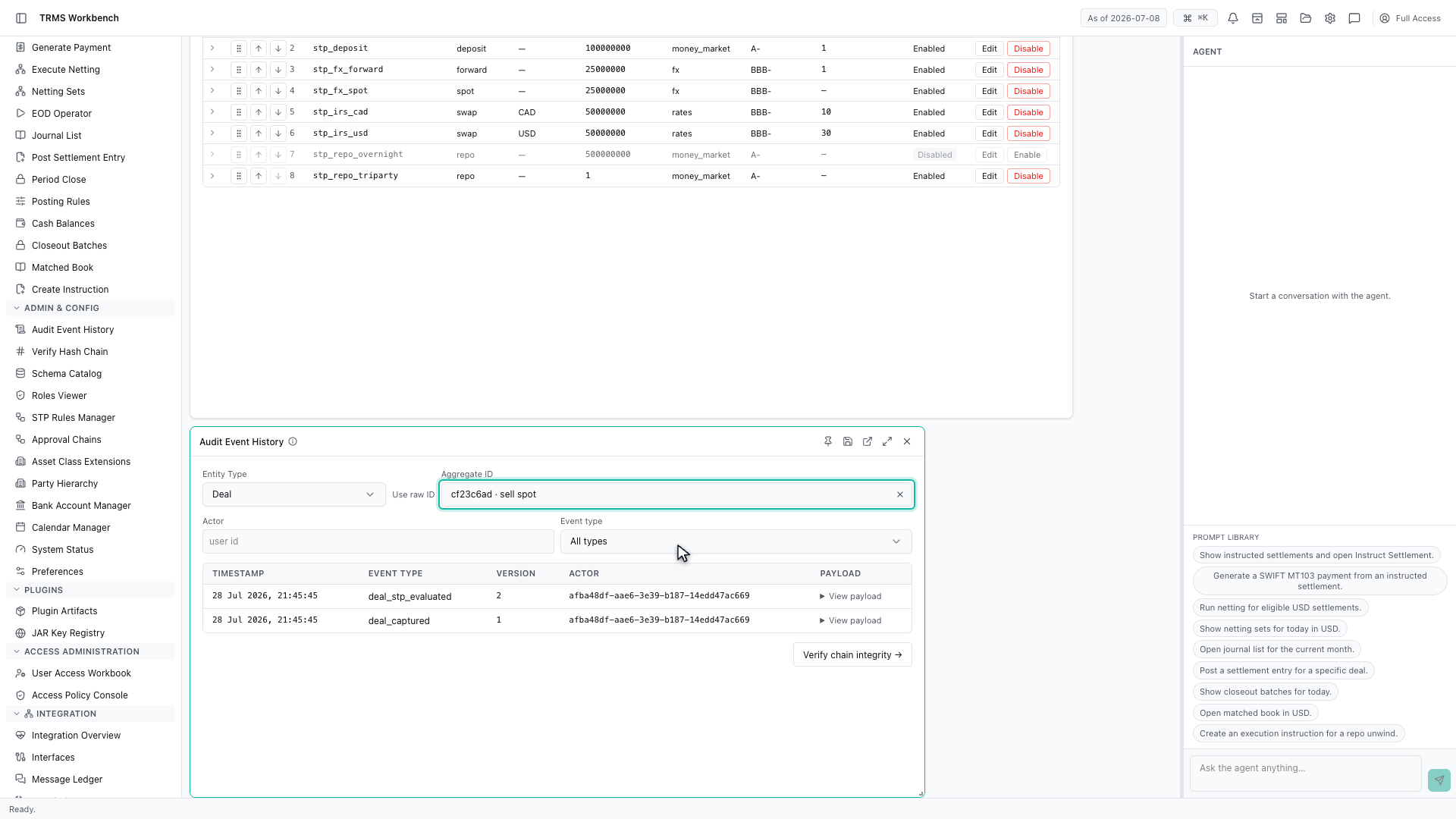
Every change is recorded in order, with a timestamp, the type of event, a version number, and who caused it. The record is append-only, so it shows what happened rather than what things look like now.
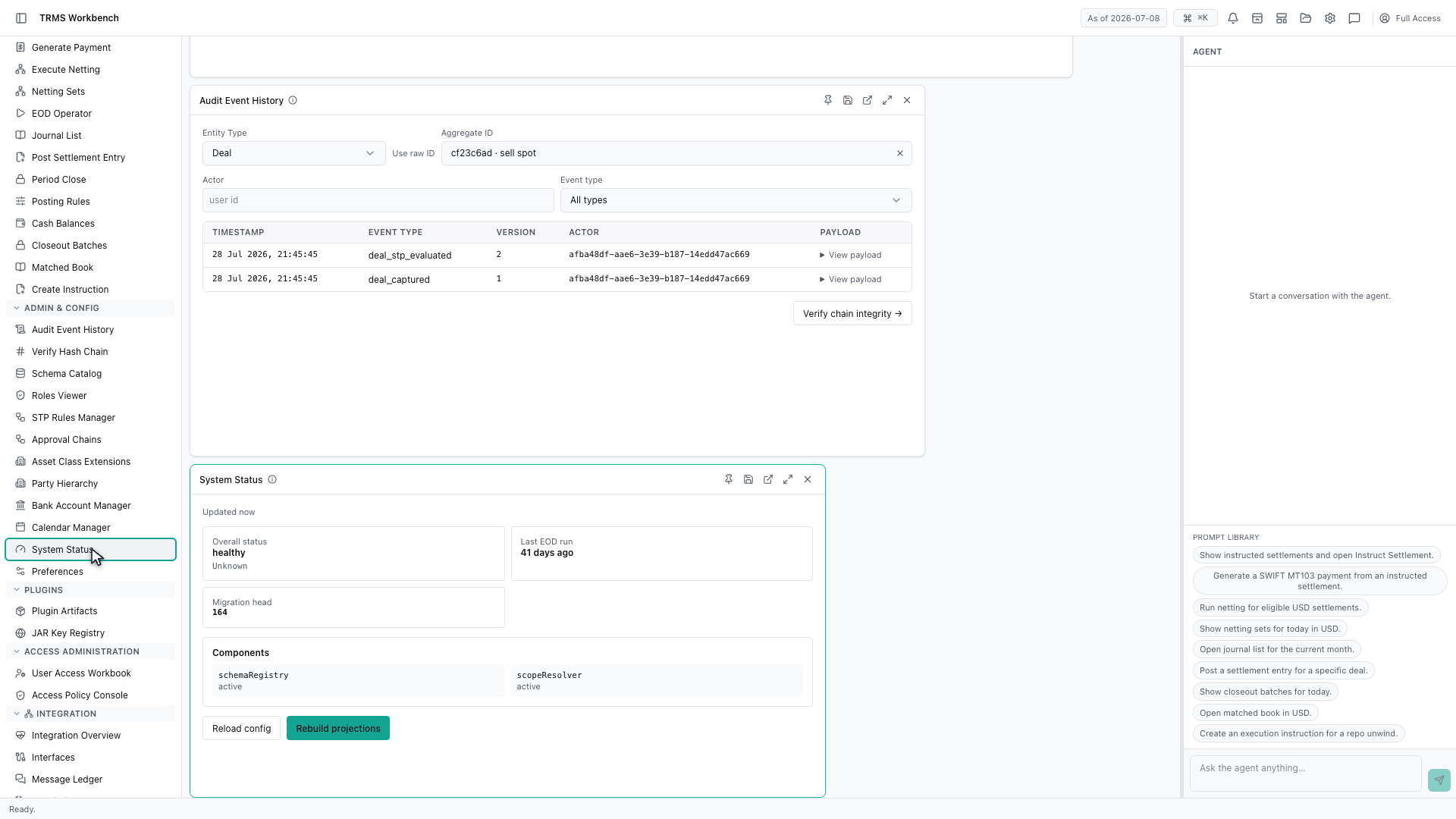
And System Status is the first place to look when the Workbench itself seems unwell. Overall health, when end of day last ran, and whether each component is active.
That completes Automation, Audit and Health. Every surface shown here can also be opened from the agent panel on the right, by asking for it in plain English.
1. Open the Workbench
In this walkthrough we'll see how straight-through processing is configured, and how to check what happened, in the OpenTRMS Workbench.
2. Open the STP Rules Manager
Straight-through processing is what lets a trade settle without anyone touching it. The STP Rules Manager decides which trades qualify.
3. Order decides precedence
Rules are evaluated in order, and the order column is the whole point. The first rule that matches a trade decides its route, so what sits at the top matters more than what sits below.
4. Reorder by dragging, or by keyboard
Rules are reordered by dragging the handle. There is a keyboard route as well — focus a handle, press Space to pick it up, then use the arrow keys — so this is usable without a mouse.
5. Read a rule's thresholds
Expanding a rule shows the thresholds it applies — product, currency, maximum notional, minimum rating and maximum tenor. A trade must satisfy all of them to qualify.
6. Open the Audit Event History
When you need to know what actually happened to something, Audit Event History has it. Choose a deal and it loads that deal's event stream.
7. Read a deal's event stream
Every change is recorded in order, with a timestamp, the type of event, a version number, and who caused it. The record is append-only, so it shows what happened rather than what things look like now.
8. Check system health
And System Status is the first place to look when the Workbench itself seems unwell. Overall health, when end of day last ran, and whether each component is active.
9. Next steps
That completes Automation, Audit and Health. Every surface shown here can also be opened from the agent panel on the right, by asking for it in plain English.