Managing Instruments
How instruments are registered in the OpenTRMS Workbench, independently of the trades that reference them.
Transcript1m 17s
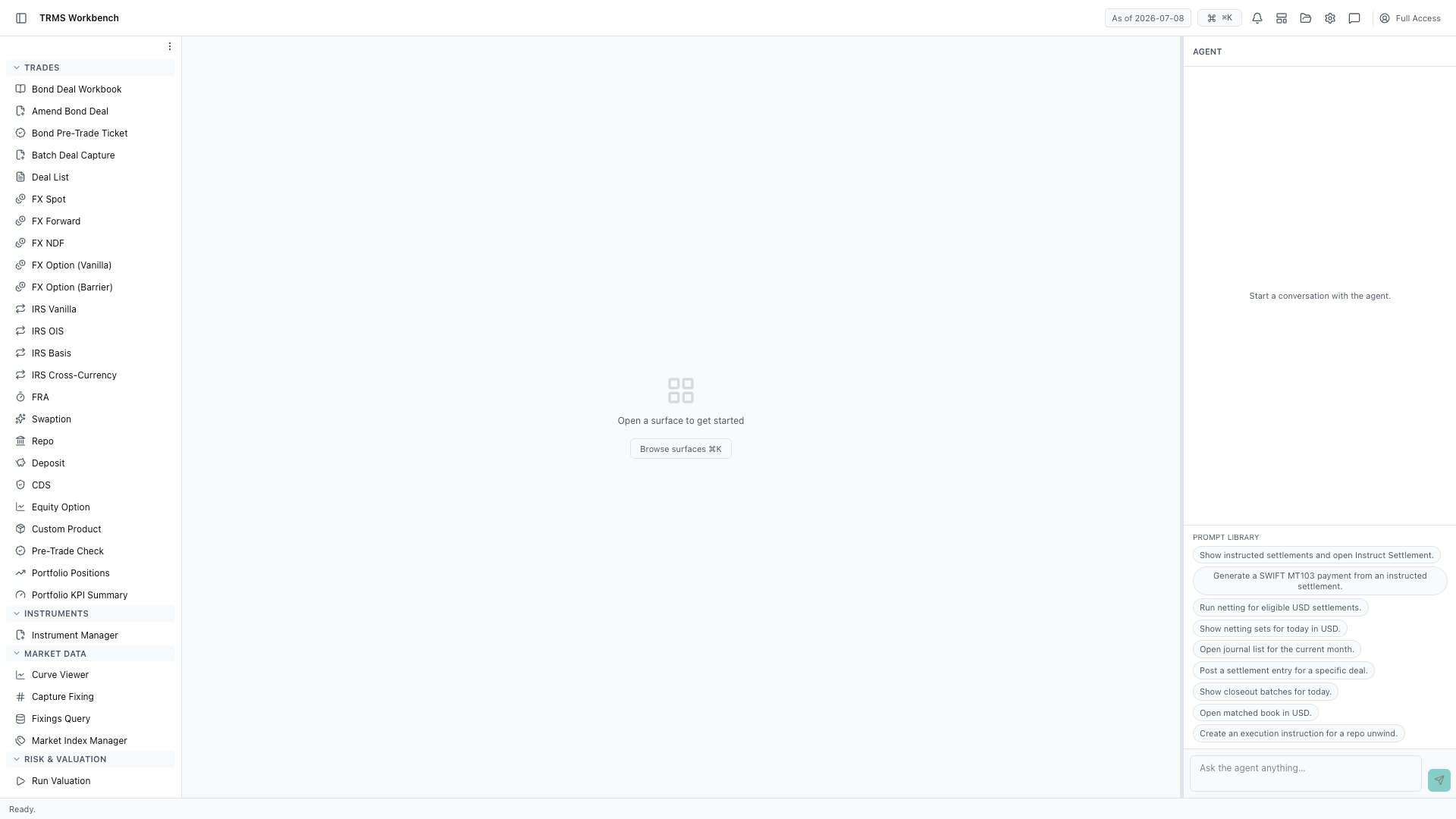
In this walkthrough we'll find and inspect the instruments that trades are booked against, in the OpenTRMS Workbench.
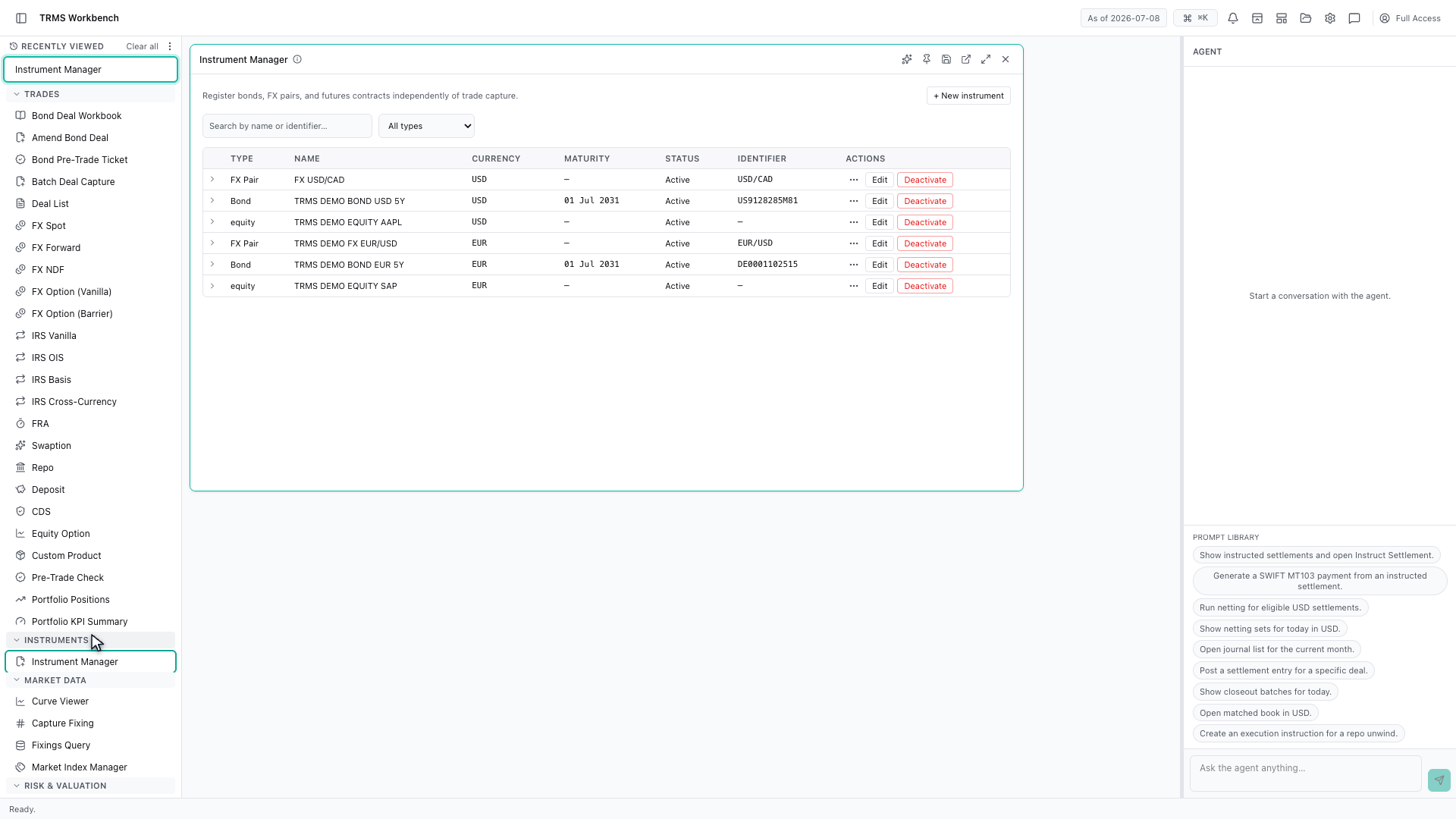
Instruments are registered separately from trades. The bond used in the earlier walkthrough existed here first, which is why it could be found by its ISIN during deal capture.
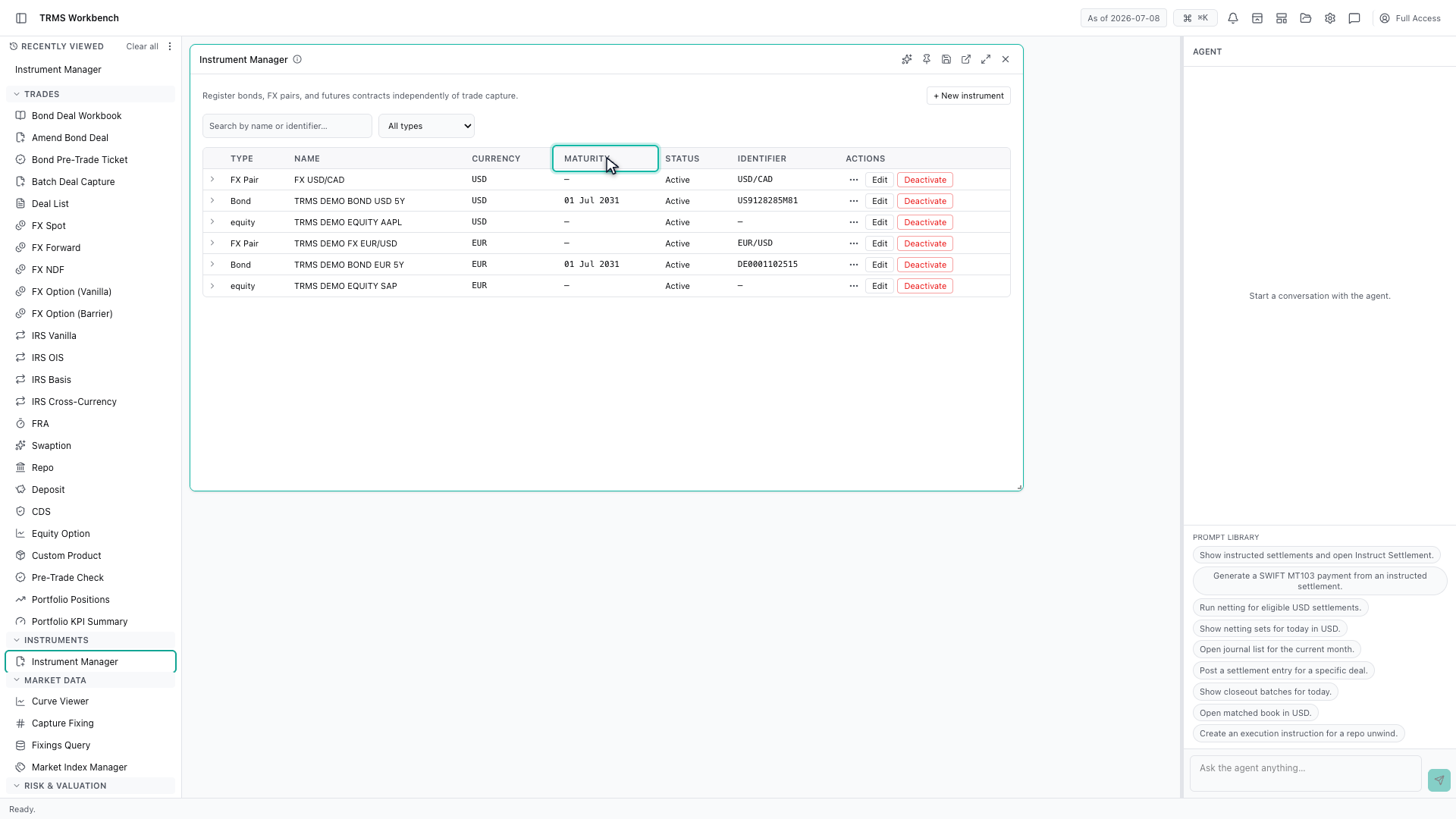
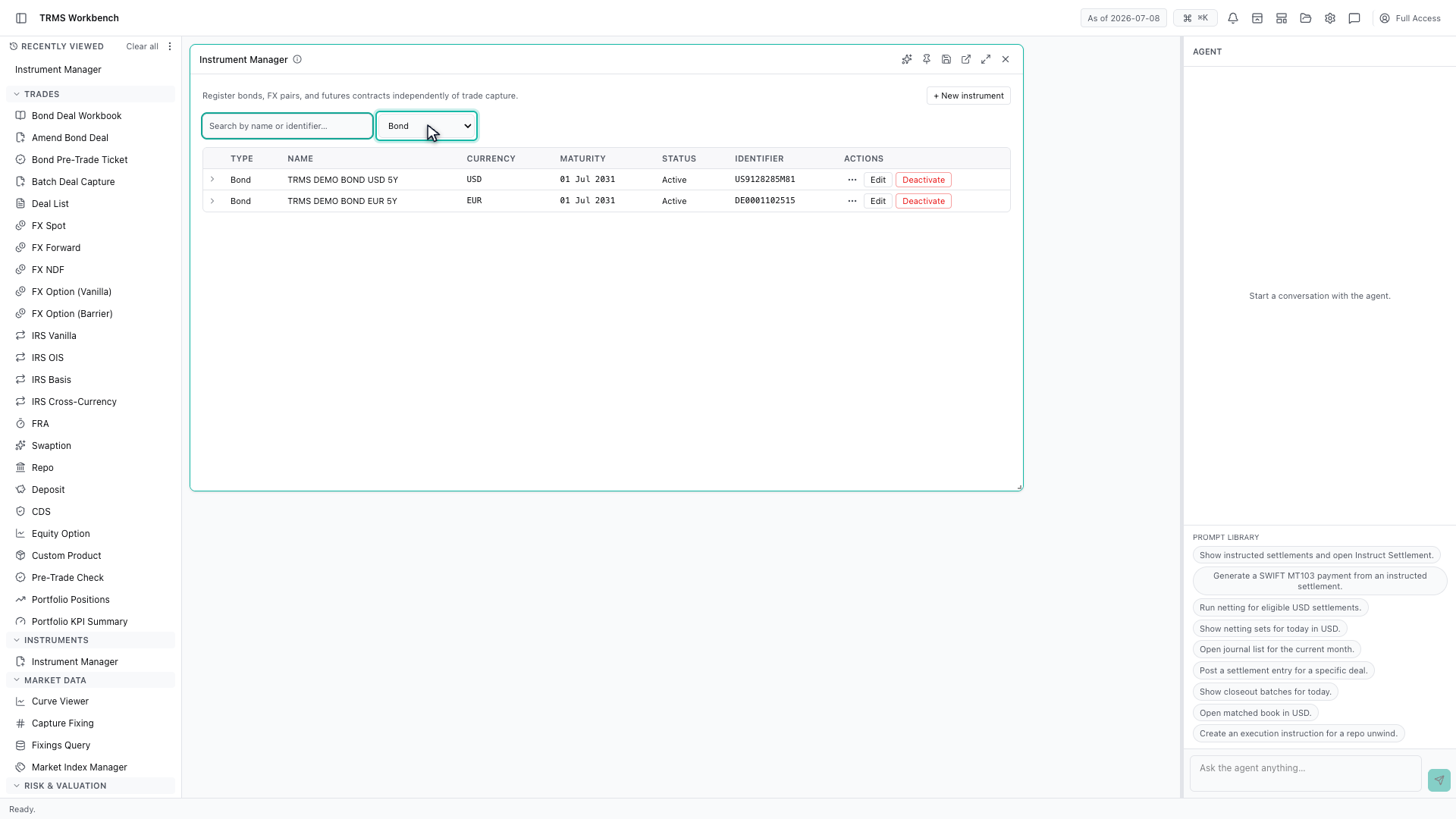
The register lists what the system can trade — type, name, currency, maturity and status, with the identifier alongside.
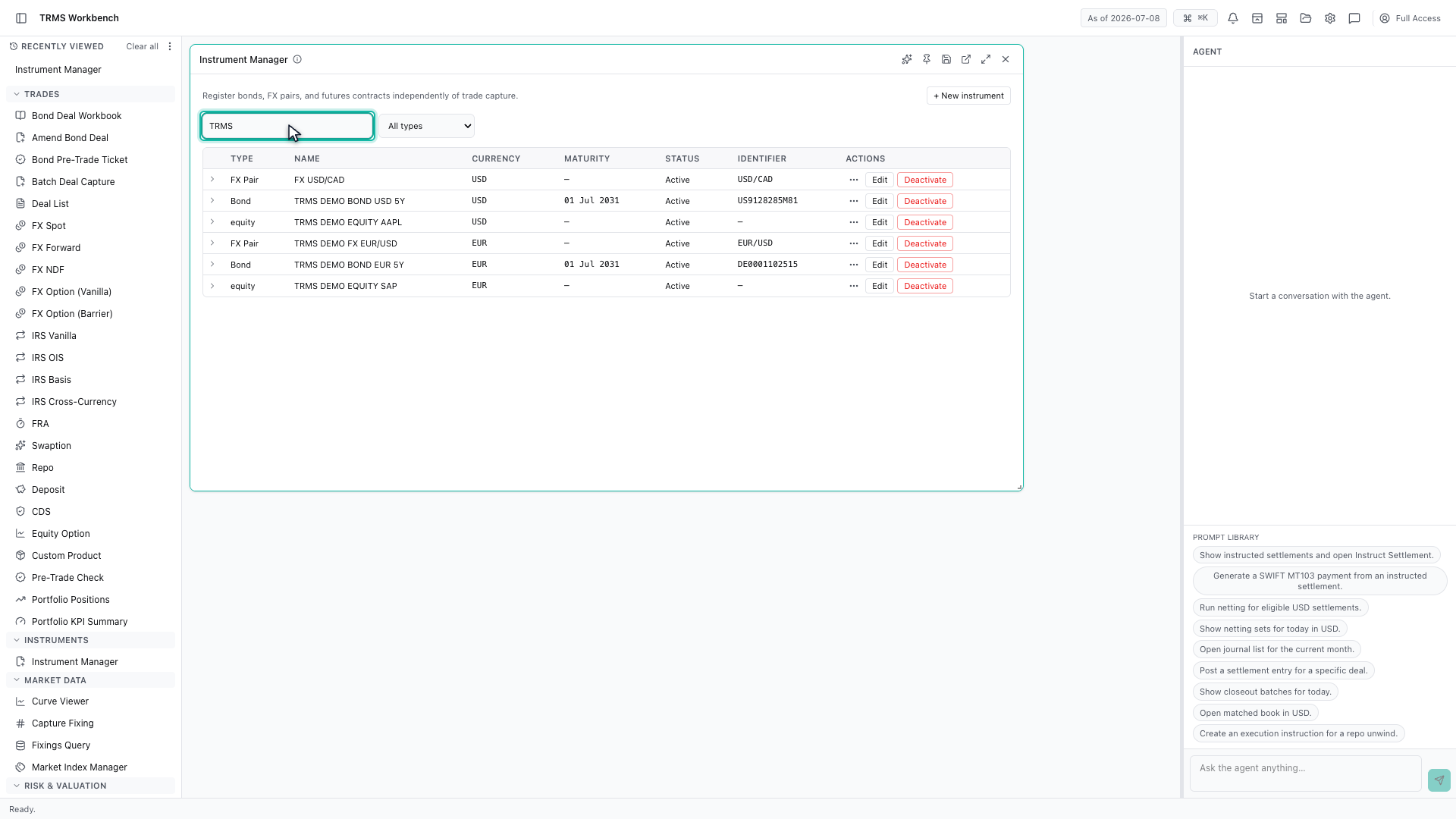
Search finds an instrument by name or identifier, which is the quickest route when you already know what you are looking for.
The type filter narrows it a different way, to bonds or futures contracts, when you are browsing rather than searching.
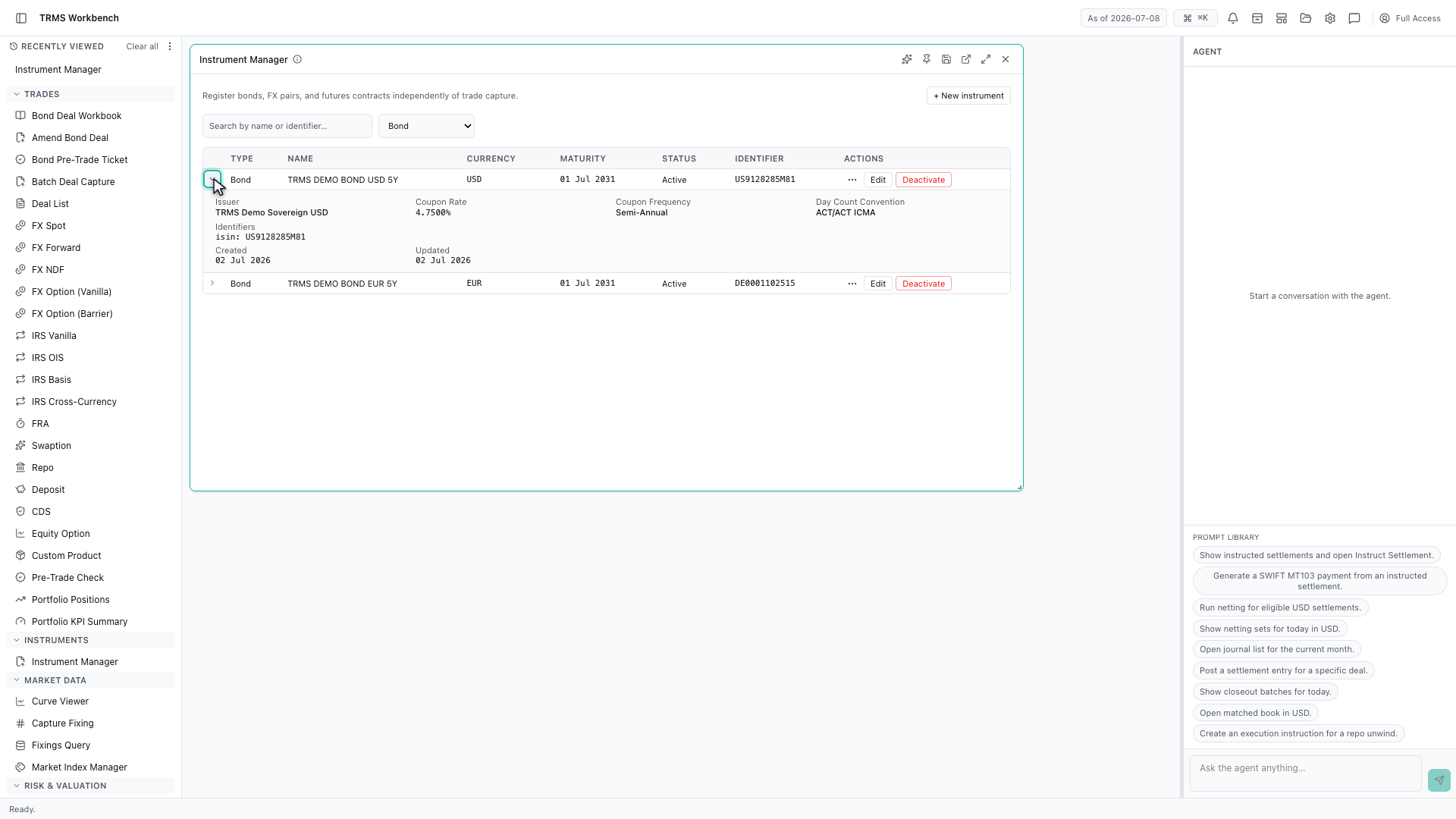
Expanding a row shows the full definition — the terms that make the instrument what it is, and which valuations depend on.
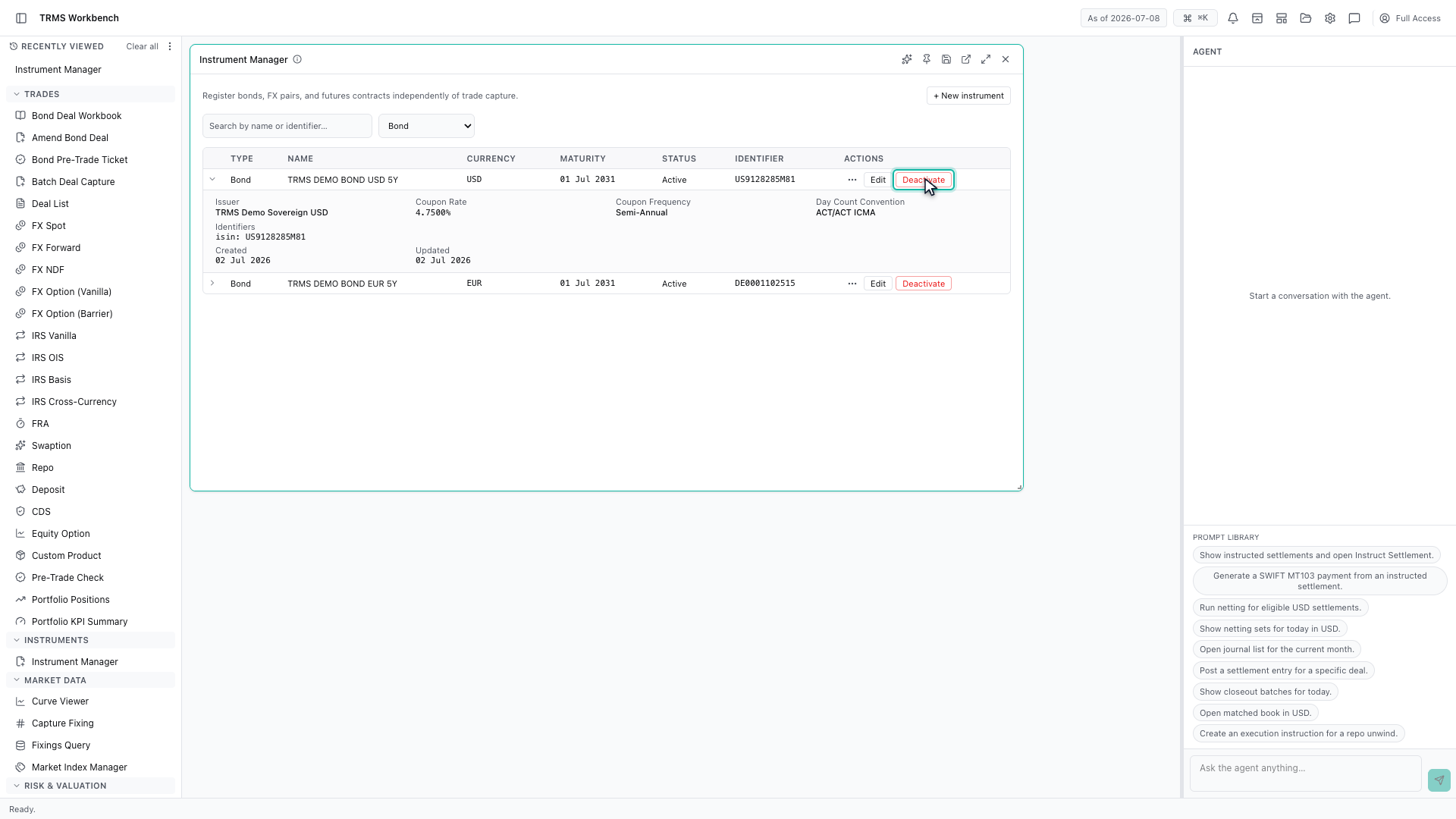
Deactivate rather than delete is the pattern here. An instrument that trades already point at cannot be removed outright, so it is retired instead and stops appearing in pickers.
That completes Managing Instruments. Every surface shown here can also be opened from the agent panel on the right, by asking for it in plain English.
1. Open the Workbench
In this walkthrough we'll find and inspect the instruments that trades are booked against, in the OpenTRMS Workbench.
2. Open the Instrument Manager
Instruments are registered separately from trades. The bond used in the earlier walkthrough existed here first, which is why it could be found by its ISIN during deal capture.
3. What the register holds
The register lists what the system can trade — type, name, currency, maturity and status, with the identifier alongside.
4. Search the register
Search finds an instrument by name or identifier, which is the quickest route when you already know what you are looking for.
5. Filter by instrument type
The type filter narrows it a different way, to bonds or futures contracts, when you are browsing rather than searching.
6. Expand an instrument
Expanding a row shows the full definition — the terms that make the instrument what it is, and which valuations depend on.
7. Retire rather than delete
Deactivate rather than delete is the pattern here. An instrument that trades already point at cannot be removed outright, so it is retired instead and stops appearing in pickers.
8. Next steps
That completes Managing Instruments. Every surface shown here can also be opened from the agent panel on the right, by asking for it in plain English.