Closing an Accounting Period
How to close an accounting period in the OpenTRMS Workbench, and the guard rails around a destructive action.
Transcript1m 13s
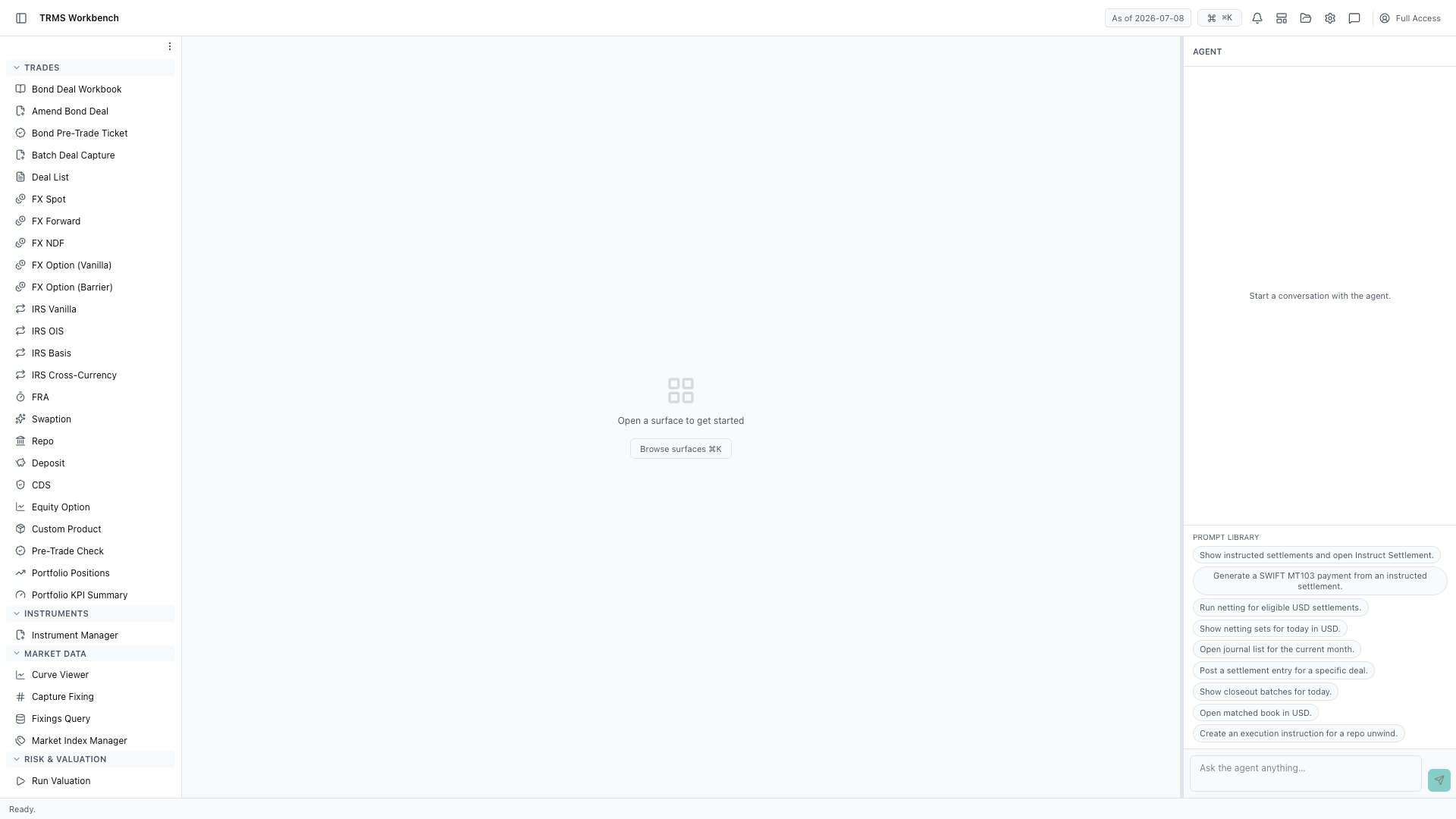
In this walkthrough we'll understand what closing an accounting period does before you do it, in the OpenTRMS Workbench.
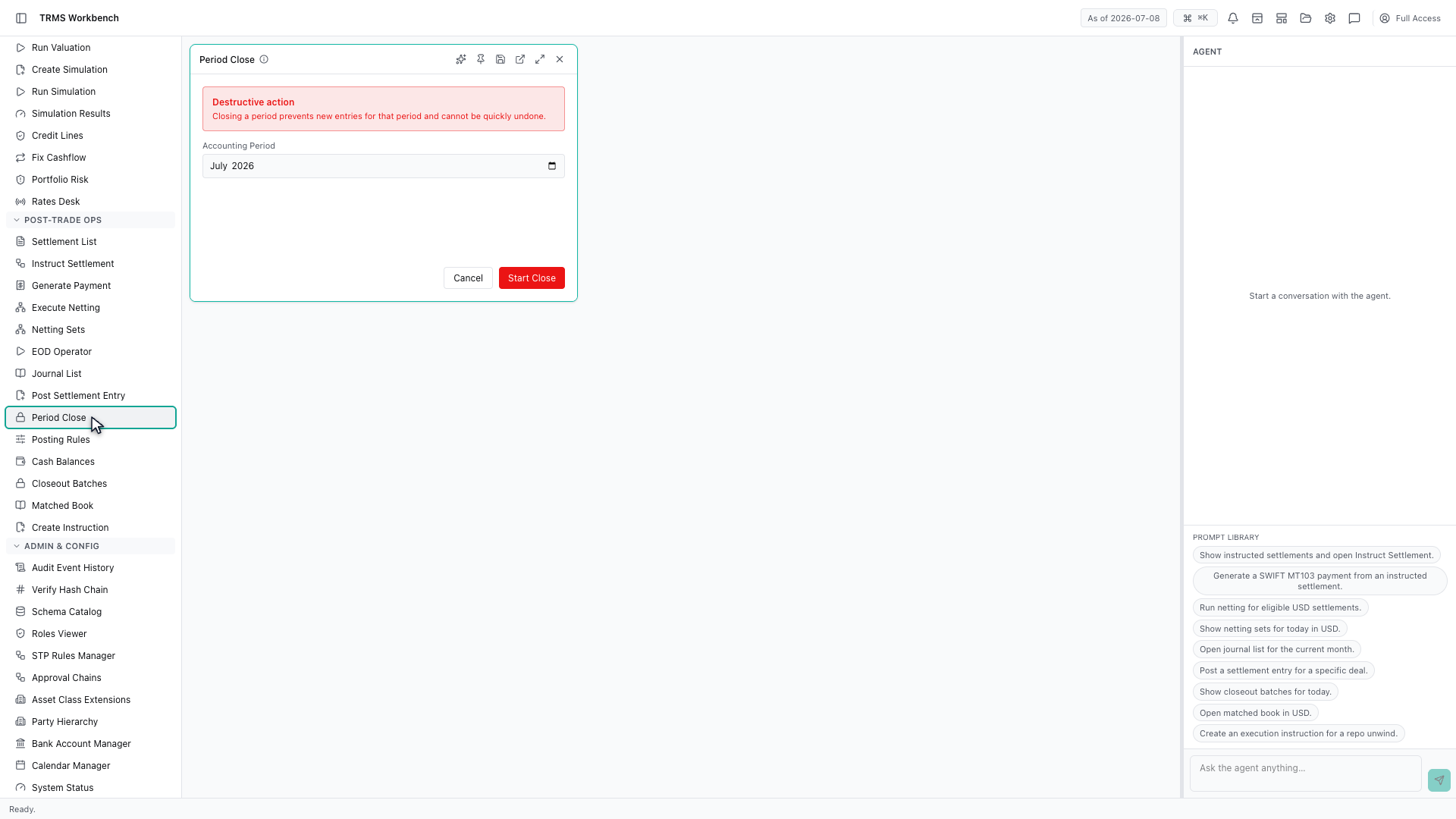
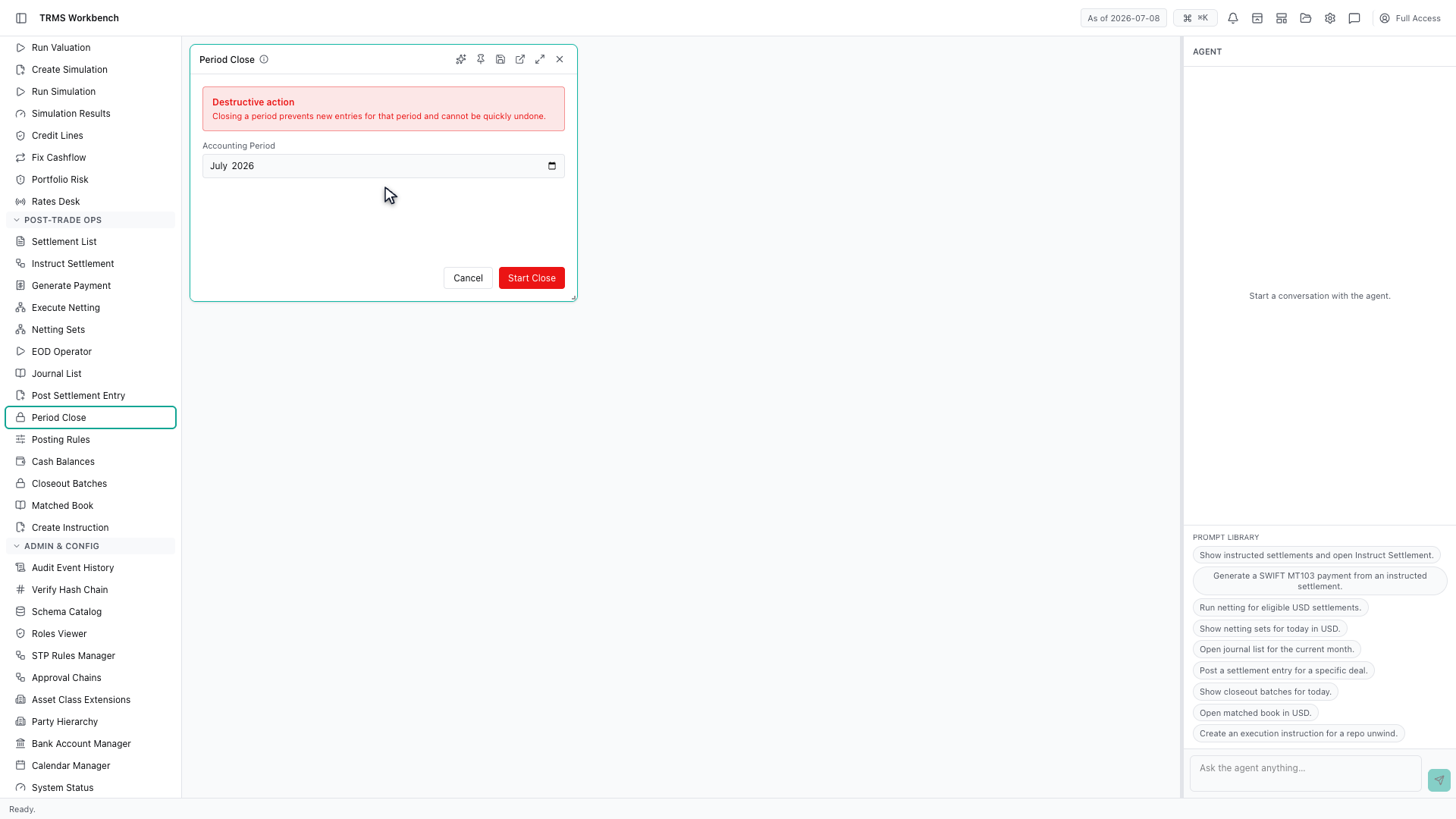
Closing an accounting period draws a line under it. Once closed, no further entries can be booked into that period, which is what makes the reported numbers final.
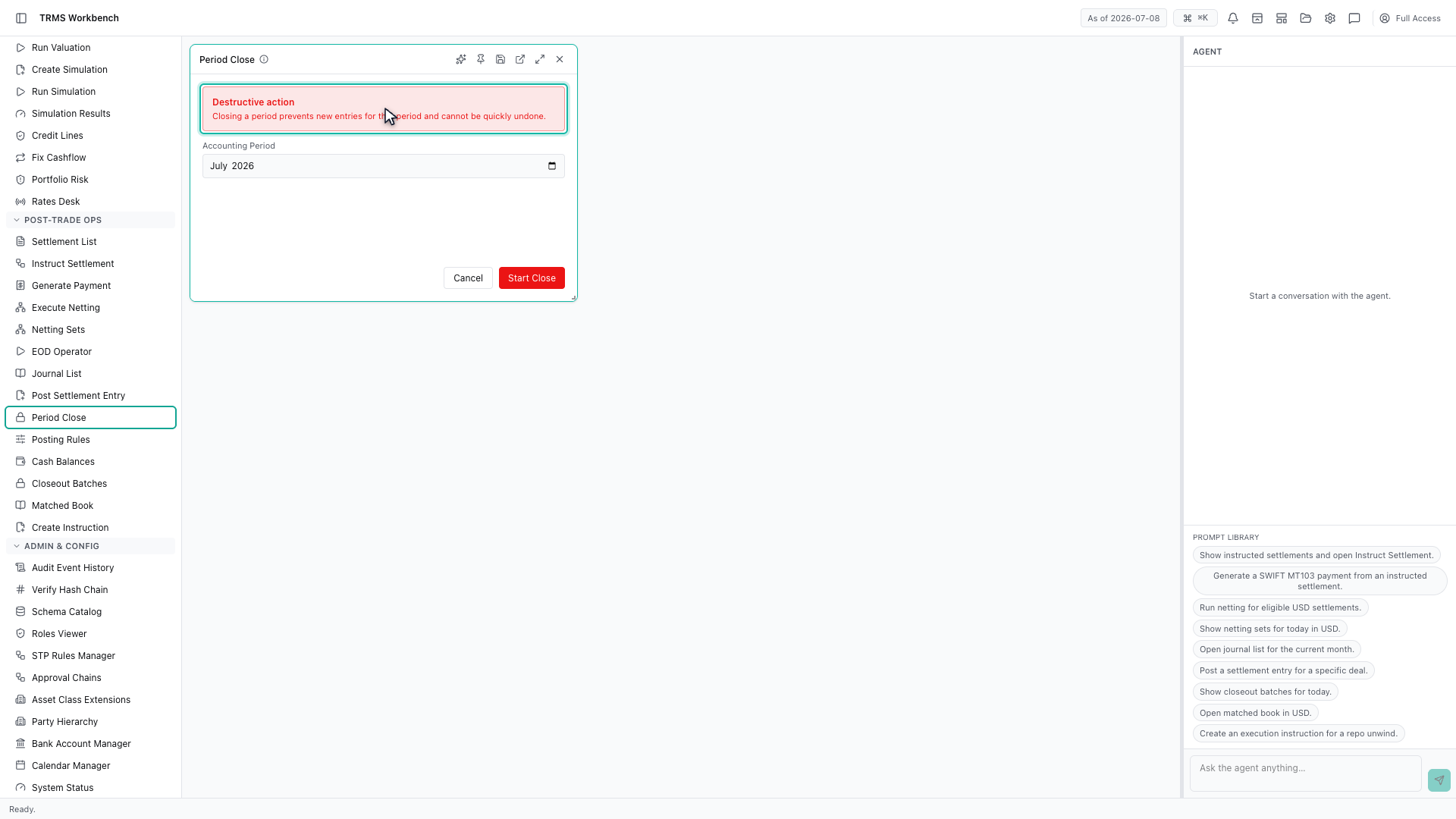
The Workbench marks this as a destructive action, and says plainly that it cannot be quickly undone. That warning is the pattern for anything consequential — if you see it, read it.
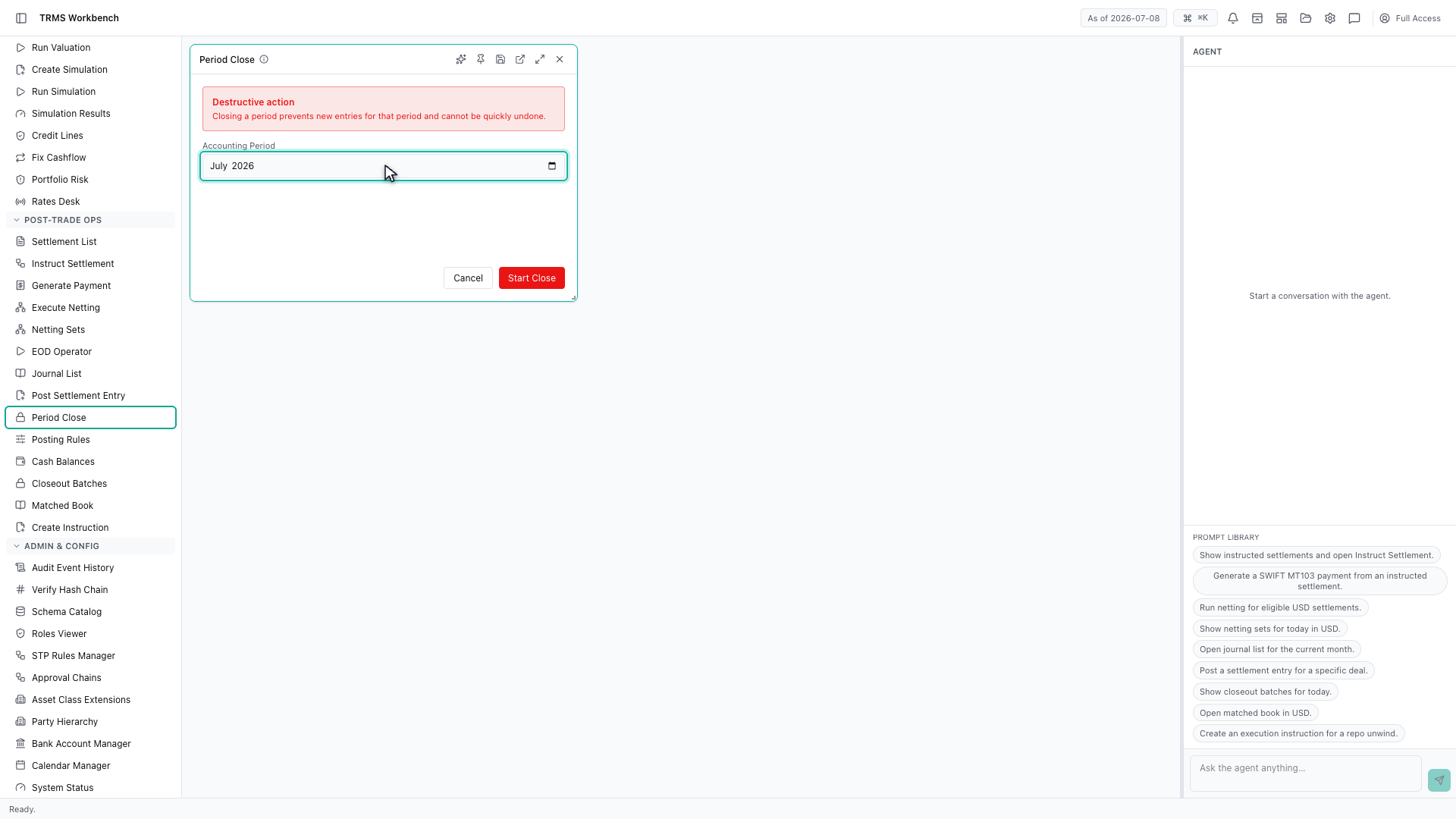
The only input is the period itself. There is deliberately nothing else to configure, because a close either happens or it does not.
Before closing, the work is done elsewhere. Draft journal entries need posting, and anything still pending approval needs resolving, because neither can be added afterwards.
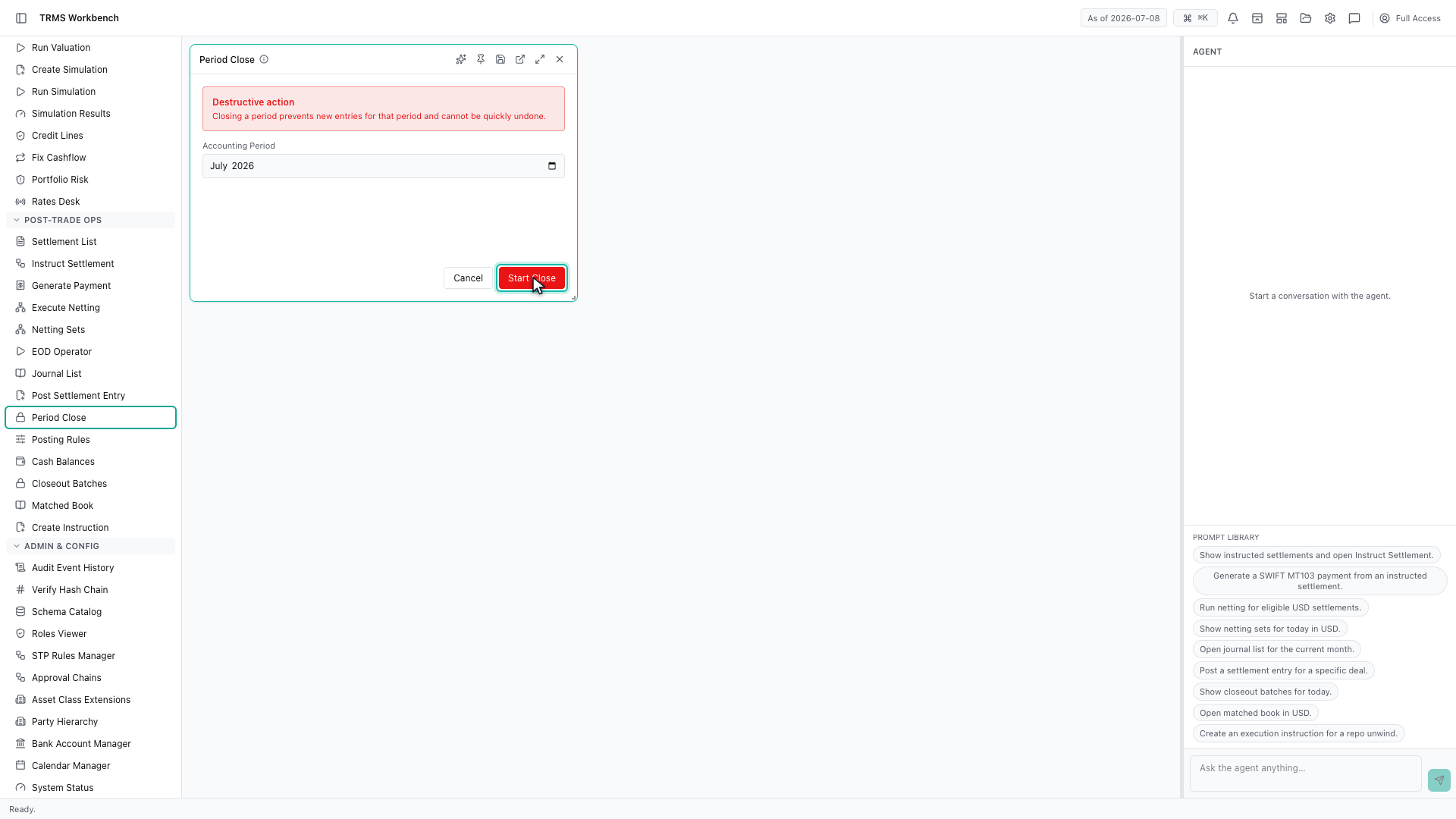
Start Close commits it. In a shared environment this affects everyone, so it is worth being certain the period is genuinely complete.
That completes Closing an Accounting Period. Every surface shown here can also be opened from the agent panel on the right, by asking for it in plain English.
1. Open the Workbench
In this walkthrough we'll understand what closing an accounting period does before you do it, in the OpenTRMS Workbench.
2. Open Period Close
Closing an accounting period draws a line under it. Once closed, no further entries can be booked into that period, which is what makes the reported numbers final.
3. Read the warning
The Workbench marks this as a destructive action, and says plainly that it cannot be quickly undone. That warning is the pattern for anything consequential — if you see it, read it.
4. Choose the period
The only input is the period itself. There is deliberately nothing else to configure, because a close either happens or it does not.
5. Finish the checks first
Before closing, the work is done elsewhere. Draft journal entries need posting, and anything still pending approval needs resolving, because neither can be added afterwards.
6. Start the close
Start Close commits it. In a shared environment this affects everyone, so it is worth being certain the period is genuinely complete.
7. Next steps
That completes Closing an Accounting Period. Every surface shown here can also be opened from the agent panel on the right, by asking for it in plain English.