Settlements and What Is Due
How to read the settlement queue in the OpenTRMS Workbench — what is due to pay and receive, filtering by status, and selecting items to instruct.
Transcript1m 32s
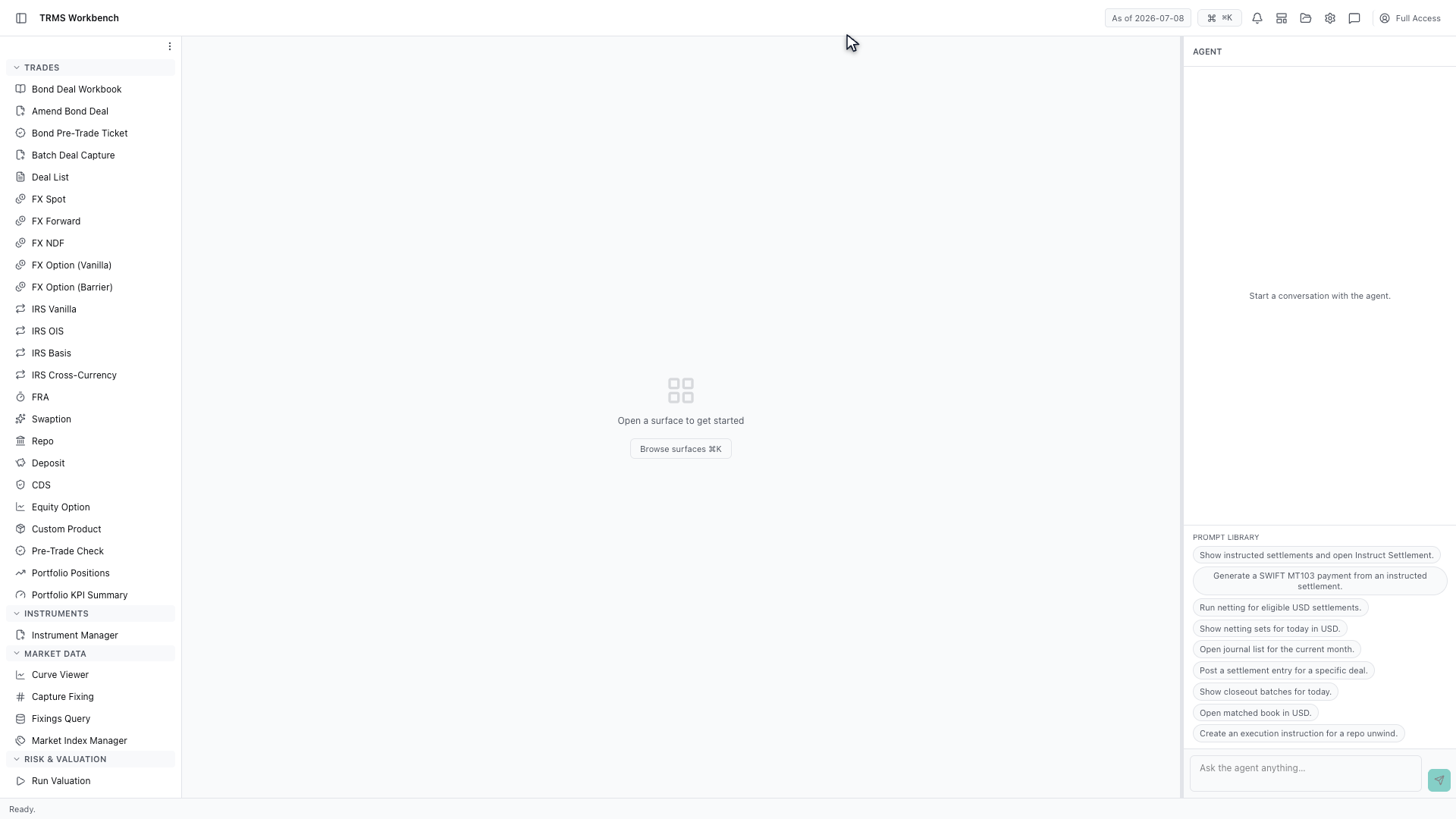
In this walkthrough we'll read the settlement queue, and see what is due to pay and receive, in the OpenTRMS Workbench.
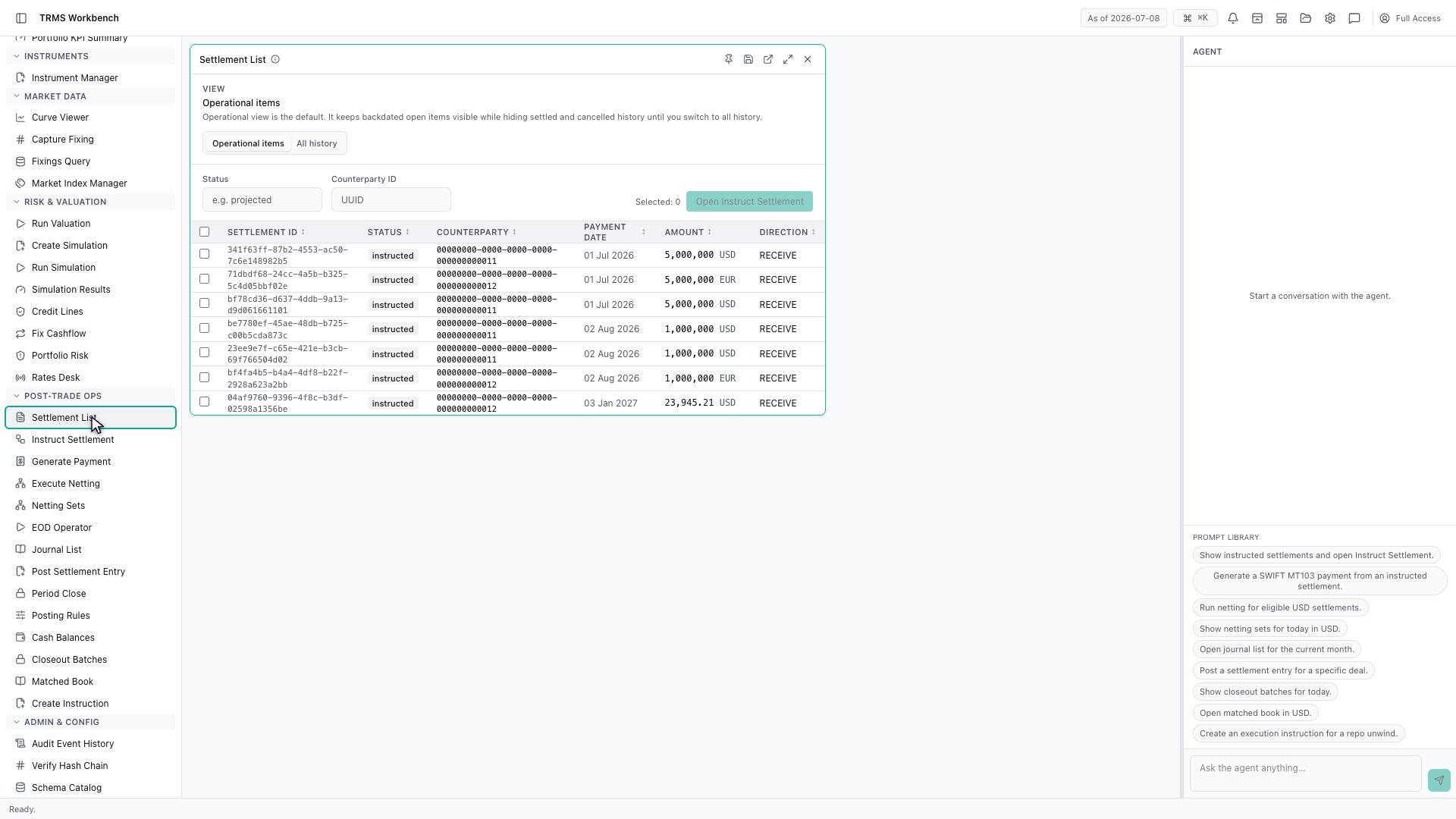
The Settlement List is the operations queue. Every cash movement the system expects appears here, on its way to being paid or received.
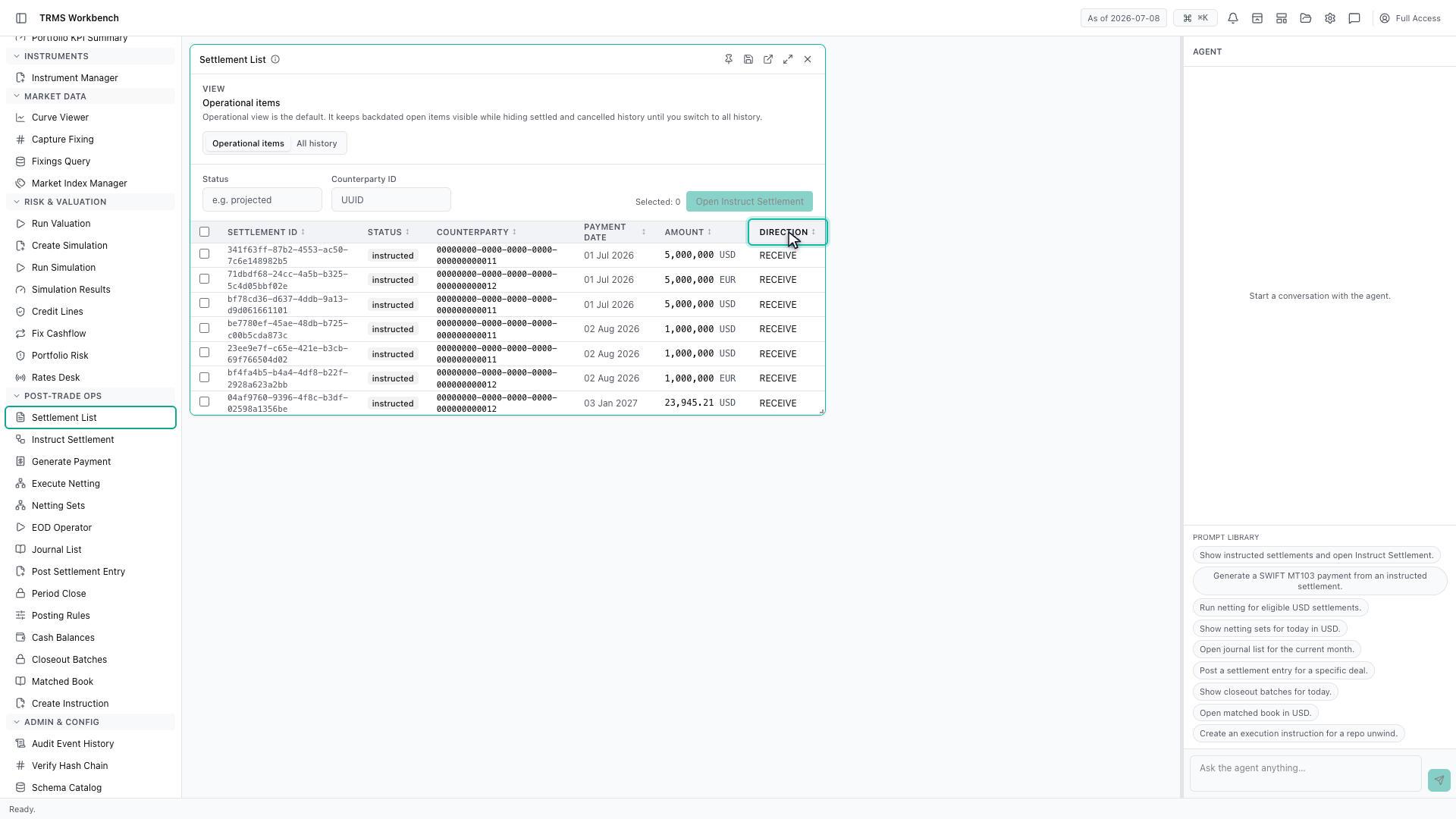
Two columns answer the daily question. Direction says whether the money is going out or coming in, and payment date says when. Sorting on the date gives you what is due today.
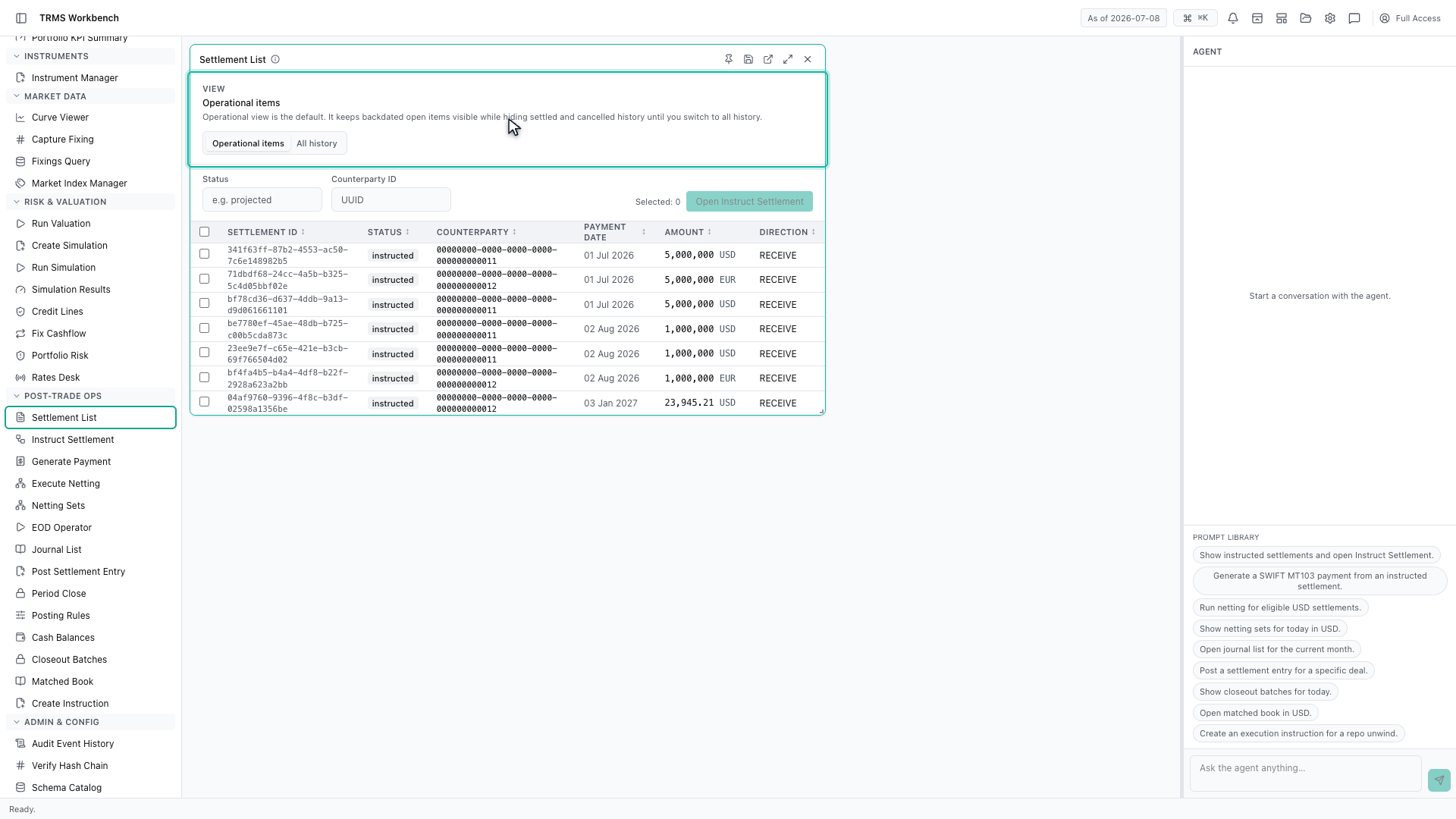
The list opens on the operational view, which is the one to work from. It keeps backdated open items visible, and hides settled and cancelled history so the queue only shows what still needs attention.
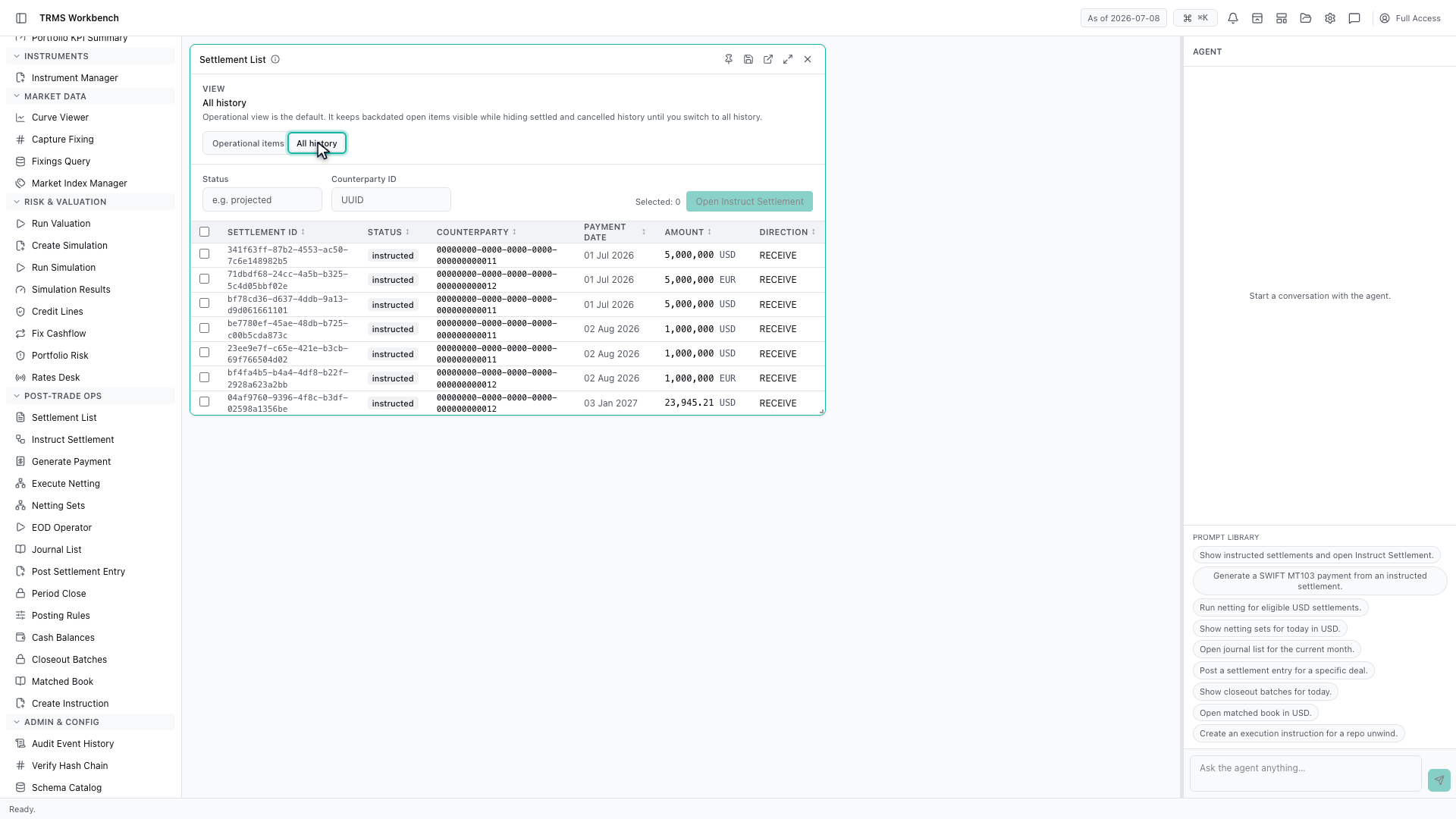
Switch to all history when you need the full record, including everything already settled or cancelled.
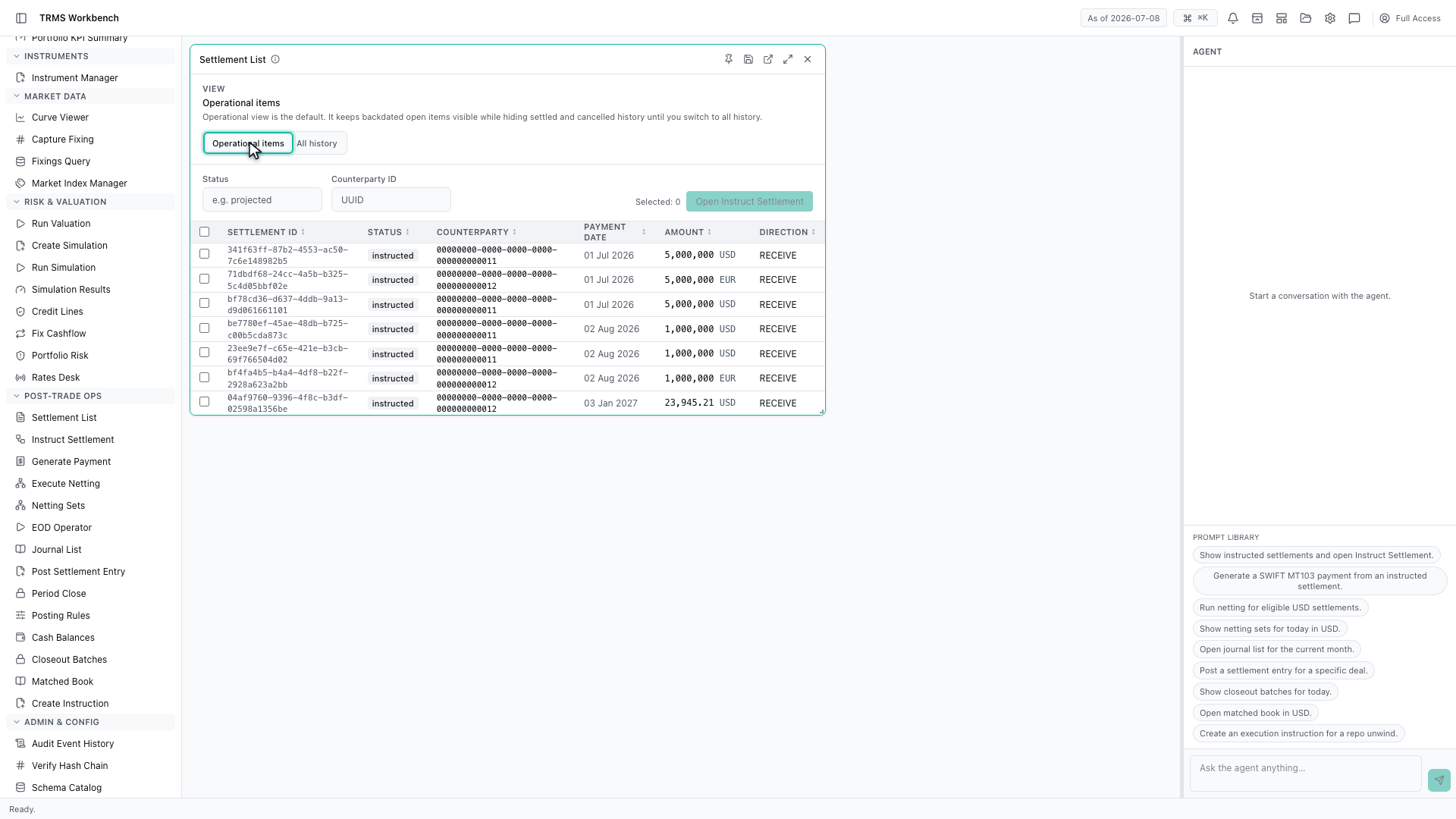
And back to the working queue, which is where the day is actually run from.
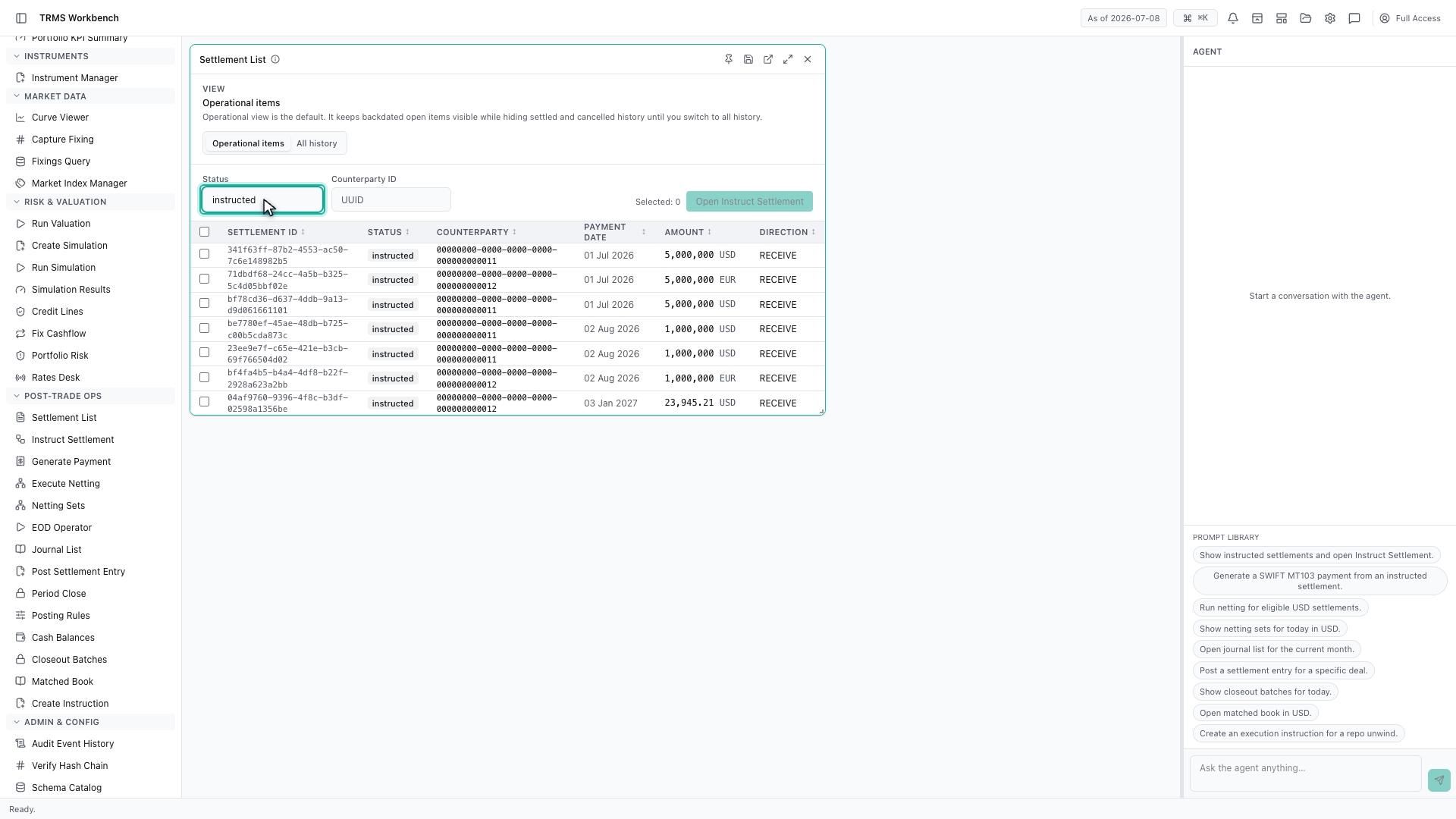
The status filter narrows the queue further. Typing a status shows only the items in that state — projected, instructed, or settled.
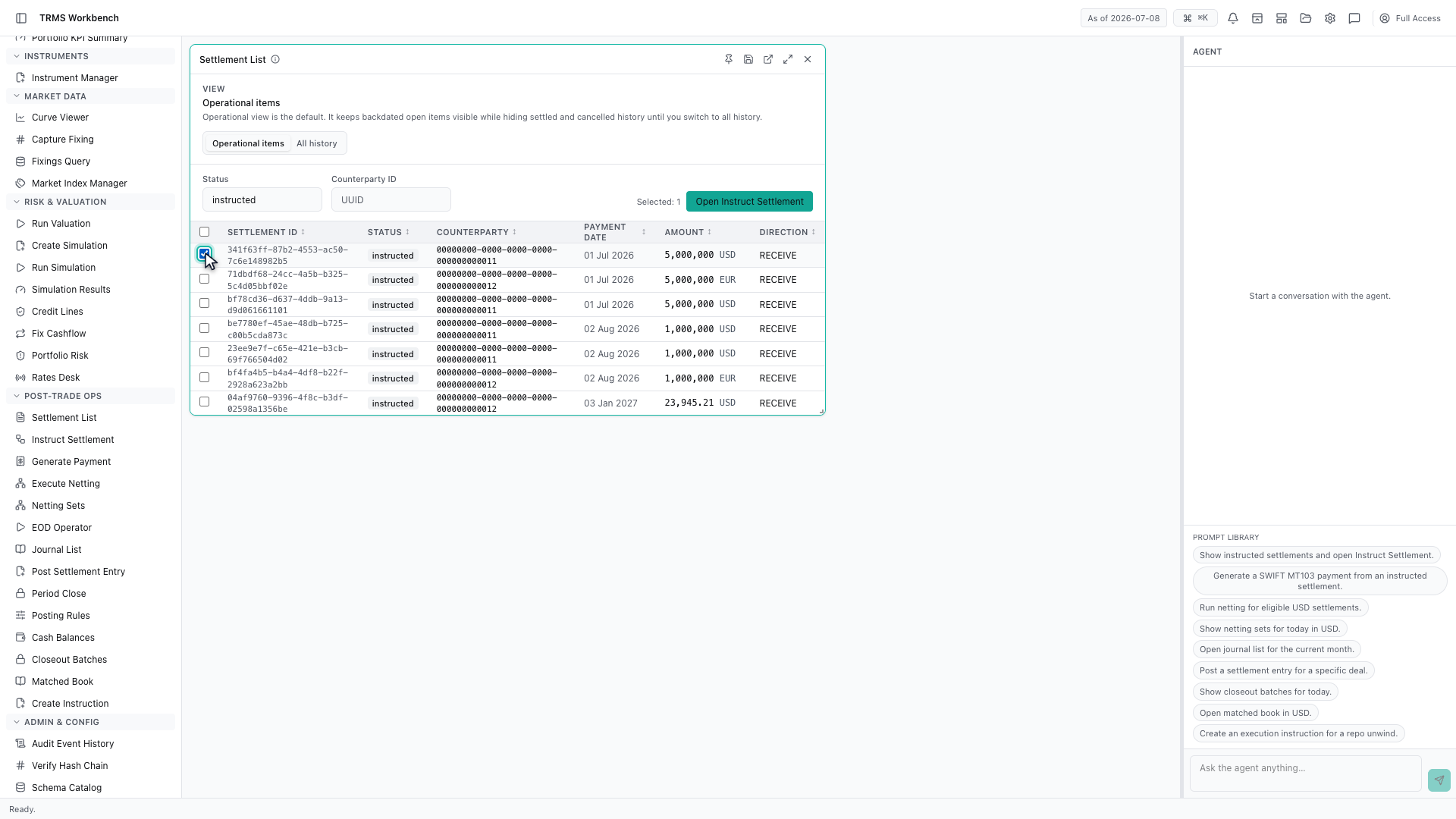
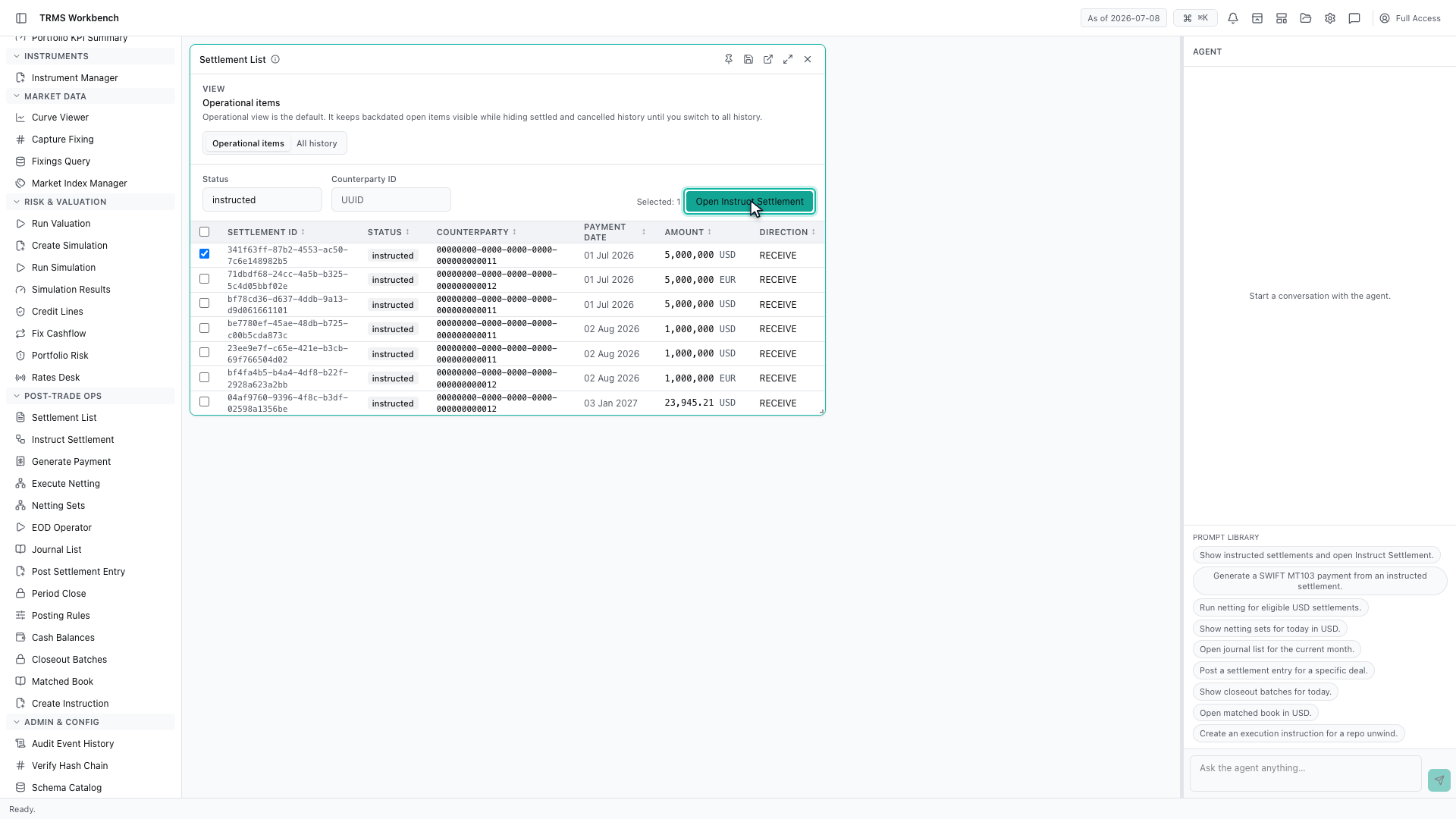
Settlements are selected with the checkbox on each row. A selection can be carried straight through to the next step, which is instructing them against a settlement instruction.
Open Instruct Settlement takes the selection with it, so you do not re-key anything. That is the subject of the next walkthrough.
That completes Settlements and What Is Due. Every surface shown here can also be opened from the agent panel on the right, by asking for it in plain English.
1. Open the Workbench
In this walkthrough we'll read the settlement queue, and see what is due to pay and receive, in the OpenTRMS Workbench.
2. Open the Settlement List
The Settlement List is the operations queue. Every cash movement the system expects appears here, on its way to being paid or received.
3. Read direction and payment date
Two columns answer the daily question. Direction says whether the money is going out or coming in, and payment date says when. Sorting on the date gives you what is due today.
4. The operational view
The list opens on the operational view, which is the one to work from. It keeps backdated open items visible, and hides settled and cancelled history so the queue only shows what still needs attention.
5. Switch to all history
Switch to all history when you need the full record, including everything already settled or cancelled.
6. Return to the operational view
And back to the working queue, which is where the day is actually run from.
7. Filter by status
The status filter narrows the queue further. Typing a status shows only the items in that state — projected, instructed, or settled.
8. Select settlements to act on
Settlements are selected with the checkbox on each row. A selection can be carried straight through to the next step, which is instructing them against a settlement instruction.
9. Hand the selection to Instruct Settlement
Open Instruct Settlement takes the selection with it, so you do not re-key anything. That is the subject of the next walkthrough.
10. Next steps
That completes Settlements and What Is Due. Every surface shown here can also be opened from the agent panel on the right, by asking for it in plain English.