Approvals and Roles
How the OpenTRMS Workbench decides who may approve what — the approval chains behind consequential actions, and the role scope matrix.
Transcript1m 23s
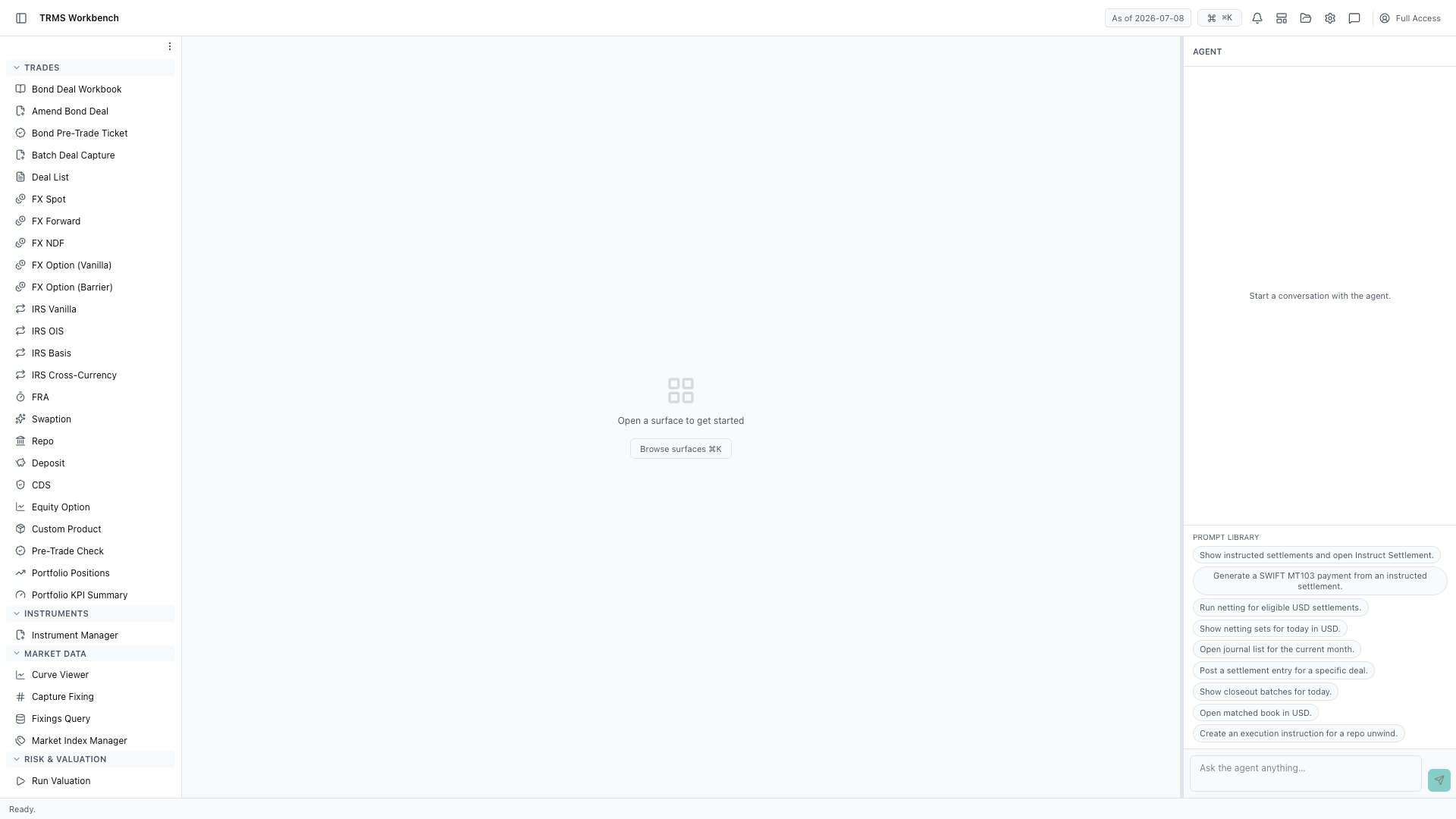
In this walkthrough we'll see who is allowed to approve what, and which roles carry which permissions, in the OpenTRMS Workbench.
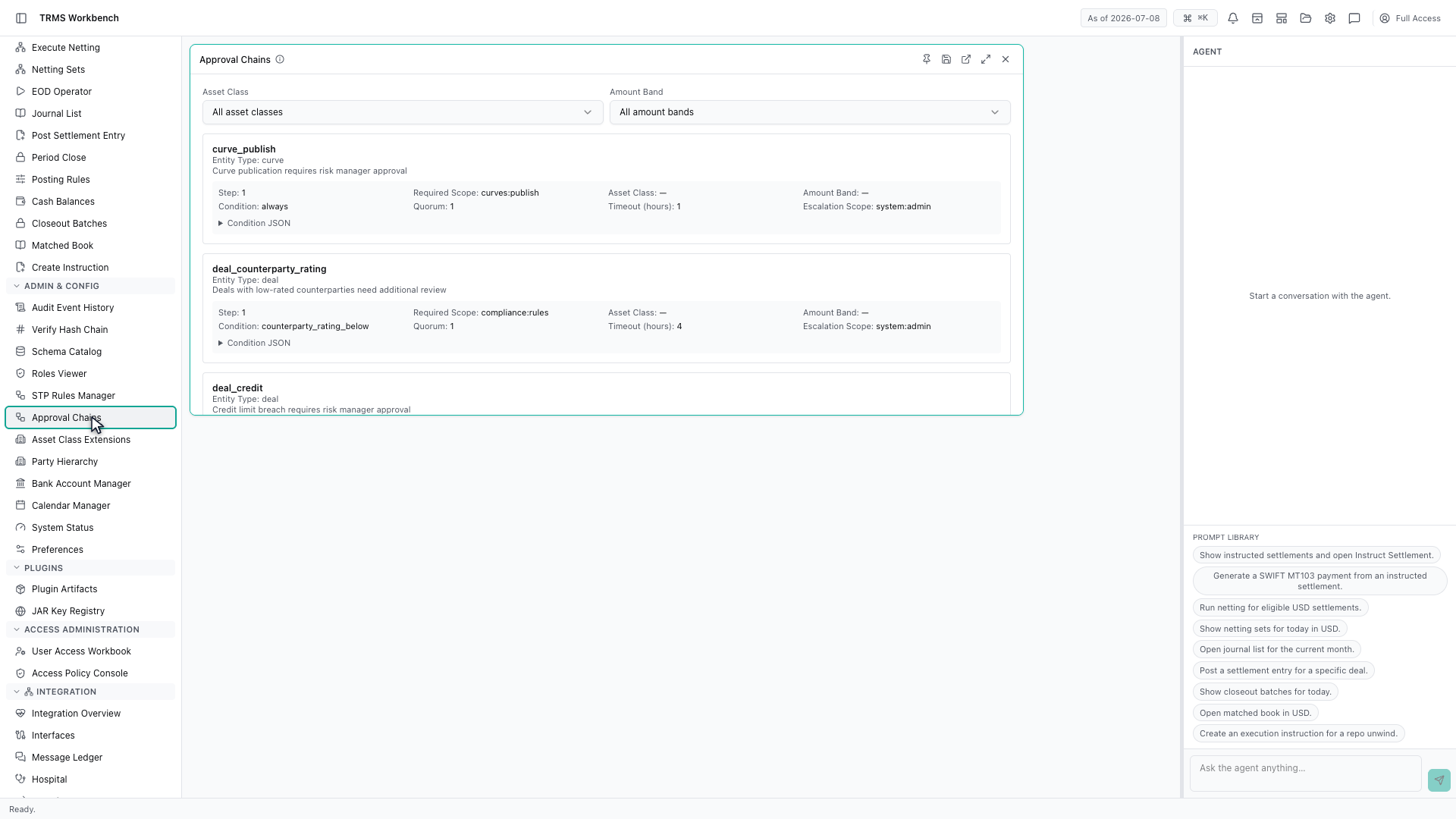
Approval Chains shows the sign-off required before a consequential action completes. It is read-only here — this is the configuration, not a queue of things waiting for you.
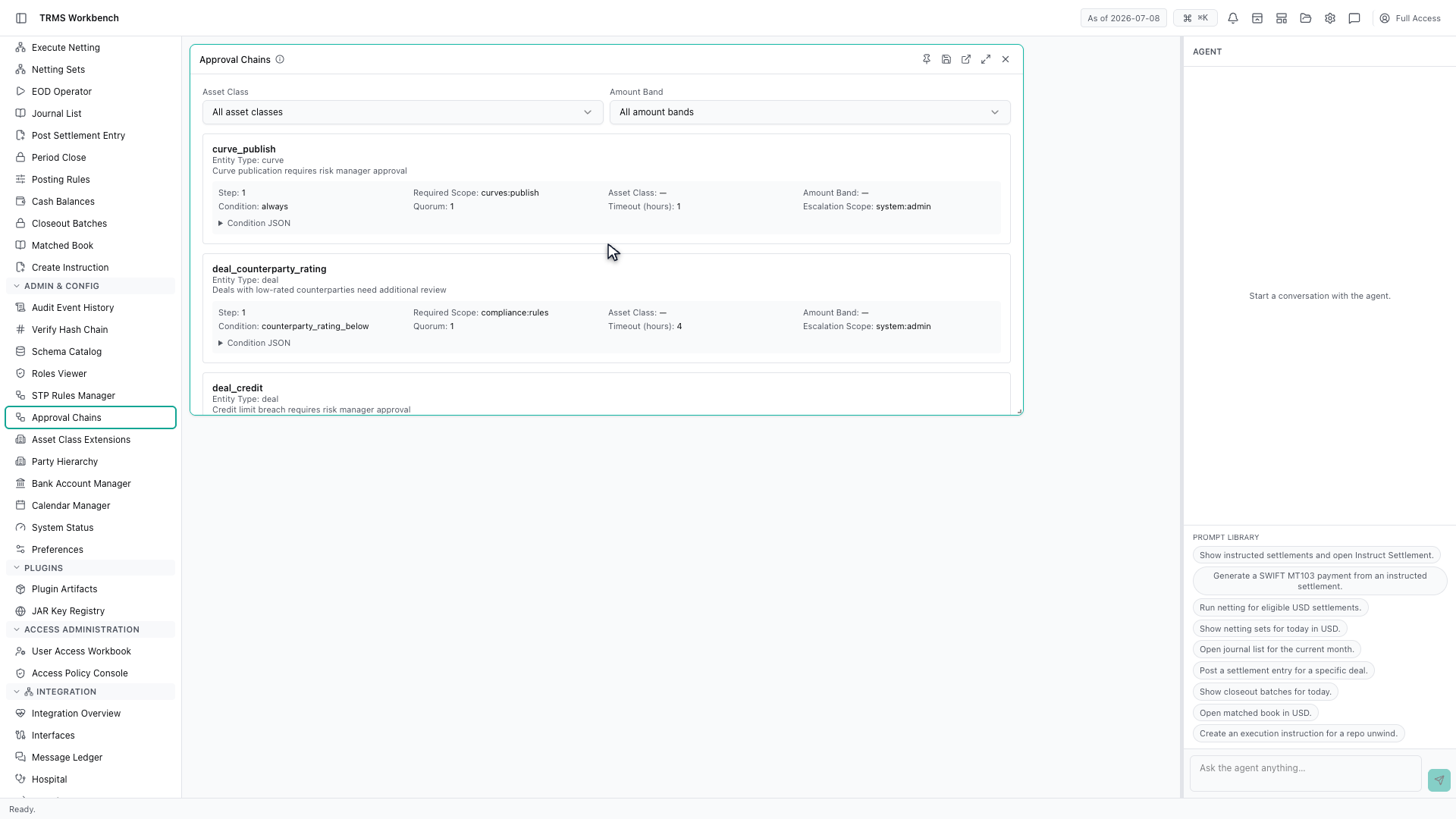
Each chain names the thing being approved, the condition that triggers it, and the steps in order. Publishing a curve, for instance, requires a risk manager to approve it.
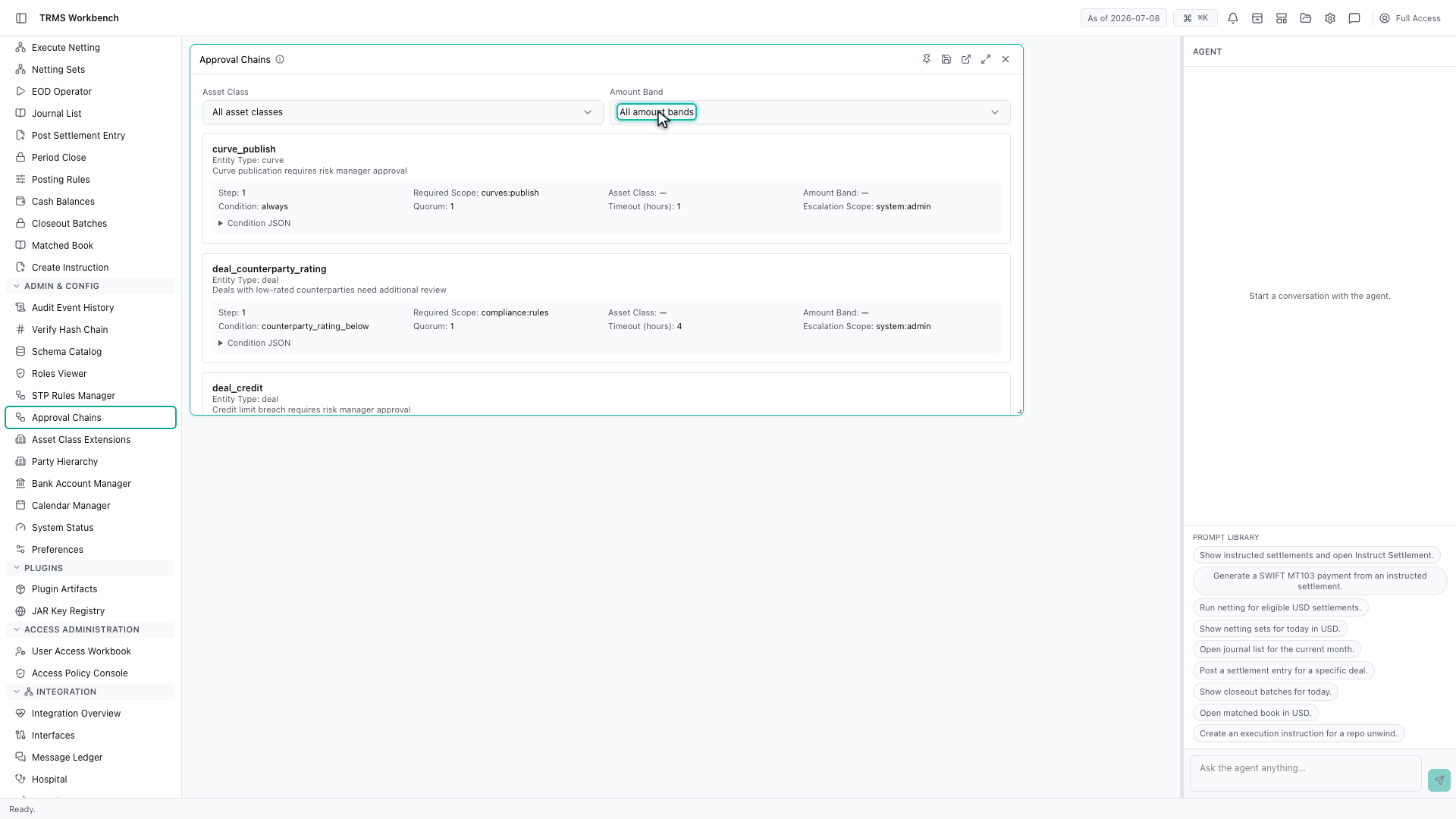
Chains are filtered by asset class and by amount band, because approval requirements usually step up with size. A small trade and a large one can follow entirely different routes.
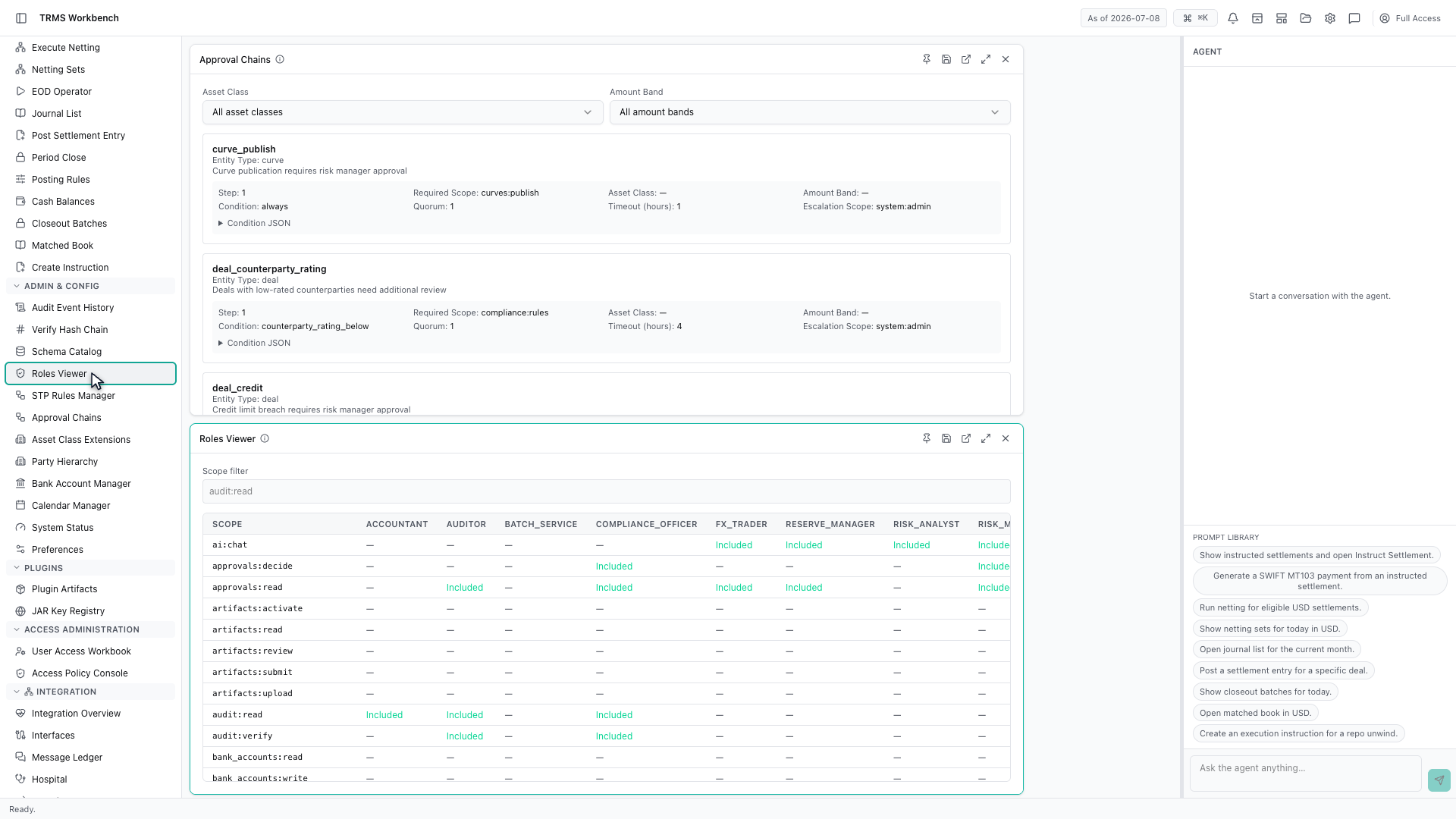
Approval decides who signs off. What a person may do in the first place comes from their role, and Roles Viewer lays those out as a matrix.
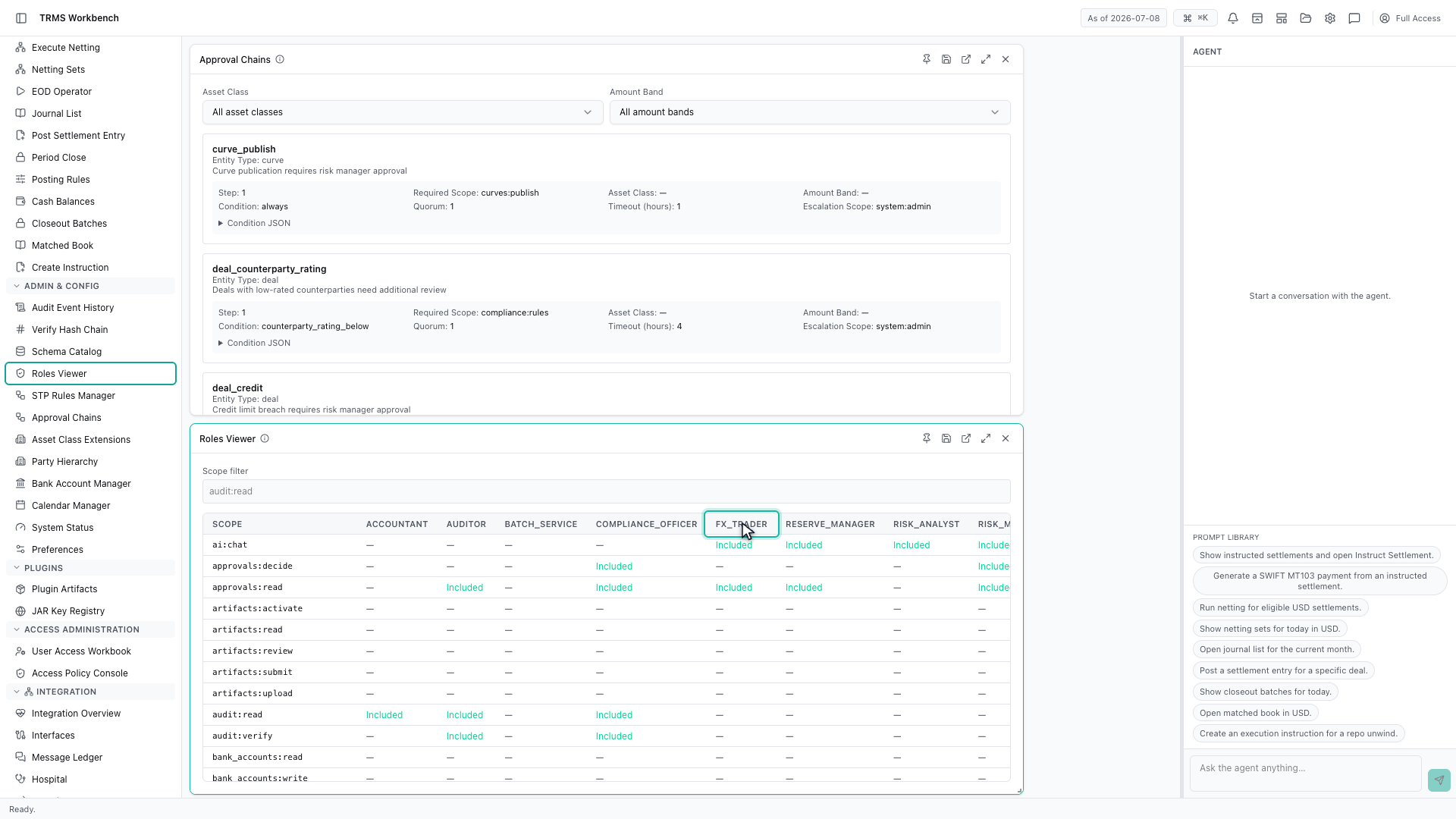
Every configured role gets a column, and every permission a row. Reading down a column tells you what that role can do across the whole system.
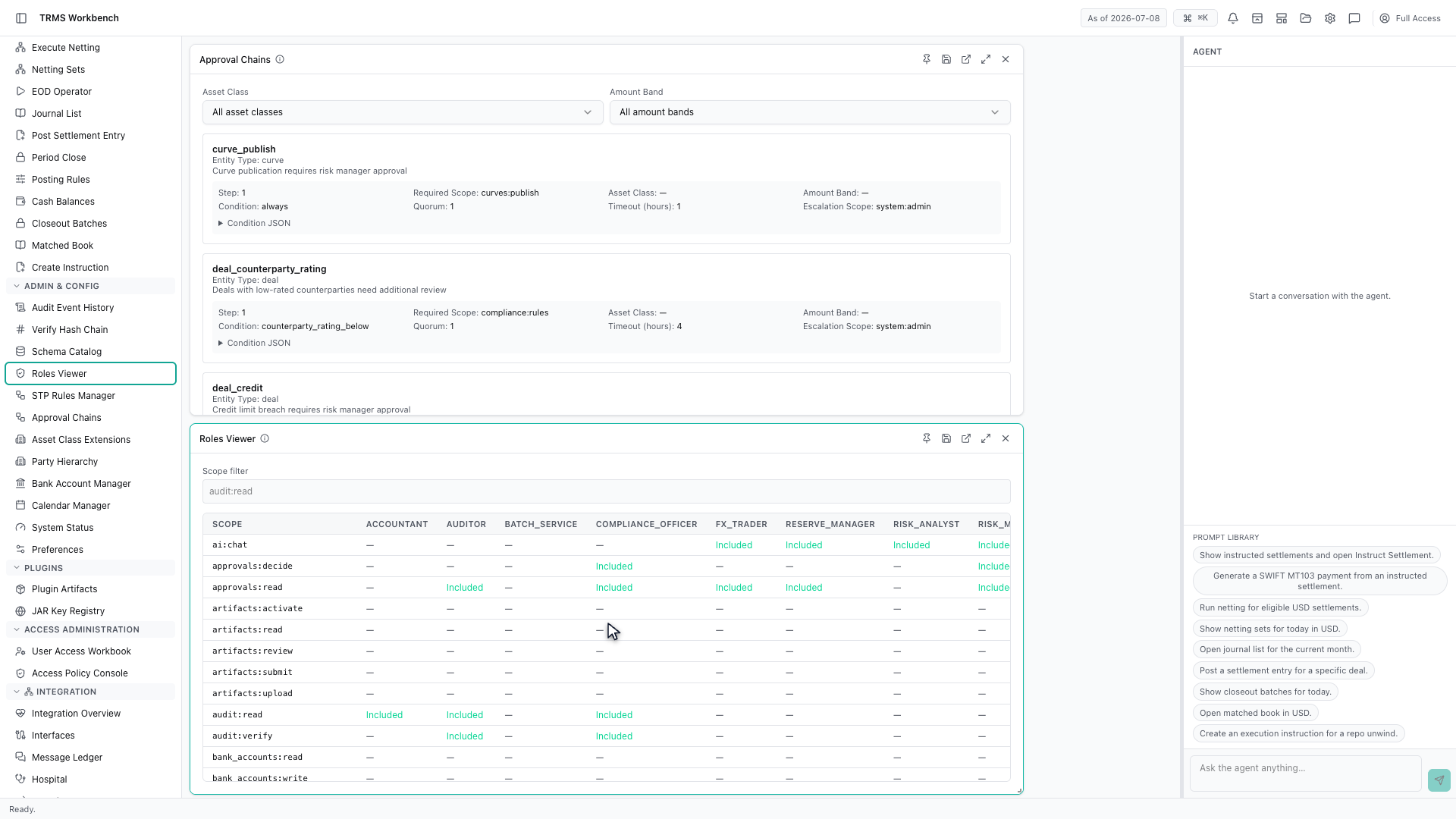
This is the reference to reach for when someone cannot see a screen or a button. Compare the permission they need against the roles they hold, and the gap is usually obvious.
That completes Approvals and Roles. Every surface shown here can also be opened from the agent panel on the right, by asking for it in plain English.
1. Open the Workbench
In this walkthrough we'll see who is allowed to approve what, and which roles carry which permissions, in the OpenTRMS Workbench.
2. Open Approval Chains
Approval Chains shows the sign-off required before a consequential action completes. It is read-only here — this is the configuration, not a queue of things waiting for you.
3. Read a chain
Each chain names the thing being approved, the condition that triggers it, and the steps in order. Publishing a curve, for instance, requires a risk manager to approve it.
4. Conditions and amount bands
Chains are filtered by asset class and by amount band, because approval requirements usually step up with size. A small trade and a large one can follow entirely different routes.
5. Open the Roles Viewer
Approval decides who signs off. What a person may do in the first place comes from their role, and Roles Viewer lays those out as a matrix.
6. A column per role
Every configured role gets a column, and every permission a row. Reading down a column tells you what that role can do across the whole system.
7. Diagnosing missing access
This is the reference to reach for when someone cannot see a screen or a button. Compare the permission they need against the roles they hold, and the gap is usually obvious.
8. Next steps
That completes Approvals and Roles. Every surface shown here can also be opened from the agent panel on the right, by asking for it in plain English.