Bond Pre-Trade and Booking
How to run pre-trade analysis on a bond in the OpenTRMS Workbench — live pricing, risk and limit checks — and promote the result to a booking ticket.
Transcript2m 52s
In this walkthrough we'll run pre-trade analysis on a government bond and promote it to a booking ticket, in the OpenTRMS Workbench.
The Bond Deal Workbook is the first item under Trades. It carries a single deal through its whole life — pre-trade, booking, approval, settlement and history — as tabs across one panel.
Start a new deal. The workbook opens on the Pre-Trade tab, because the analysis comes before the booking, not after it.
Find the bond by its ISIN. This one is a five-year US dollar demo bond maturing in July twenty thirty-one.
Enter the notional — ten million US dollars of face value.
Then the price you expect to deal at, quoted as a percentage of par.
Choose the counterparty. The pre-trade check will test this trade against the credit limits for this name specifically.
And the book, which sets both the portfolio the risk lands in and the limits the trade is measured against.
Set the trade date, and the settlement date — for a government bond, normally the next business day.
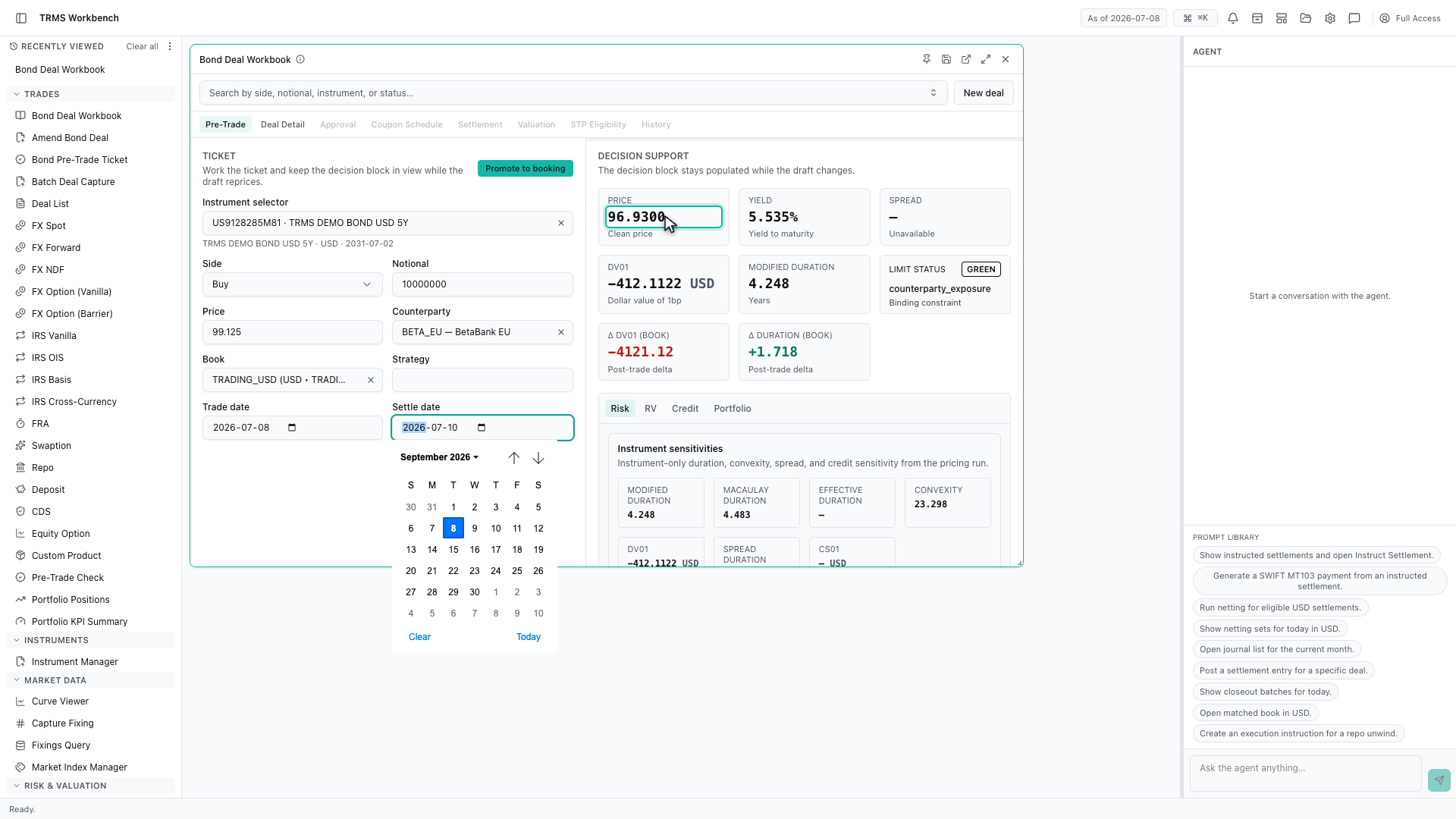
With the settlement date entered, the workbook prices the trade live.
Here is the pre-trade result. The workbook returns a clean price of ninety-six point nine three, a yield to maturity of five and a half percent, and the DV01 — the profit or loss for a one basis point move in rates.
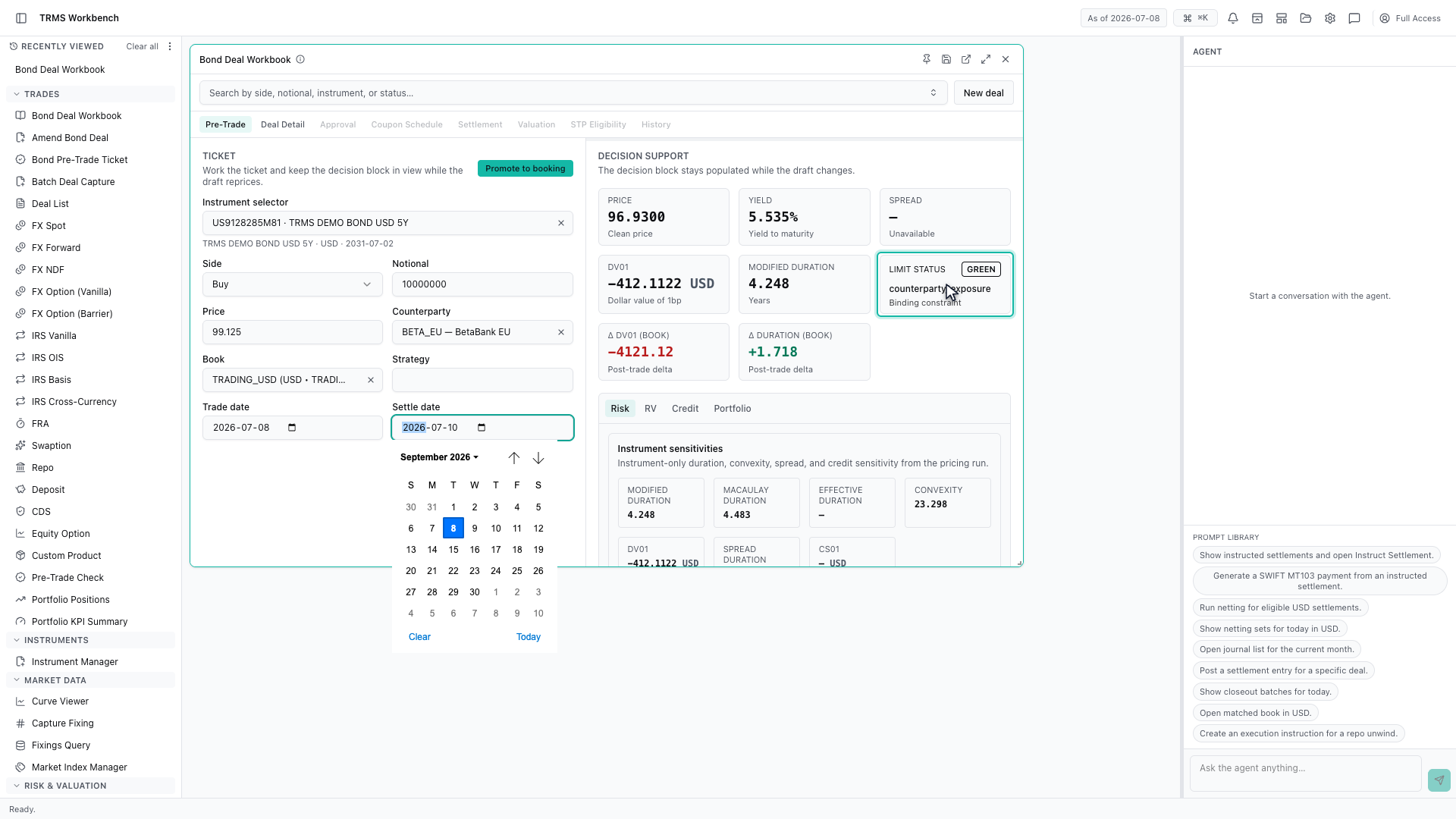
The limit status is green, and it names the binding constraint — counterparty exposure. That is the limit this trade would come closest to breaching, so it is the one to watch if the size goes up.
The Risk tab breaks the same trade down further — instrument metrics, key rate exposures, and the effect on the portfolio as a whole.
With the analysis clean, promote the ticket to booking.
The Deal Detail tab now holds a booking ticket. The instrument and the economics carry across from the analysis, and the workbook resolves the bond's coupon, face value and maturity alongside them.
Counterparty and portfolio are not carried over, so confirm them on the booking ticket. Re-entering them here is deliberate — the desk you analysed against is not always the one you book to.
Then the portfolio the position will be held in.
The booking ticket is now complete, and ready to submit for approval.
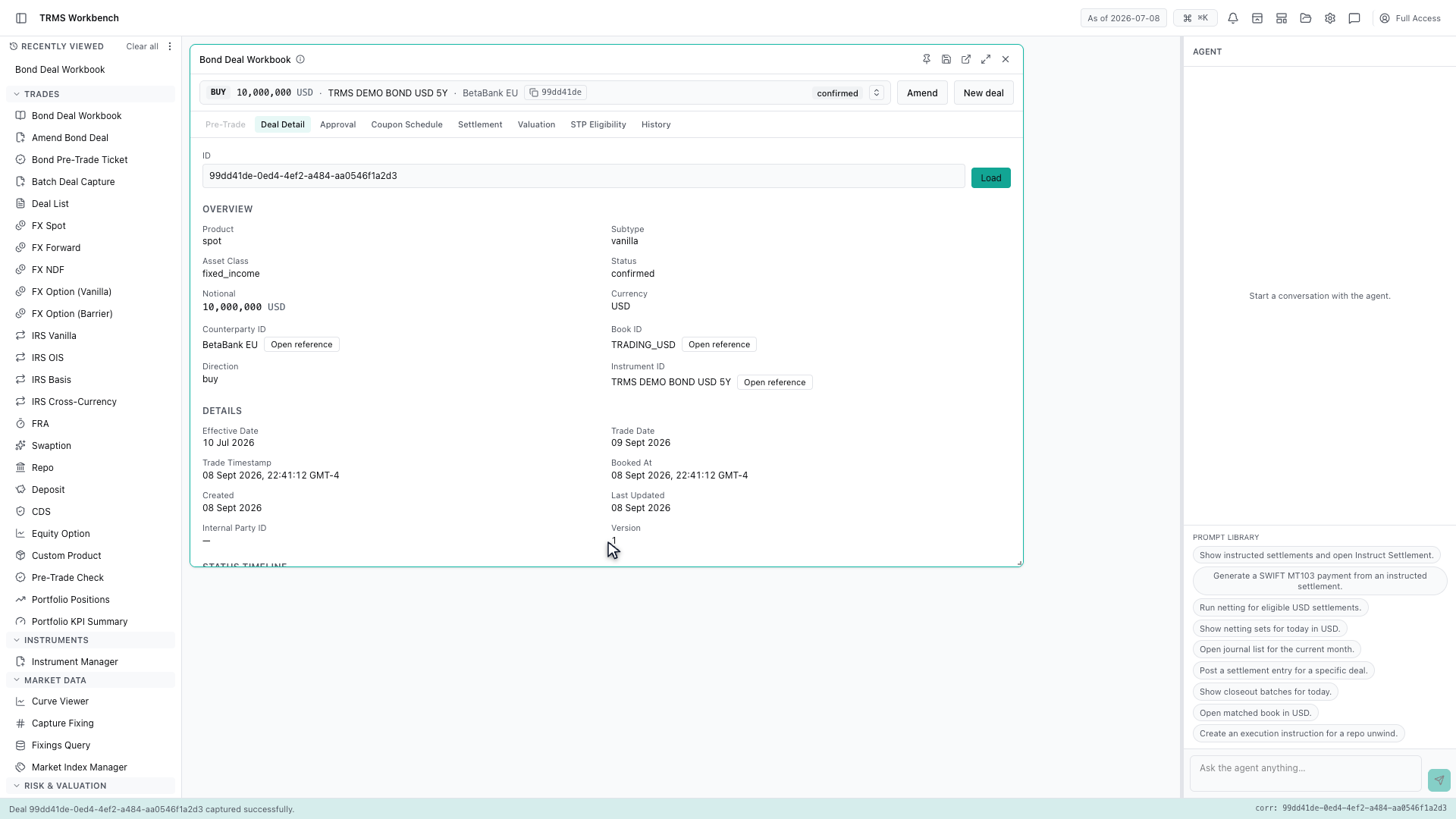
Submit the trade. It is validated against limits and standing instructions, then booked.
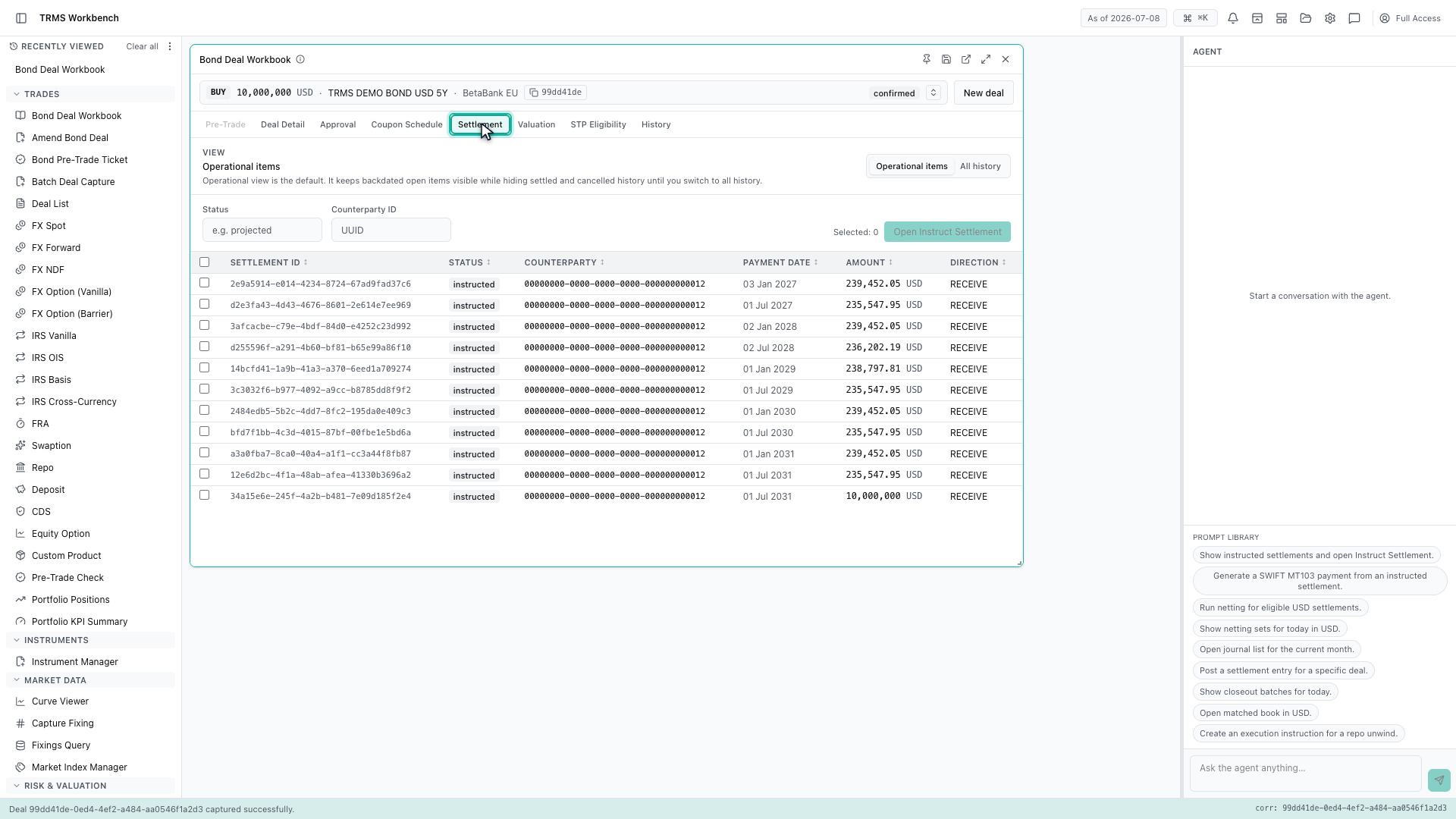
The Settlement tab shows the cash movements the deal generated — one row per coupon, each with its payment date, amount and direction.
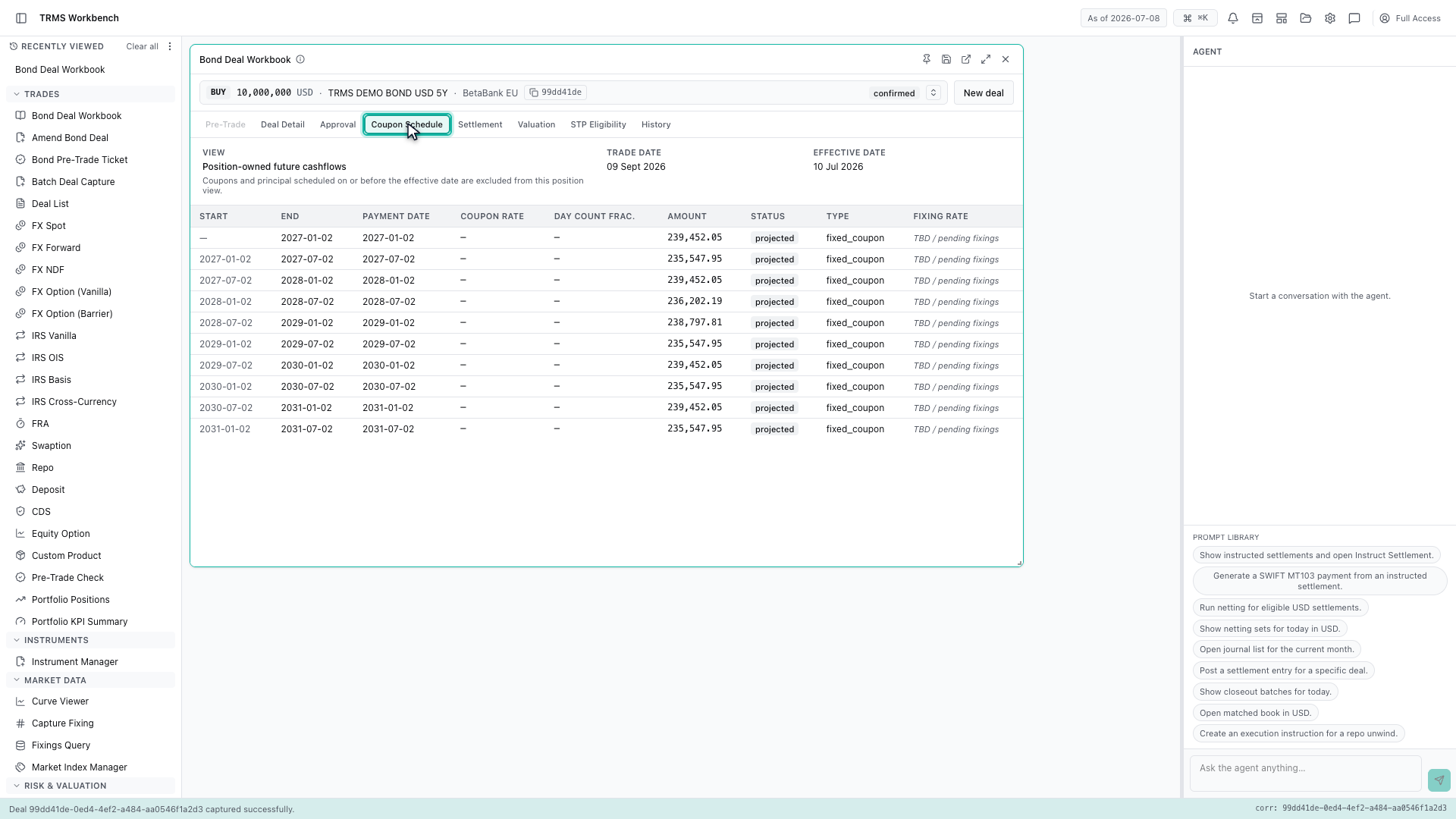
The Coupon Schedule is the same story from the position's point of view — every future coupon, projected out to maturity.
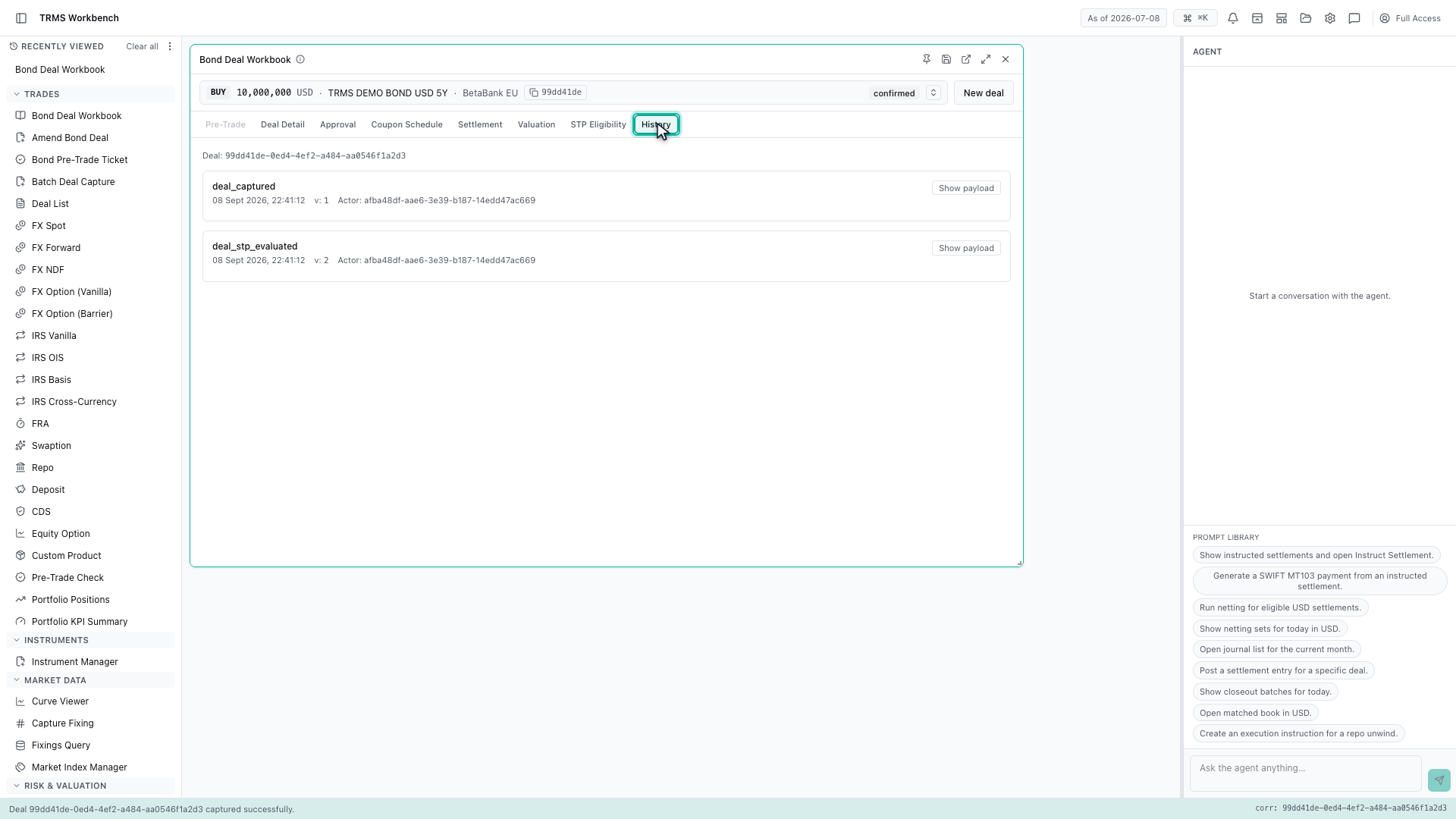
And History records every change to the deal, with who made it and when — the audit trail the deal carries for its whole life.
That completes Bond Pre-Trade and Booking. Every surface shown here can also be opened from the agent panel on the right, by asking for it in plain English.
1. Open the Workbench
In this walkthrough we'll run pre-trade analysis on a government bond and promote it to a booking ticket, in the OpenTRMS Workbench.
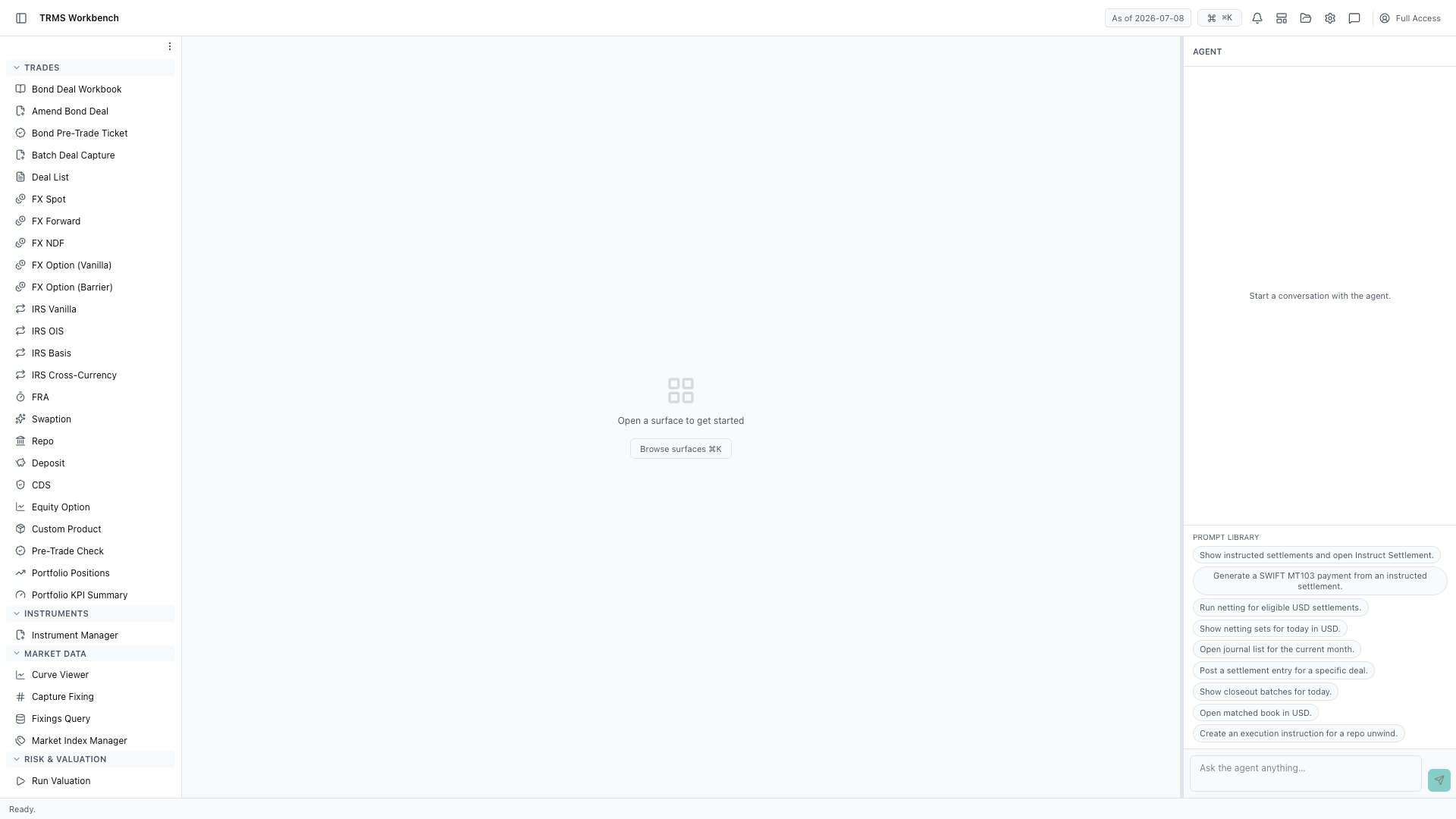
2. Open the Bond Deal Workbook
The Bond Deal Workbook is the first item under Trades. It carries a single deal through its whole life — pre-trade, booking, approval, settlement and history — as tabs across one panel.
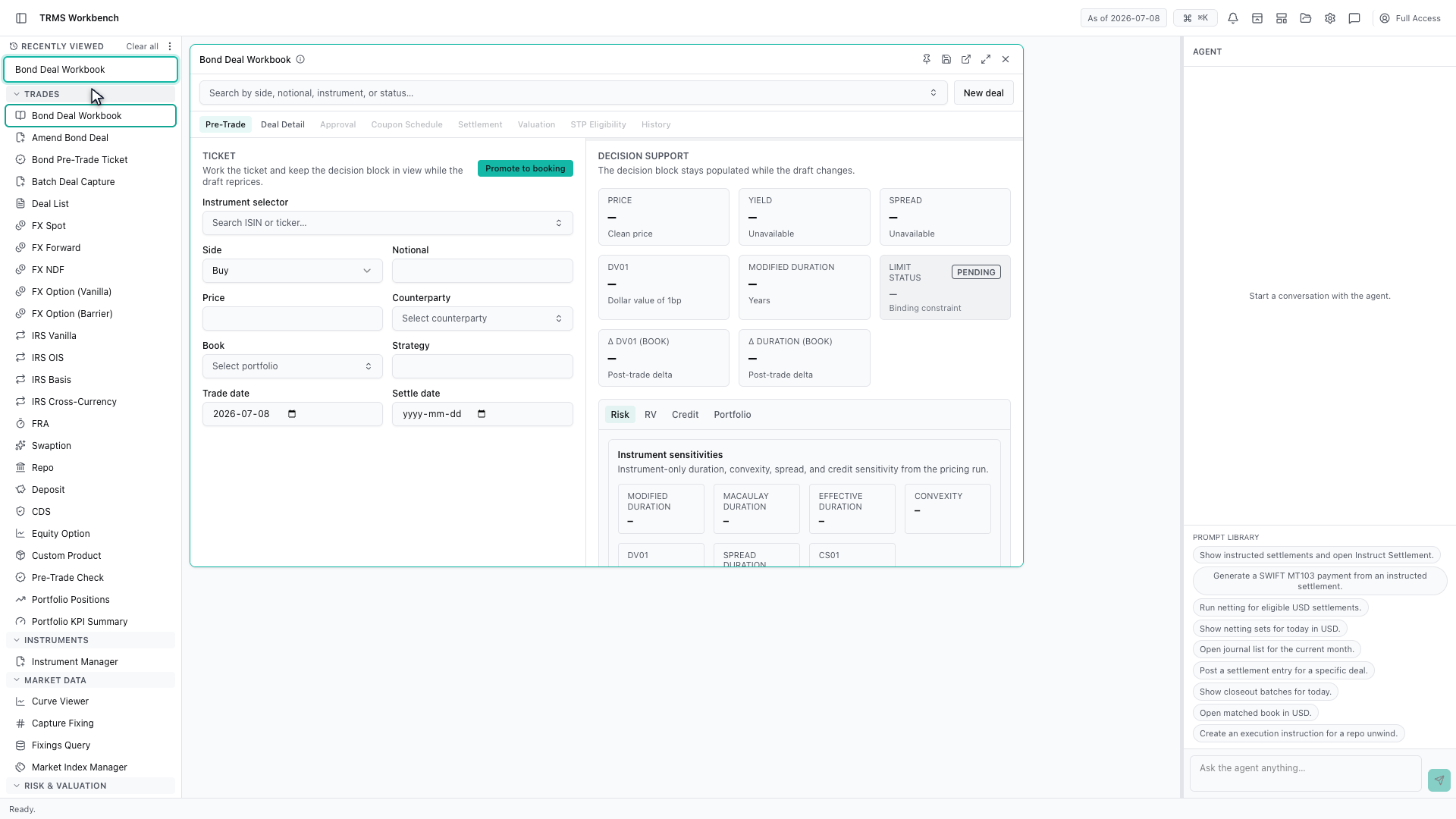
3. Start a new deal
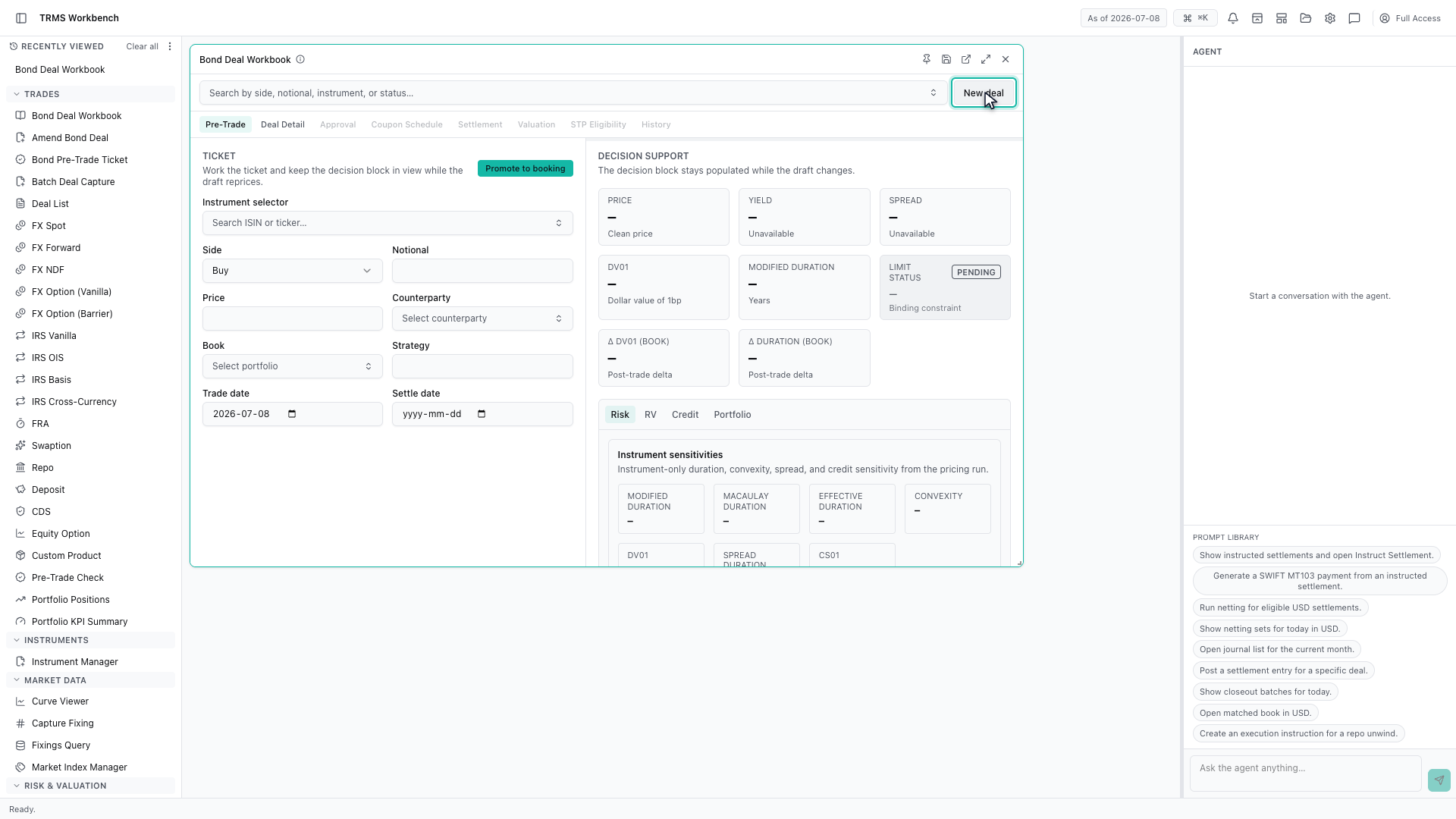
Start a new deal. The workbook opens on the Pre-Trade tab, because the analysis comes before the booking, not after it.
4. Select the bond by ISIN
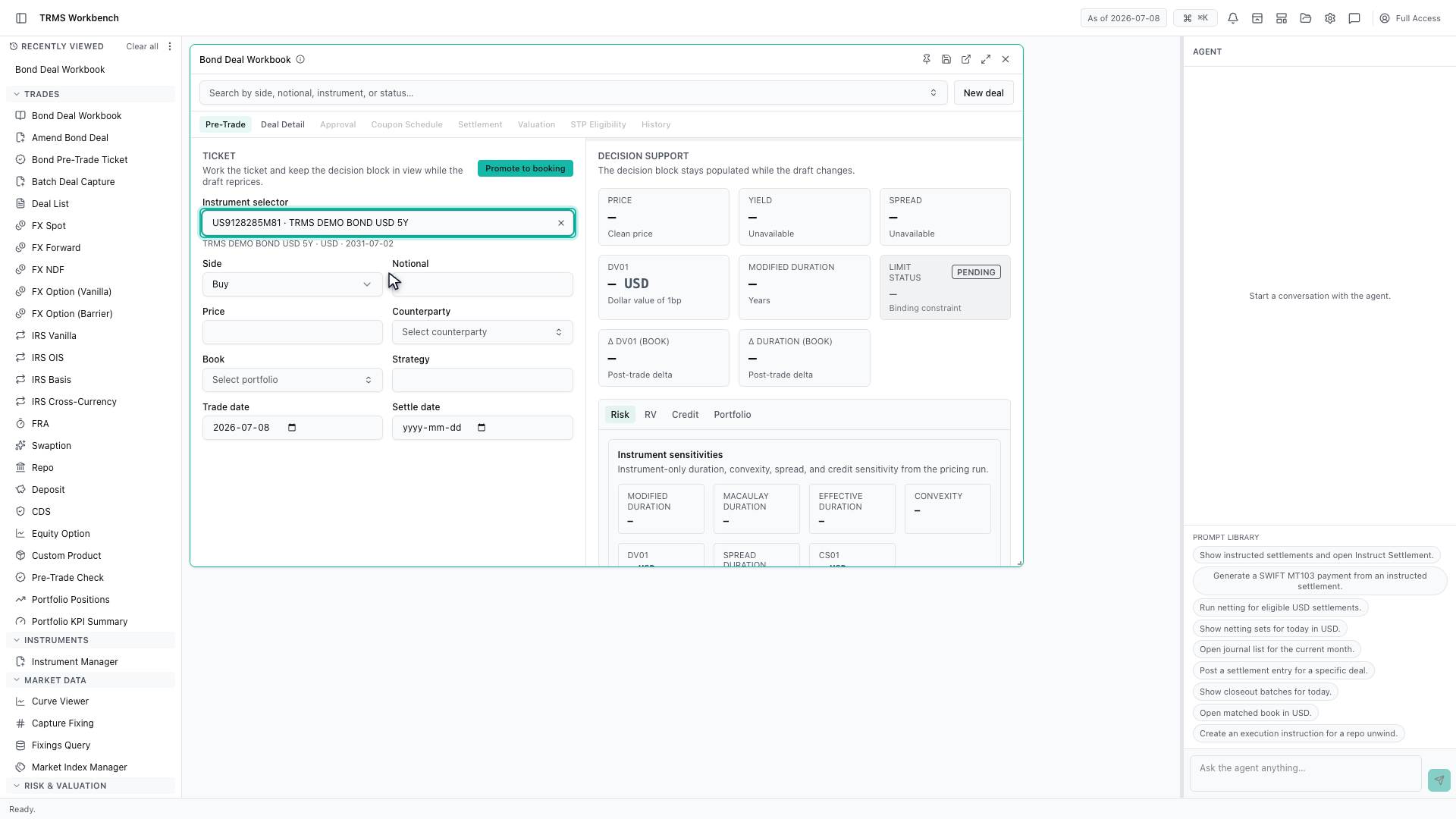
Find the bond by its ISIN. This one is a five-year US dollar demo bond maturing in July twenty thirty-one.
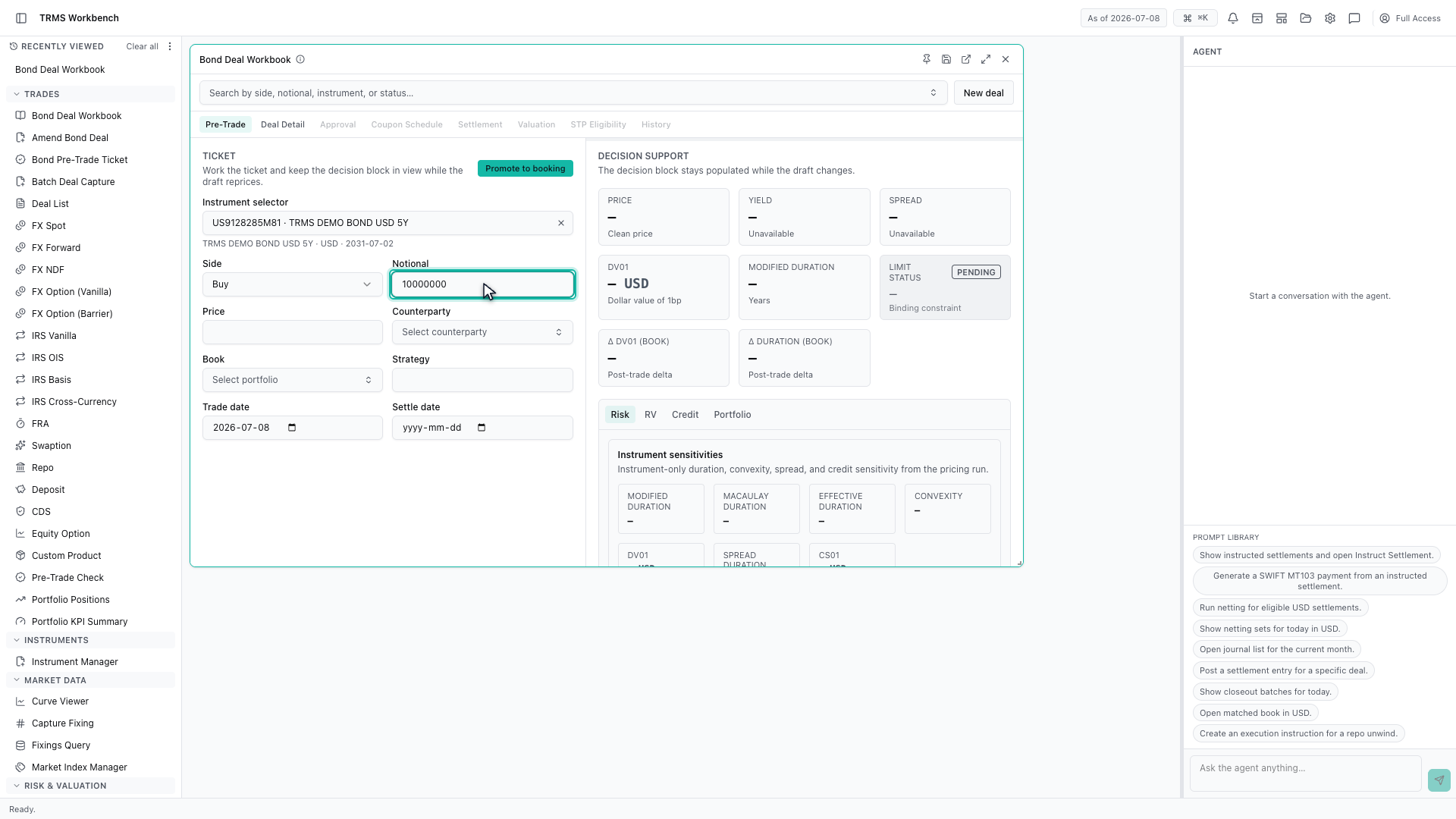
5. Enter the notional
Enter the notional — ten million US dollars of face value.
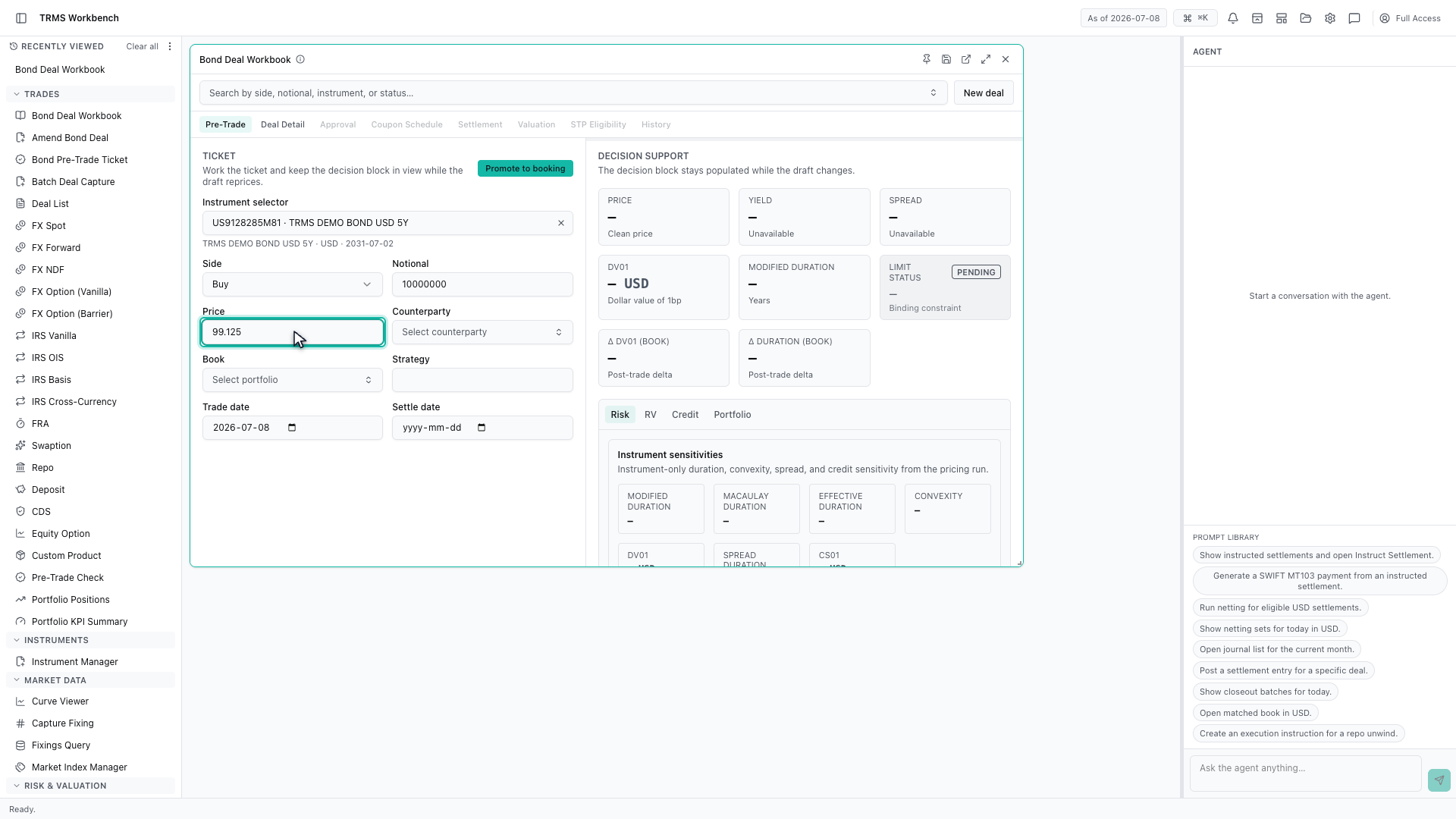
6. Enter the price
Then the price you expect to deal at, quoted as a percentage of par.
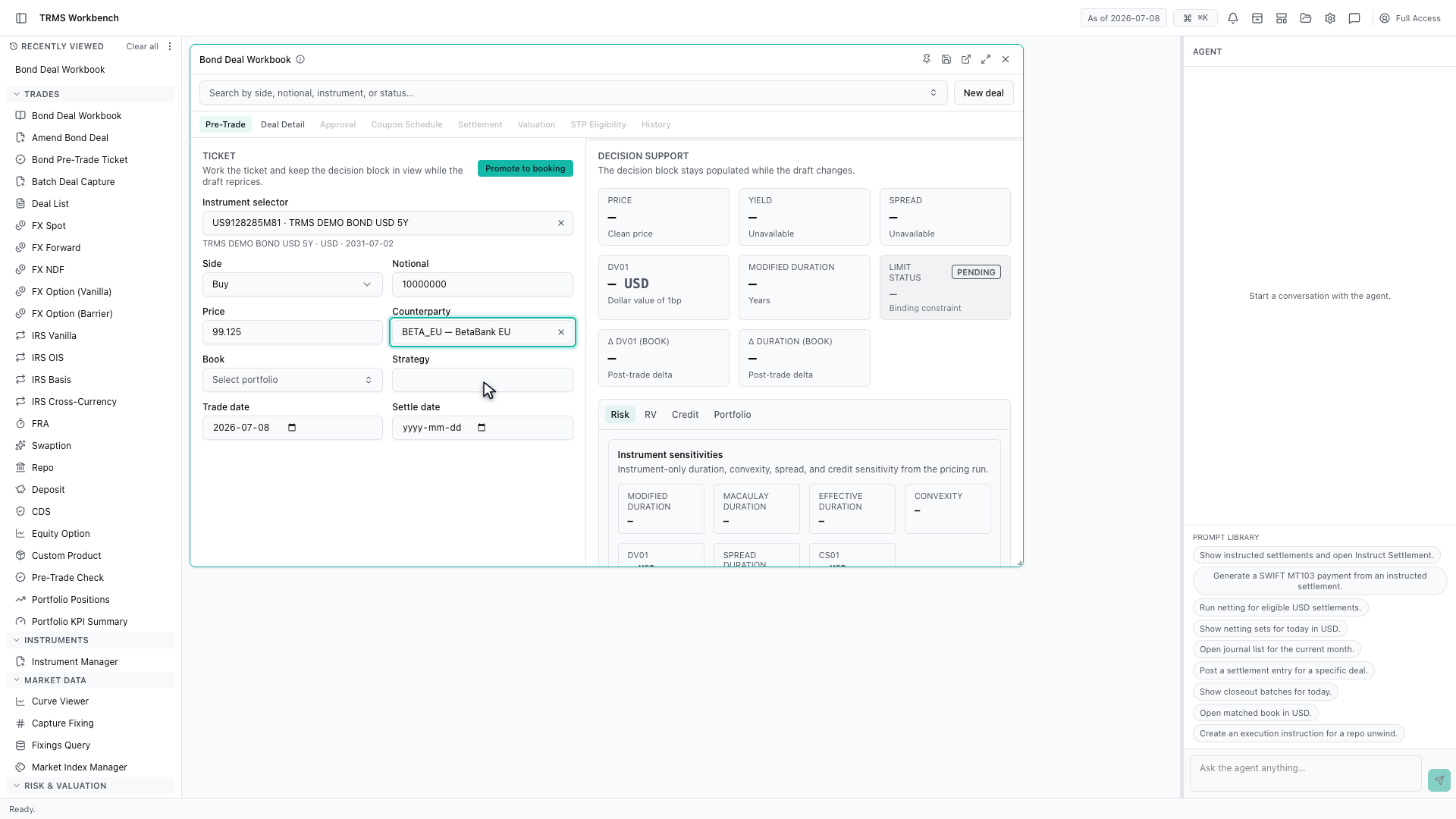
7. Choose the counterparty
Choose the counterparty. The pre-trade check will test this trade against the credit limits for this name specifically.
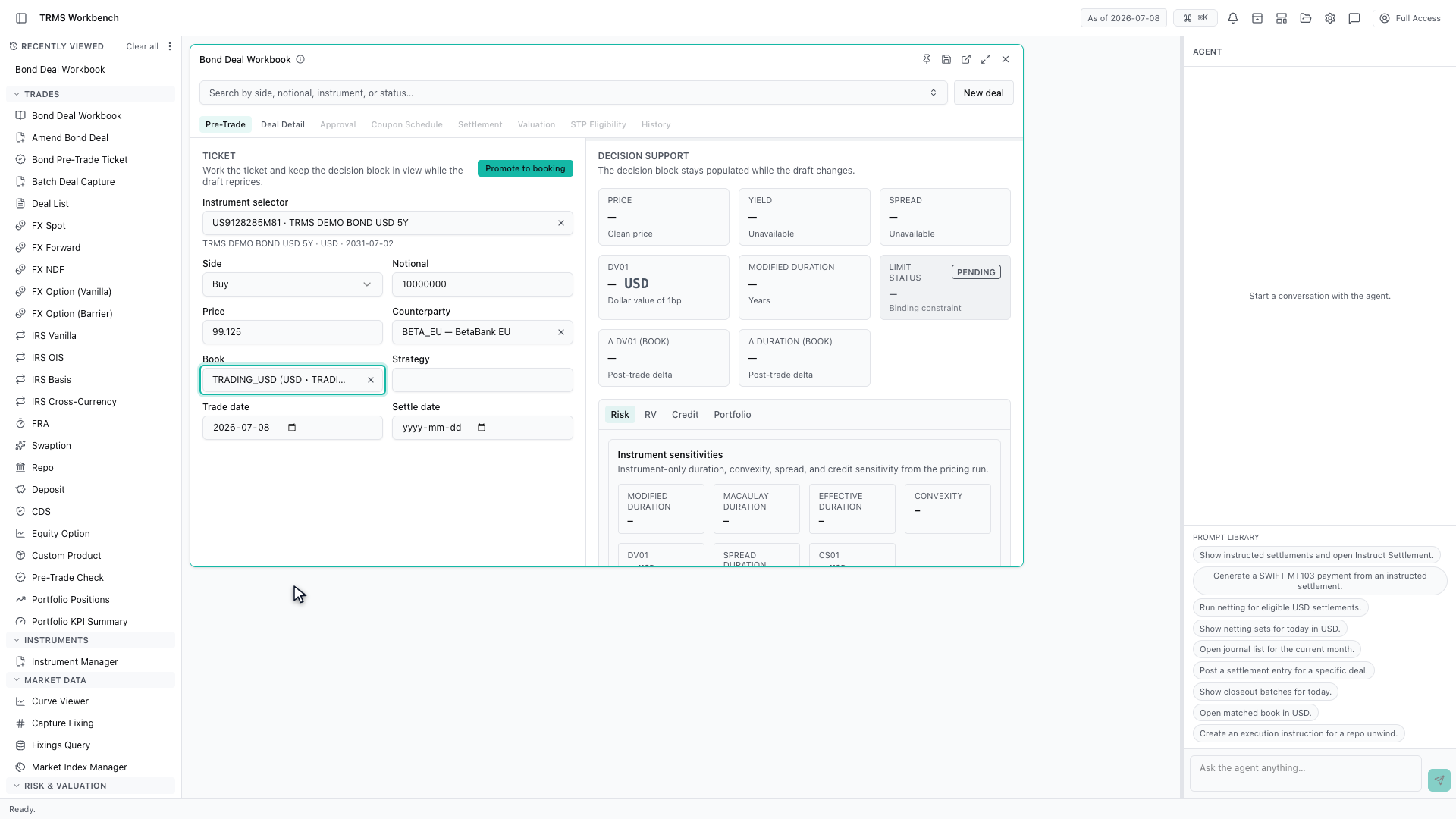
8. Choose the book
And the book, which sets both the portfolio the risk lands in and the limits the trade is measured against.
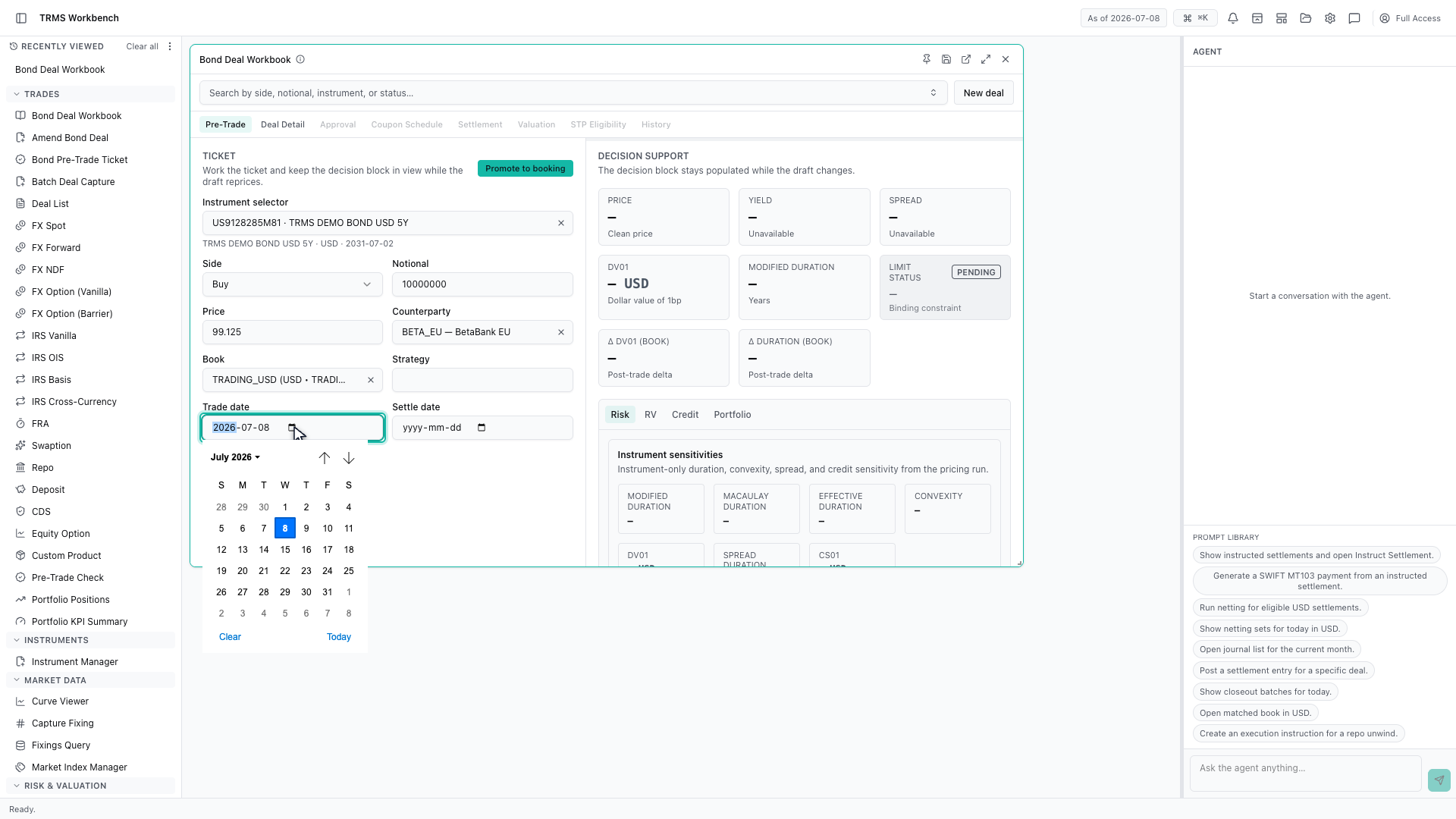
9. Set the trade date
Set the trade date, and the settlement date — for a government bond, normally the next business day.
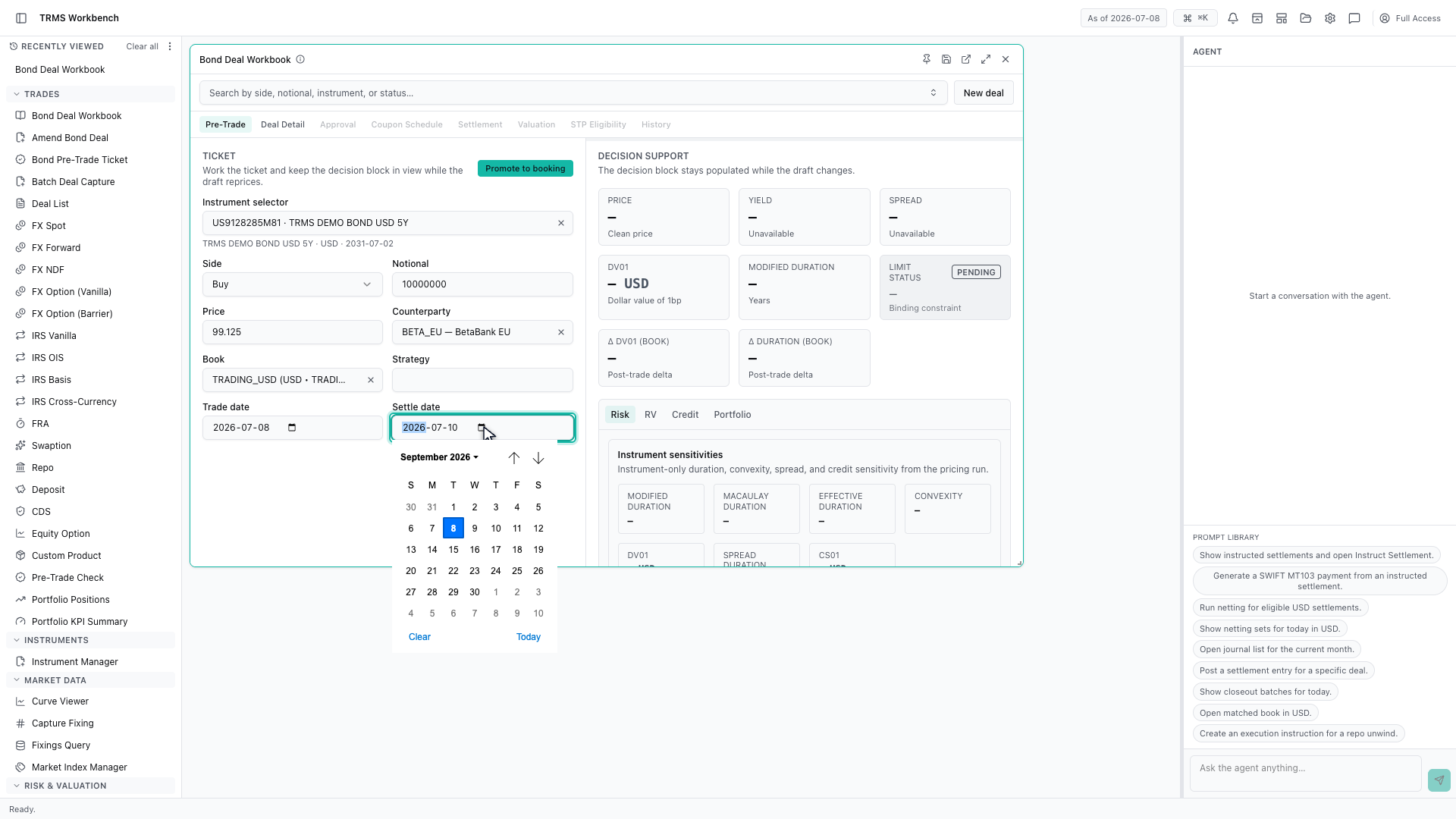
10. Set the settlement date
With the settlement date entered, the workbook prices the trade live.
11. Read the live pricing and risk
Here is the pre-trade result. The workbook returns a clean price of ninety-six point nine three, a yield to maturity of five and a half percent, and the DV01 — the profit or loss for a one basis point move in rates.
12. Check the limit status
The limit status is green, and it names the binding constraint — counterparty exposure. That is the limit this trade would come closest to breaching, so it is the one to watch if the size goes up.
13. Review the risk breakdown
The Risk tab breaks the same trade down further — instrument metrics, key rate exposures, and the effect on the portfolio as a whole.
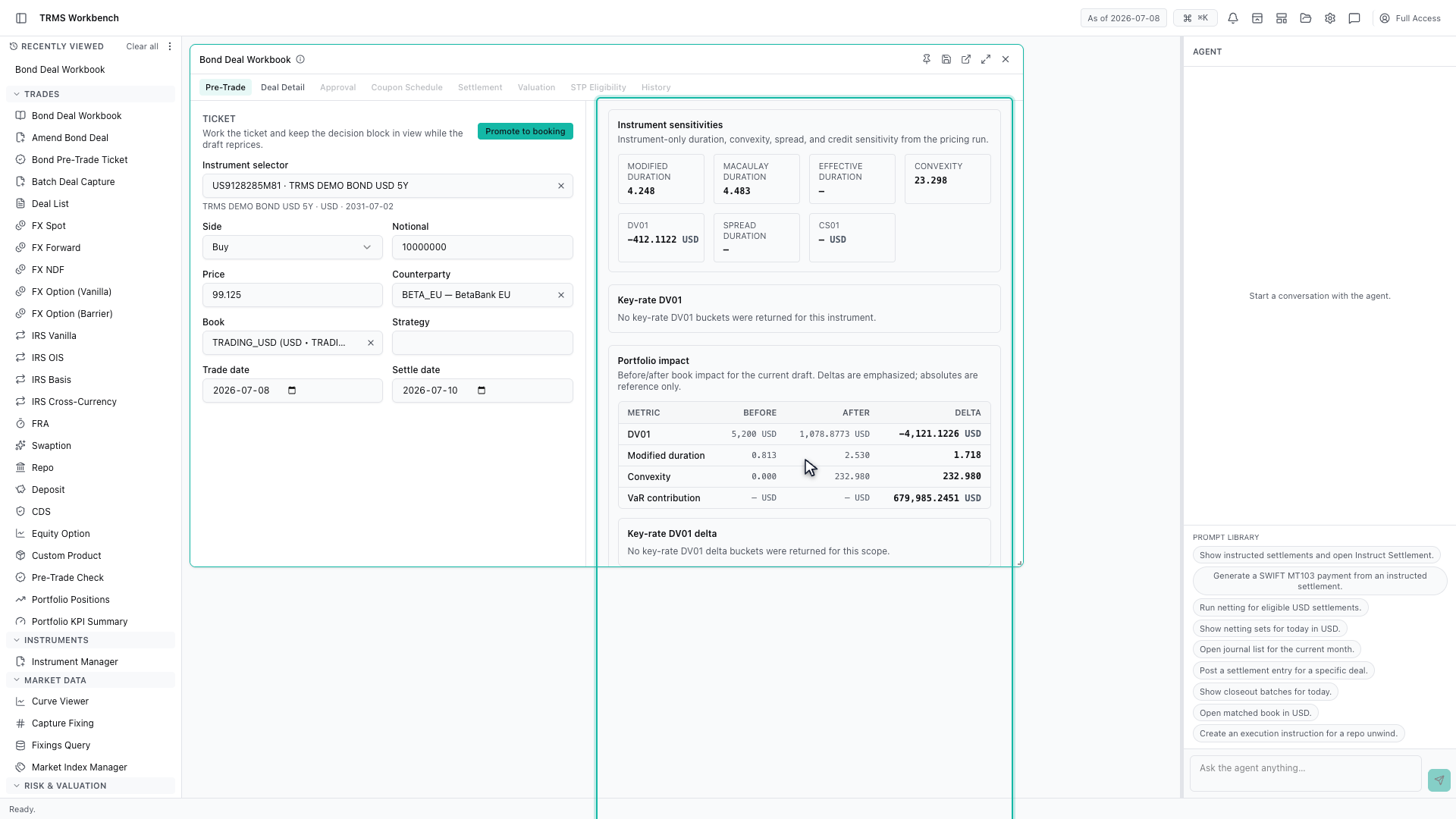
14. Promote to booking
With the analysis clean, promote the ticket to booking.
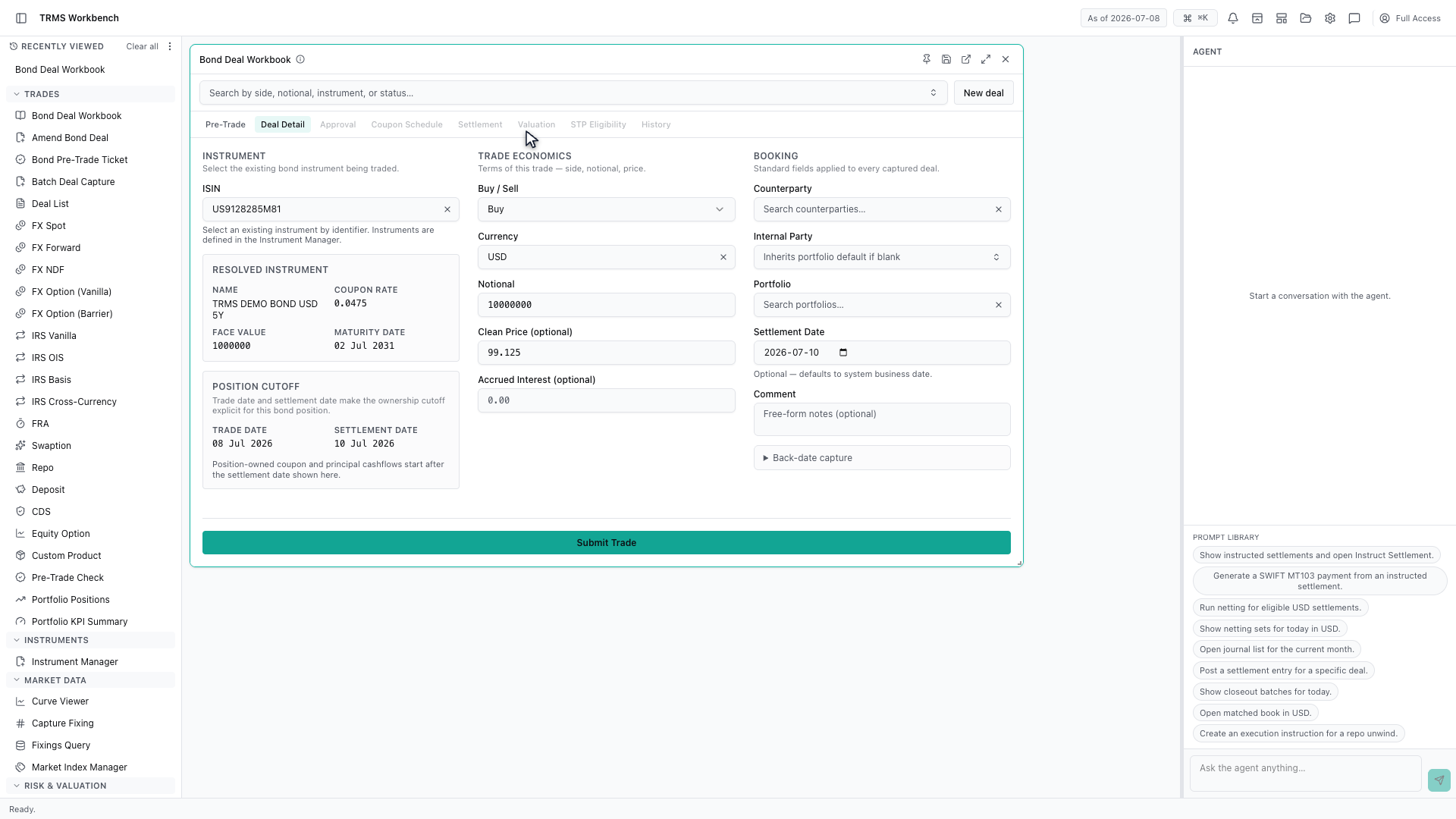
15. Review the booking ticket
The Deal Detail tab now holds a booking ticket. The instrument and the economics carry across from the analysis, and the workbook resolves the bond's coupon, face value and maturity alongside them.
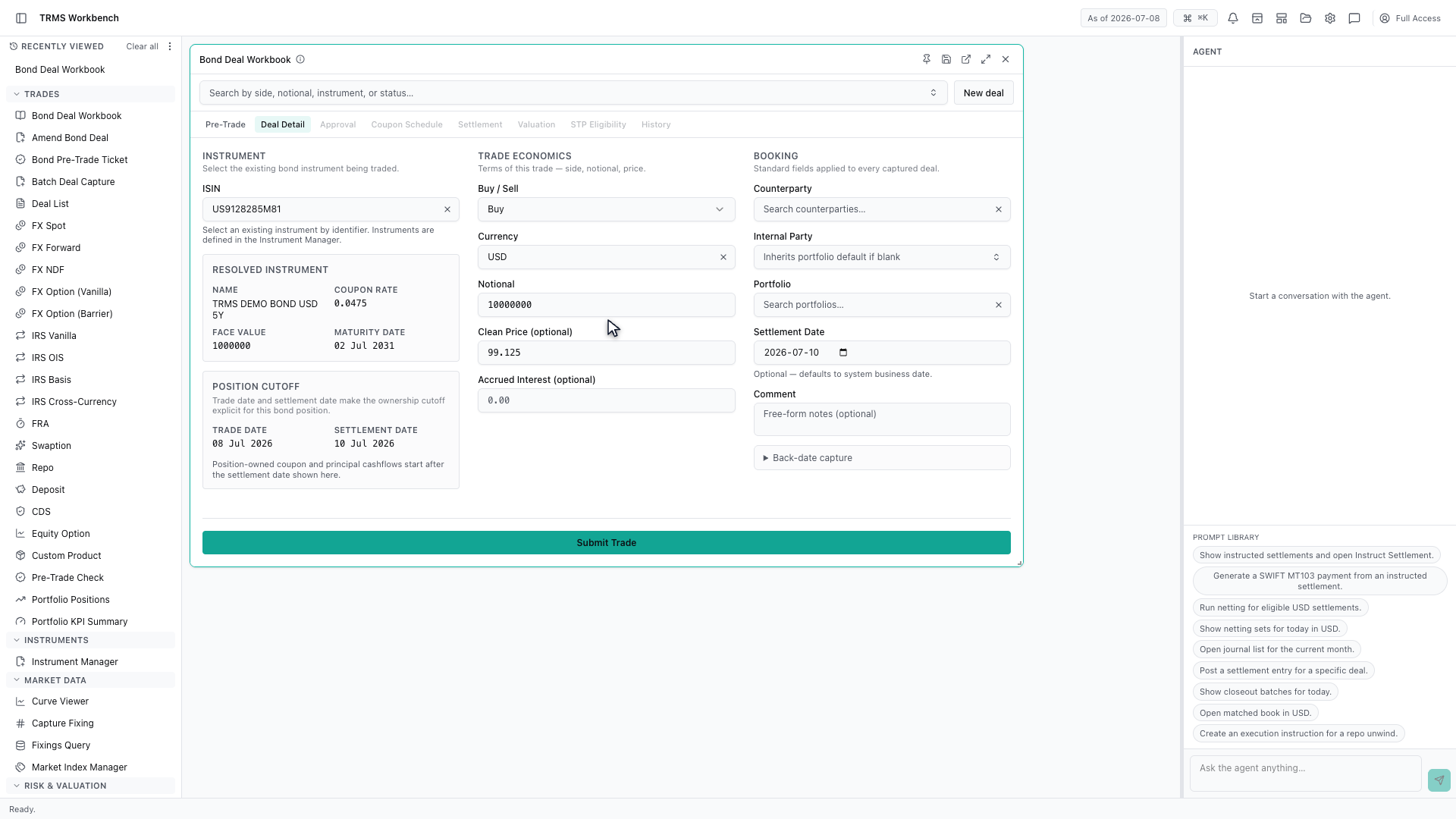
16. Confirm the counterparty
Counterparty and portfolio are not carried over, so confirm them on the booking ticket. Re-entering them here is deliberate — the desk you analysed against is not always the one you book to.
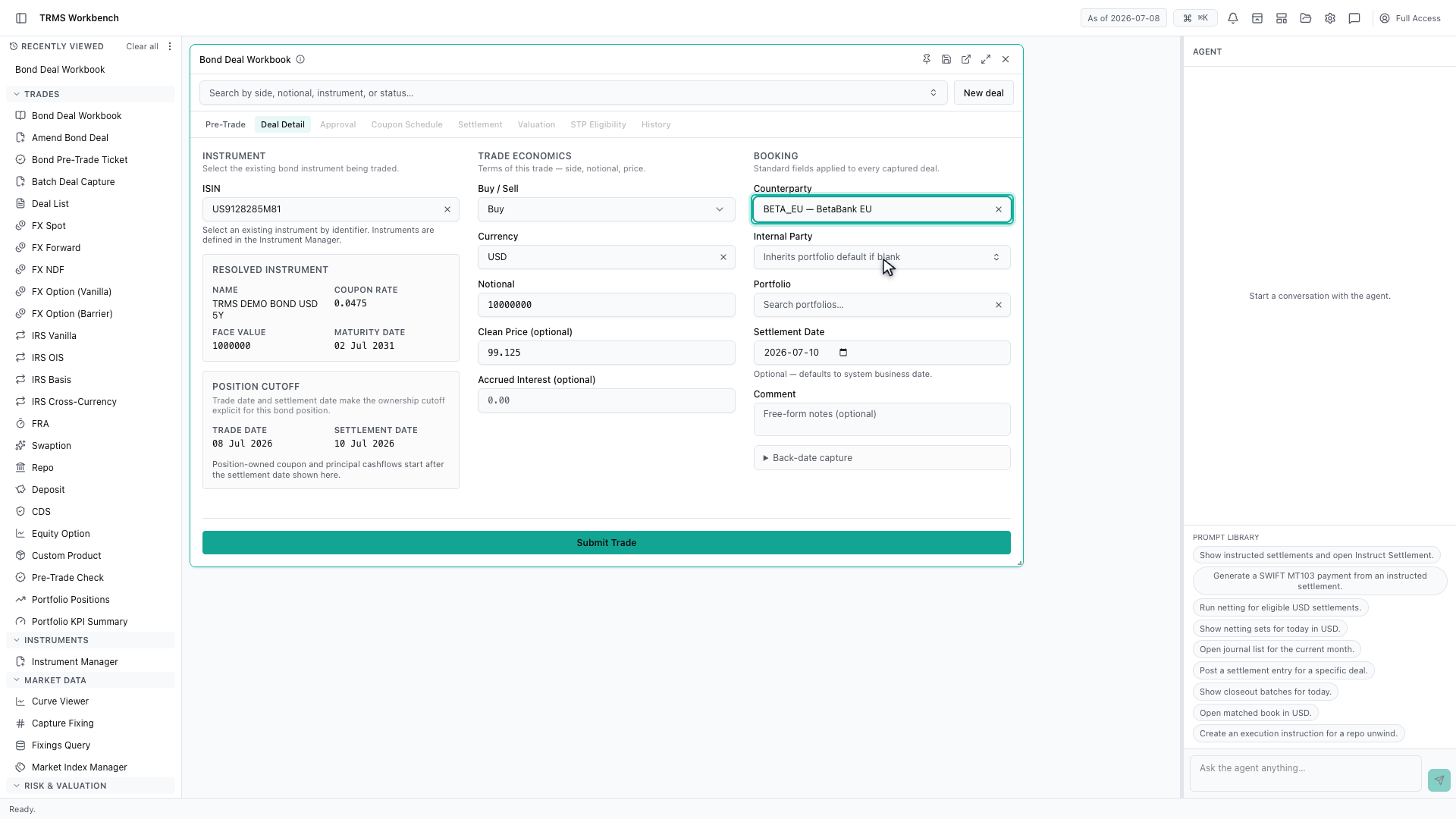
17. Confirm the portfolio
Then the portfolio the position will be held in.
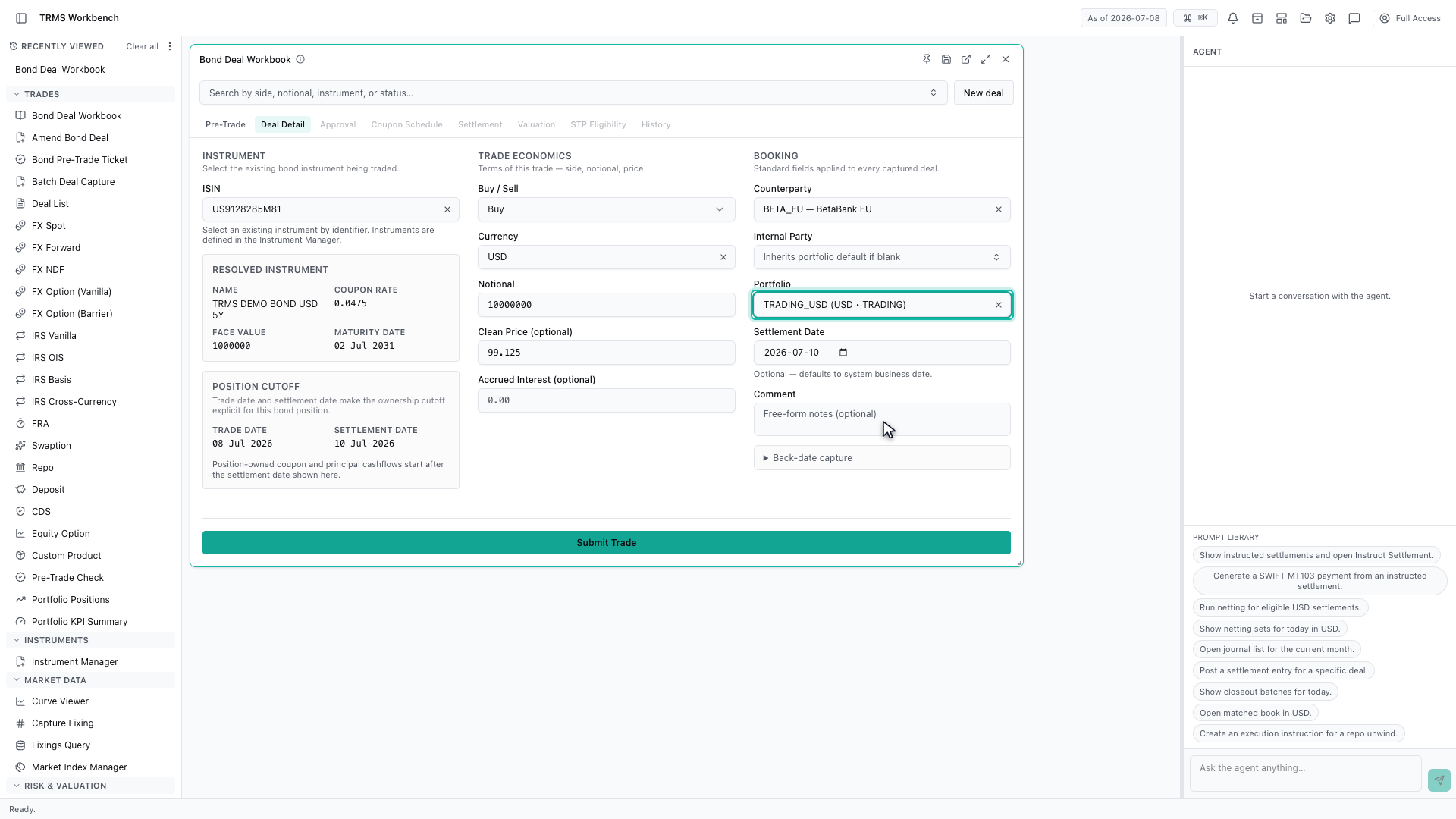
18. The completed booking ticket
The booking ticket is now complete, and ready to submit for approval.
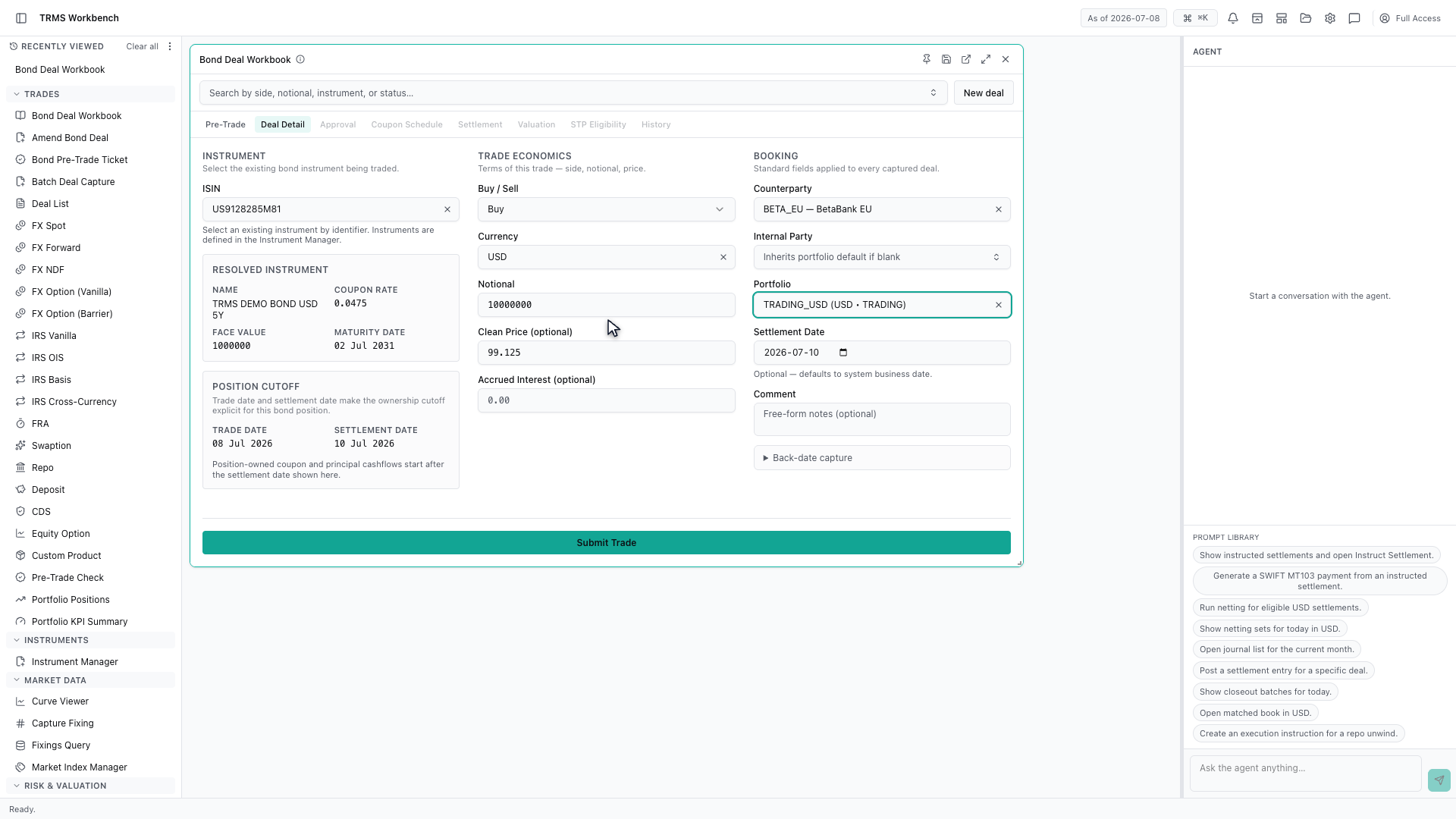
19. Submit the trade
Submit the trade. It is validated against limits and standing instructions, then booked.
20. Review the settlements
The Settlement tab shows the cash movements the deal generated — one row per coupon, each with its payment date, amount and direction.
21. Review the coupon schedule
The Coupon Schedule is the same story from the position's point of view — every future coupon, projected out to maturity.
22. Review the history
And History records every change to the deal, with who made it and when — the audit trail the deal carries for its whole life.
23. Next steps
That completes Bond Pre-Trade and Booking. Every surface shown here can also be opened from the agent panel on the right, by asking for it in plain English.